
3 Monitor Desk Setup Ideas: 15+ Ways to Boost Productivity and Comfort
Last updated:
I’ve used a 3 monitor desk setup for years, and it completely changed how I work. A 2003 University of Utah study found multi screen users improved productivity by up to 42%. When I keep screens 20 to 30 inches away and at eye level, eye strain reduction feels real. Here are 15 plus ideas to improve multitasking, workspace efficiency, monitor alignment, and desk organization.
Key Takeaways
- Triple monitors boost productivity and multitasking.
- Keep screens 20–30 inches away at eye level.
- Center one main monitor, angle side screens inward.
- Side-by-side setups are more ergonomic than stacked.
- Match resolution and refresh rates for smooth use.
- Monitor arms improve comfort and save desk space.
- Dedicated GPU helps for gaming or 4K work.
- Good positioning matters more than more screens.
1. Immersive Surround Screen Setup
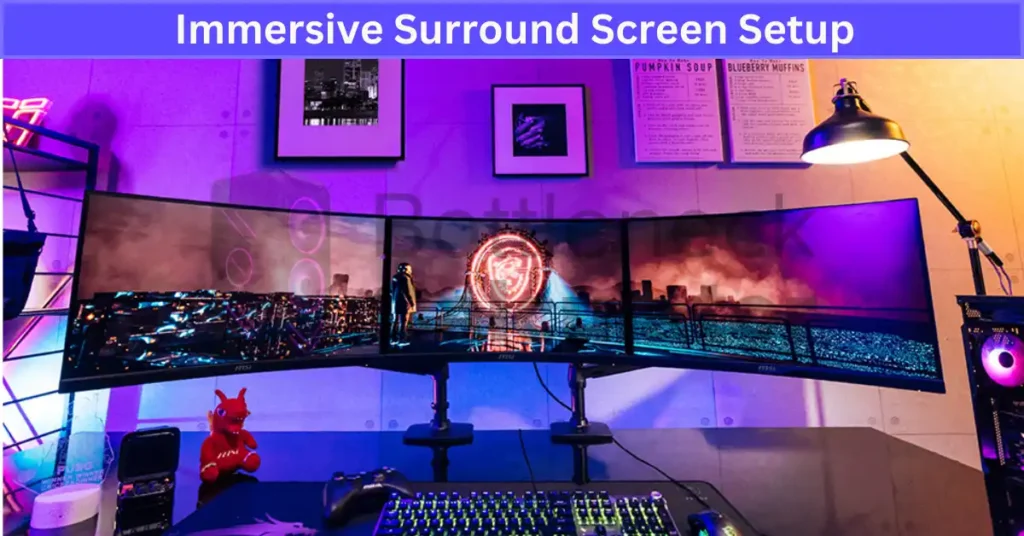
I’ve tried this surround monitor setup for gaming, and honestly, it feels huge. Three screens sit side by side, slightly curved or angled inward about 15 to 30 degrees. Many curved monitors use 1000R to 1800R curvature, which helps create a real panoramic view. It turns a normal desk into a true immersive gaming setup with a wide multi screen display.
Triple monitor gaming setups are one reason many users prefer PC setups over consoles, since PCs allow flexible display expansion and customization compared to traditional systems. If you’re deciding between platforms, understanding console vs PC gaming performance differences can help you choose the right setup.
Best For:
• Immersive gaming setup with a wide field of view
• Stock trading workstation with charts across screens
• Video editing timelines stretched across a triple monitor layout
Setup Tips:
• Use a GPU with proper GPU support like NVIDIA Surround or AMD Eyefinity. They also offer bezel correction to reduce screen gap distortion.
• Keep screens 20 to 30 inches away and slightly curved inward for comfort and better focus.
2. High Performance Productivity Setup
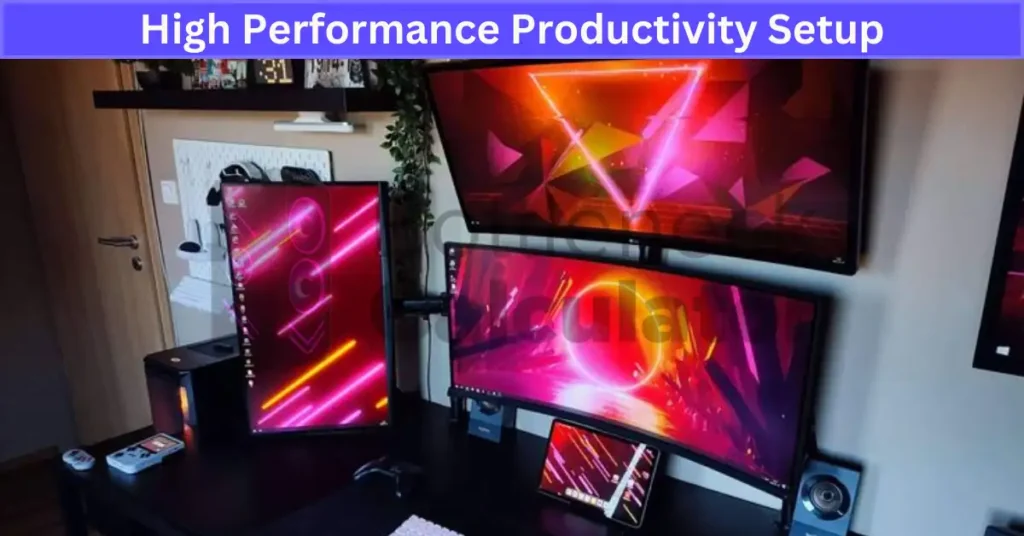
I use this productivity monitor setup when I need focus. Two screens sit side by side, and one goes on top. This stacked monitor setup helps me split tasks. Main work below. Reference or chat above. It cuts window switching and improves workflow efficiency. A 2003 University of Utah study showed multi screen users improved productivity by up to 42%.
A focused workspace is not only about monitor placement but also input comfort. Many productivity users pair multi-monitor desks with ergonomic keyboards using different mechanical key switches to reduce typing fatigue during long sessions.
Best For:
• Remote work desk setup with meetings + documents
• Creative workflow like design, coding, or editing
• Triple monitor workstation needing vertical monitor alignment
Setup Tips:
• Keep the top screen angled 10 to 20 degrees downward. Its center should not sit more than 15 to 20 degrees above eye level to avoid neck strain.
• Use a monitor arm mount for desk space optimization and proper ergonomic monitor height adjustment.
3. Asymmetrical Triple Screen Setup
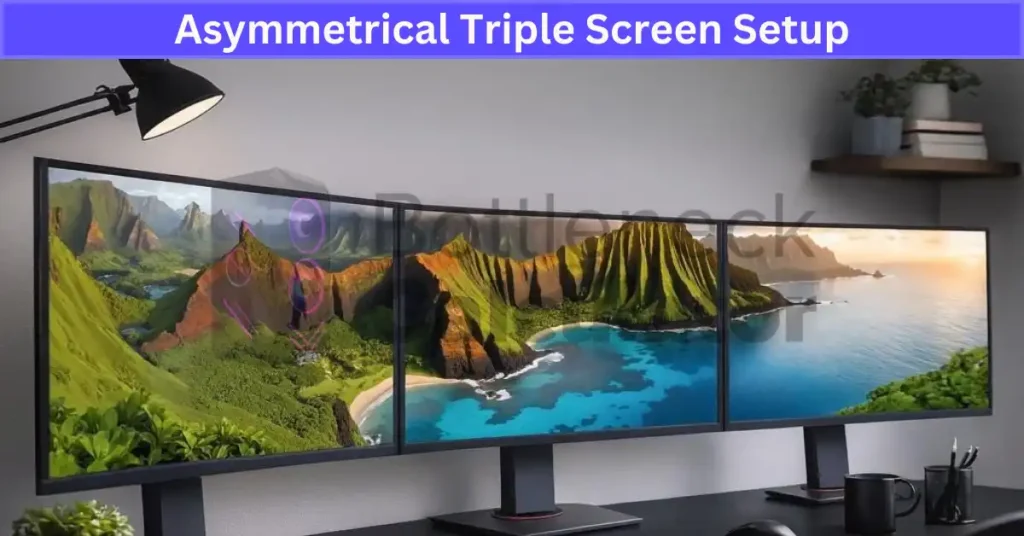
I like this asymmetrical monitor setup when I need space for long content. One landscape monitor stays in the center. Two portrait monitors sit on the sides. This vertical screen layout reduces scrolling for coding or documents. I scroll less. I see more lines at once. It makes a triple monitor workstation feel organized and fast.
Best For:
• Coding desk setup with long scripts
• Documentation or research work
• Media editing workflow with tools on side screens
Setup Tips:
• Angle portrait screens 15 to 30 degrees inward and keep a 20 to 30 inch viewing distance to reduce glare and strain.
• Use screen resolution matching and refresh rate synchronization. Mixing 60Hz and 144Hz can feel uneven and cause cursor lag perception.
4. Vertical Stacked Triple Monitor Layout
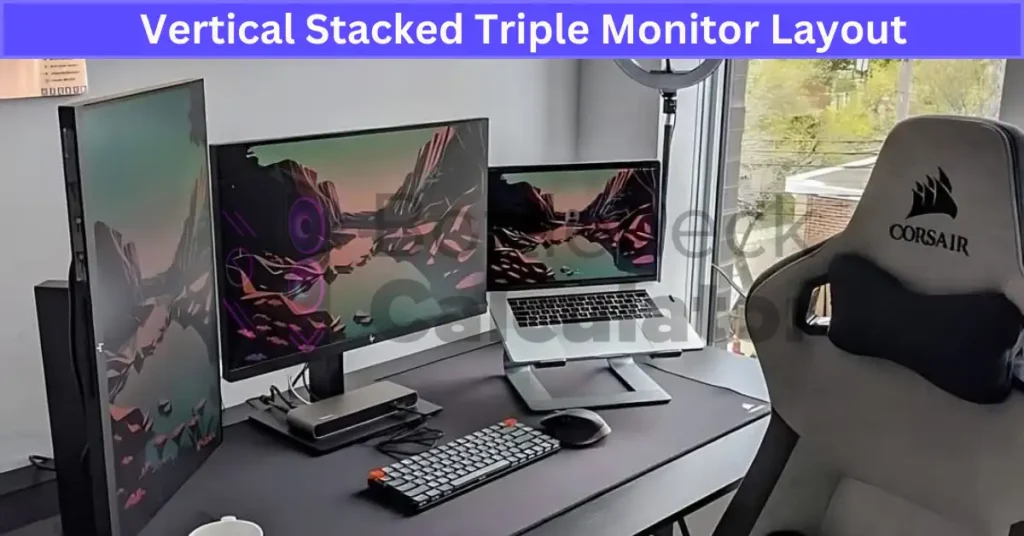
I’ve seen this vertical monitor setup save a lot of desk space. All three screens stack on top of each other in portrait mode. This stacked monitor configuration works well for vertical workflow and compact desk setup needs. It feels tall, but very focused.
Best For:
• Data analysis workstation with long sheets
• Dashboard monitoring for live stats
• Social media monitoring feeds
Setup Tips:
• Keep the top screen no more than 15 to 20 degrees above eye level. Use at least a 24 inch desk depth for safe viewing and ergonomic monitor height.
• Check VESA mount compatibility 75x75mm or 100x100mm and stand weight capacity. Set screen scaling to 100 to 125% for clear reading on 24 to 27 inch monitors.
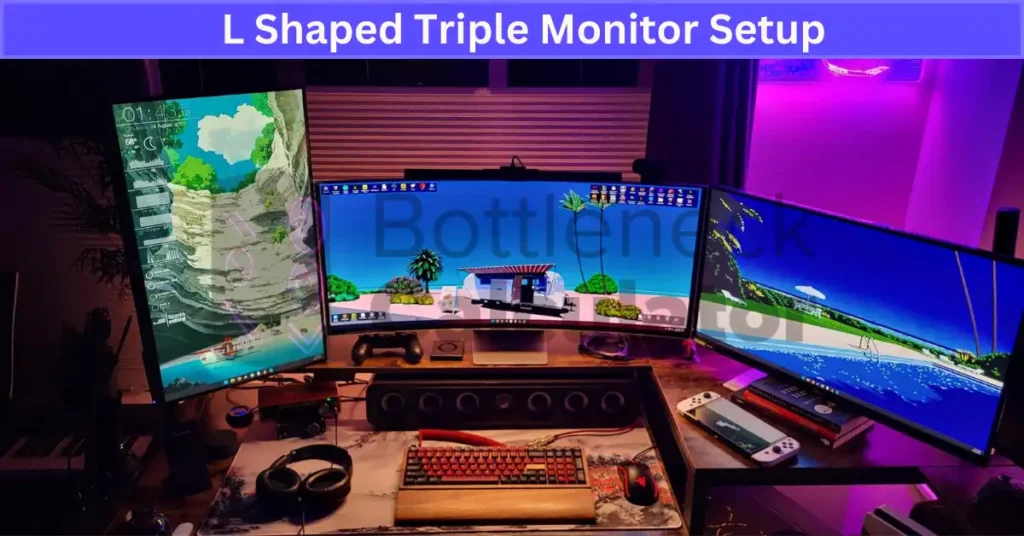
5. L Shaped Triple Monitor Setup
I like this L shaped monitor setup when I use a corner desk workstation. Two screens sit on one side. The third goes on the other side. This triple monitor desk layout creates clear workflow zones. One side for main work. The other for support tasks. It feels organized and great for multitasking setup needs.
Best For:
• Creative workstation with design tools and preview window
• Multitasking setup with email, chat, and main app
• Ergonomic desk design using corner space
Setup Tips:
• Angle the side monitor 30 to 45 degrees inward. This reduces neck turning and improves screen alignment.
• Match brightness synchronization and set color calibration near 6500K for consistent color across displays.
6. Ultra Wide Hybrid Triple Monitor Setup
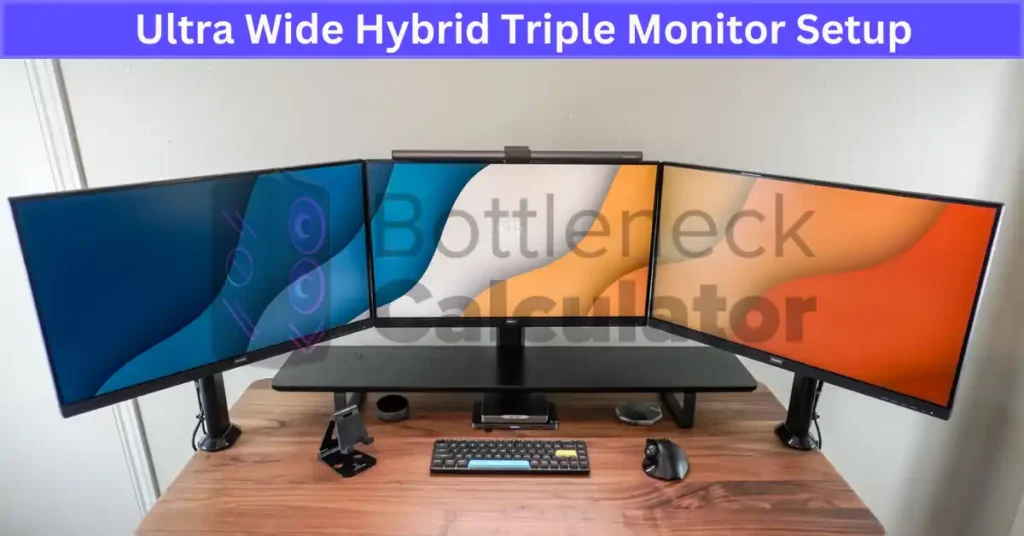
I’ve tried this ultra wide hybrid setup, and it feels powerful. A large ultra wide monitor sits in the center. Two regular screens sit on the sides. This triple monitor layout gives me one wide workspace plus side support displays. It keeps my main task clean in the middle and tools off to the sides.
Best For:
• Video editing and timeline heavy work
• Stock charts and wide spreadsheets
• Gaming and productivity setup mix
Tips for the Best Experience:
• Use a 3440×1440 ultra wide in the center for better horizontal space and sharper detail.
• Angle side monitors 15 to 30 degrees inward and keep them 20 to 30 inches away for ergonomic positioning.
7. Laptop Integrated Triple Monitor Layout
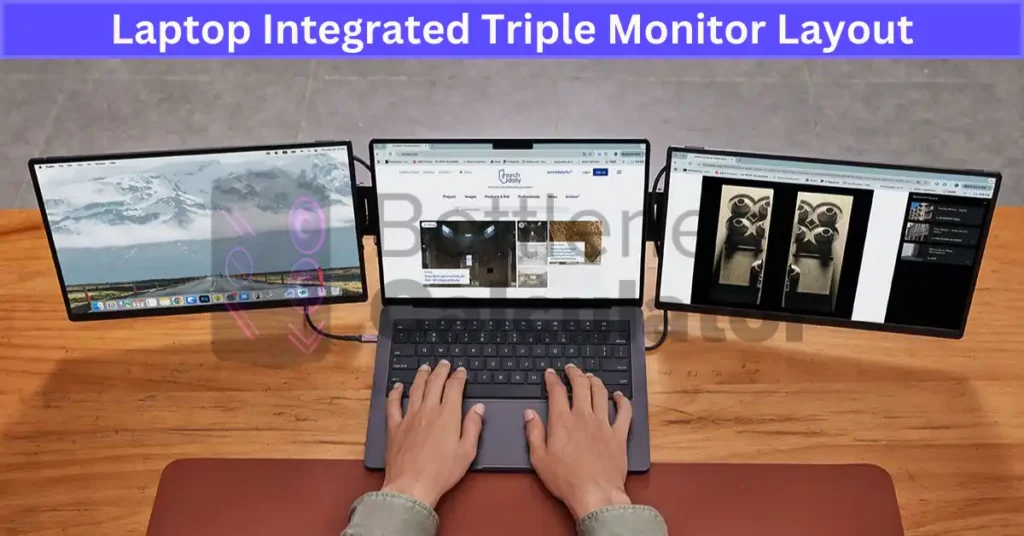
I use this laptop triple monitor setup when I work from home and on the go. Two external screens connect to my laptop, and the laptop becomes the third display. This hybrid workstation keeps my files and apps synced. It feels like a portable workstation but with full desk power.
Best For:
• Remote work desk setup
• Hybrid work and travel days
• Mobile professionals needing a multi display setup
Setup Tips:
• Use extended display mode in Windows Display Settings or macOS Display Arrangement. Check HDMI, DisplayPort, or USB C display support. A Thunderbolt docking station can power multiple 4K displays depending on the laptop hardware capabilities. If you are planning an upgrade, choosing the right device matters, especially when buying a new laptop for multi-monitor setups.
• Use a laptop stand for better laptop stand alignment. Keep the screen top near eye level and 20 to 30 inches away for comfort and airflow.
8. Triple Monitor Streaming Command Setup
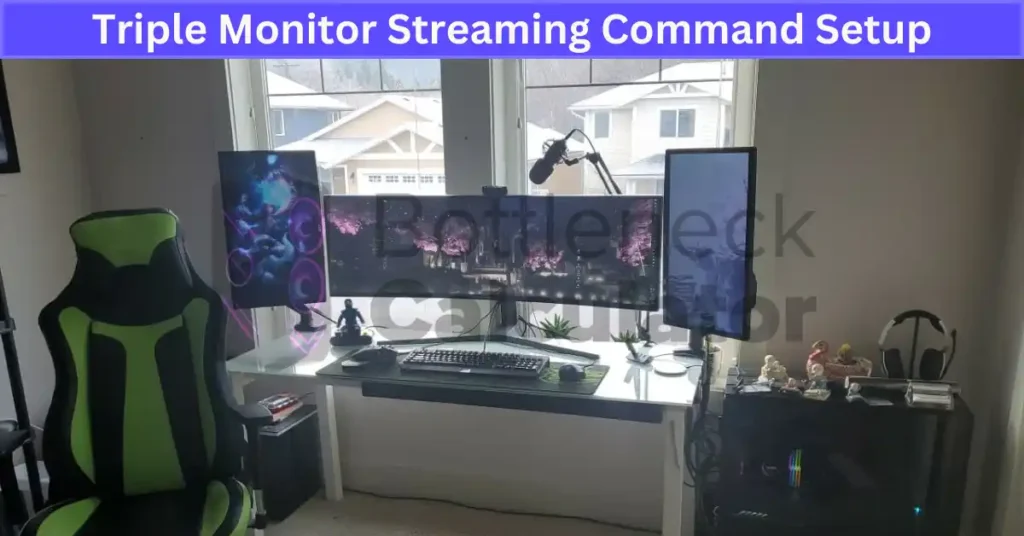
I’ve seen this streaming monitor setup used by many creators. One screen runs gameplay at 144Hz for smooth action. The second handles chat management. The third runs OBS Studio for scene switching and stream control. This triple monitor streaming setup keeps everything visible without tab switching.
Best For:
• Live streaming setup on Twitch or YouTube
• Content creator workstation with gameplay monitoring
• Streamers managing chat and alerts in real time
Tips for the Best Experience:
• Use a low latency monitor with 1ms to 5ms response time for smoother gameplay.
• Set custom hotkeys in OBS Studio for fast scene switching and smoother live control.
9. Mixed Resolution Triple Monitor Setup
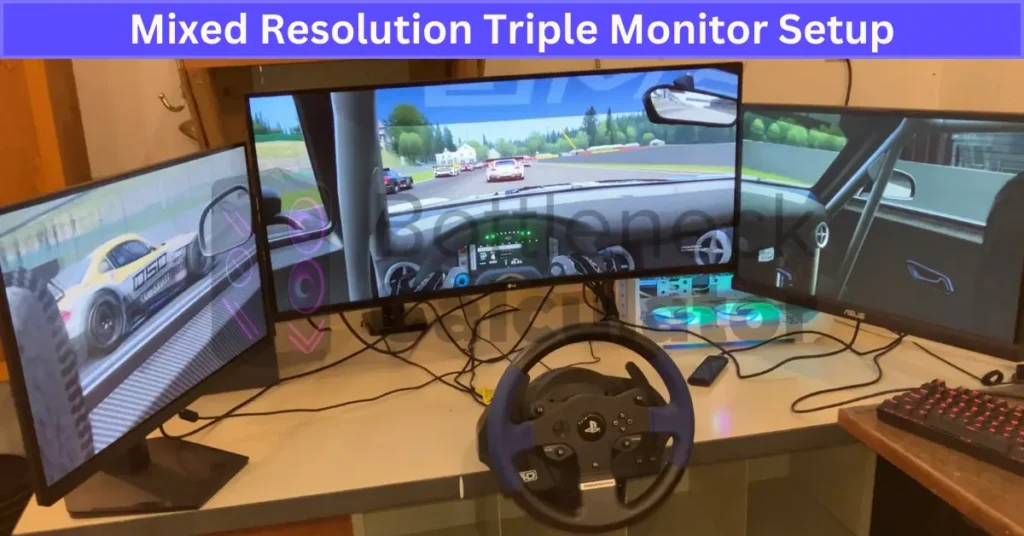
I use a mixed resolution monitor setup when I need detail and space. My primary display runs 4K 3840×2160. The side screens run 1080p 1920×1080. This 4K and 1080p setup lets me keep sharp detail in the center and tools on the sides. It makes a triple monitor workstation more flexible and cost smart.
Ideal for:
• Design work on a high detail primary display
• Research and document review on secondary monitor workflow
Tips for the Best Experience:
• Keep aspect ratio alignment at 16:9 and use display scaling around 125 to 150% on 4K for readable UI.
• Match refresh rates when possible to avoid cursor lag perception across screens.
10. Dual Portrait with Center Landscape Layout
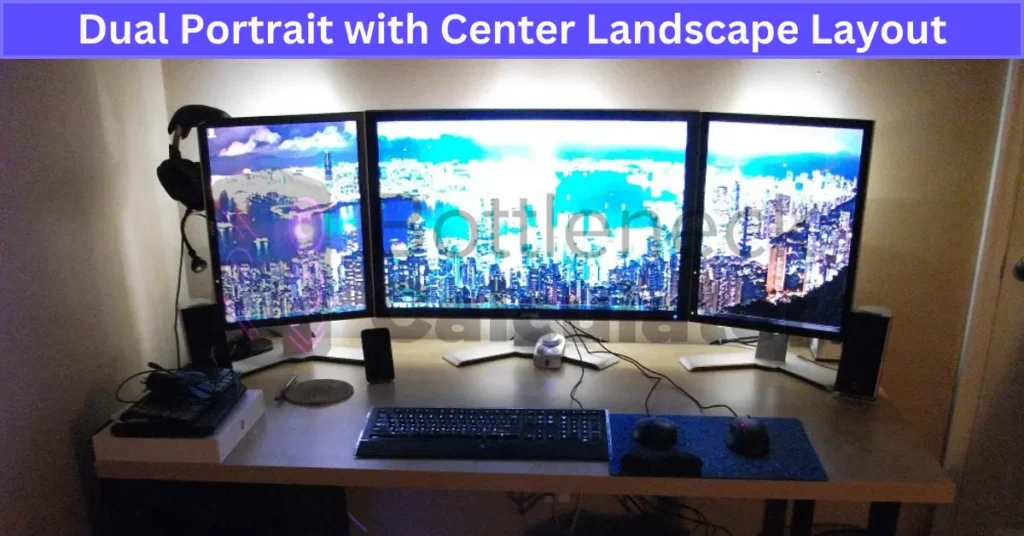
I like this dual portrait monitor setup for focused writing. Two vertical screens sit on the sides. A landscape center monitor stays in front for main tasks. This vertical screen layout reduces scrolling for long documents. I keep editing in the middle and references on the sides. It makes a triple monitor writing setup feel balanced.
Best For:
• Document editing workstation
• Data management and spreadsheets
• Research heavy writing projects
Tips for the Best Experience:
• Angle side monitors 15 to 30 degrees inward and keep the landscape center monitor at eye level, 20 to 30 inches away.
• Use screen resolution matching like all 1080p or all 1440p. A monitor arm adjustment helps with height and tilt control.
11. Dual Landscape with Side Portrait Setup
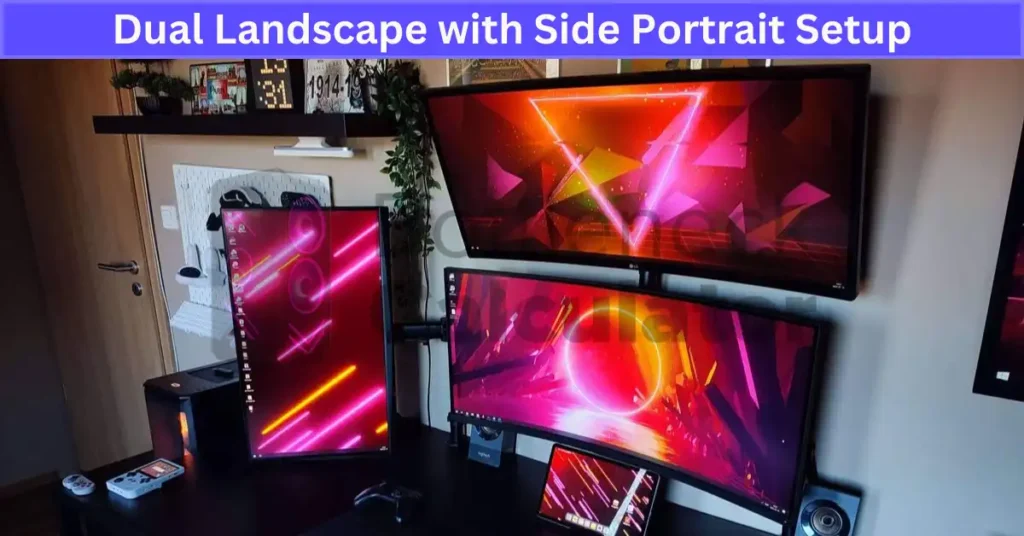
I use this dual landscape monitor setup when I need width and height together. Two landscape screens stay in front for main work. A portrait side monitor handles vertical document view. This triple monitor workstation gives me space for writing and research setup while keeping tall notes visible. It feels balanced, not crowded.
Ideal for:
• Writing and research setup with references open
• Photo editing desk layout with tools on one side
• Projects needing both wide and vertical content
Tips for the Best Experience:
• Keep the portrait side monitor top at or slightly below eye level and 20 to 30 inches away for ergonomic monitor positioning.
• Use screen resolution matching like all 1080p or all 1440p and align refresh rates, such as 60Hz plus 60Hz, for smoother movement.
12. Adjustable Swivel Arm Triple Monitor Setup
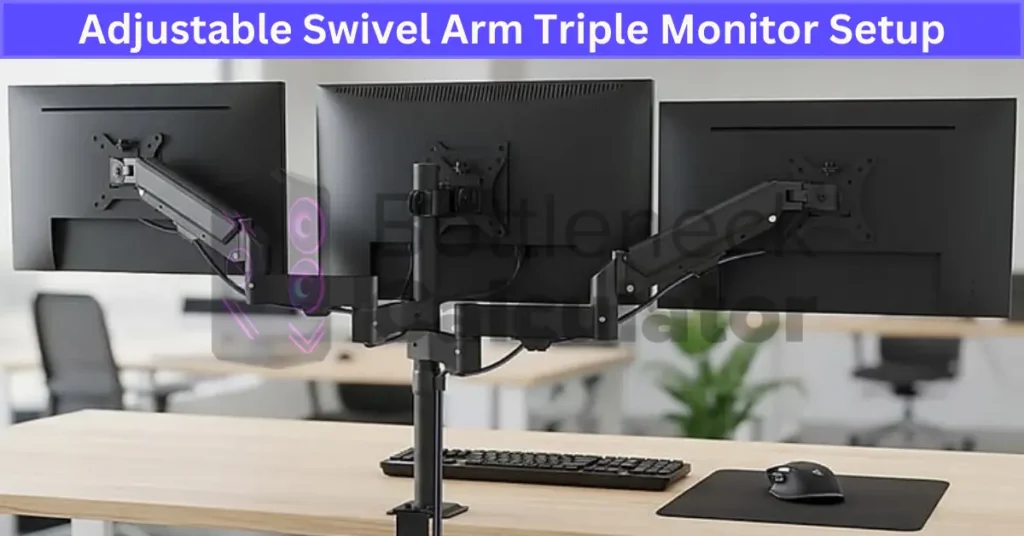
I really like a swivel arm monitor setup because I can move every screen exactly where I want. A triple monitor arm frees desk space and keeps cables cleaner. This flexible monitor setup makes quick changes easy during work or meetings.
Perfect for:
• Collaborative workstation with shared viewing
• Flexible monitor setup for changing tasks
• Small desks needing space optimization
Tips for the Best Experience:
• Check VESA mount compatibility 75x75mm or 100x100mm and confirm weight capacity, often 8 to 20 lbs per monitor depending on the arm.
• Make sure your desk clamp mount fits desk thickness, usually around 0.4 to 3.3 inches, and adjust height so the screen top sits at or slightly below eye level for ergonomic screen positioning.
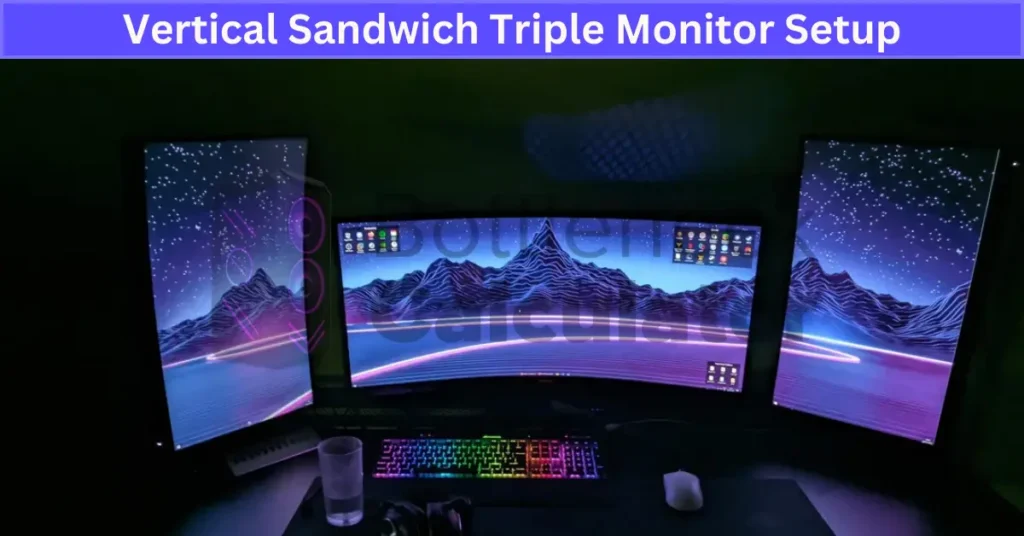
13. Vertical Sandwich Triple Monitor Setup
I call this a vertical sandwich monitor setup because the main landscape screen stays in the center, and portrait side monitors sit on both sides. This triple monitor programming setup keeps my IDE workflow in front and vertical data feeds on the sides. Portrait screens reduce scrolling for long code or trading charts. I keep all screens 20 to 30 inches away, with the center at eye level and sides angled 15 to 30 degrees inward for ergonomic screen alignment.
Best for:
• Programming and long code sessions
• Trading workstation layout with live charts
• Multi monitor configuration needing focused center plus reference sides
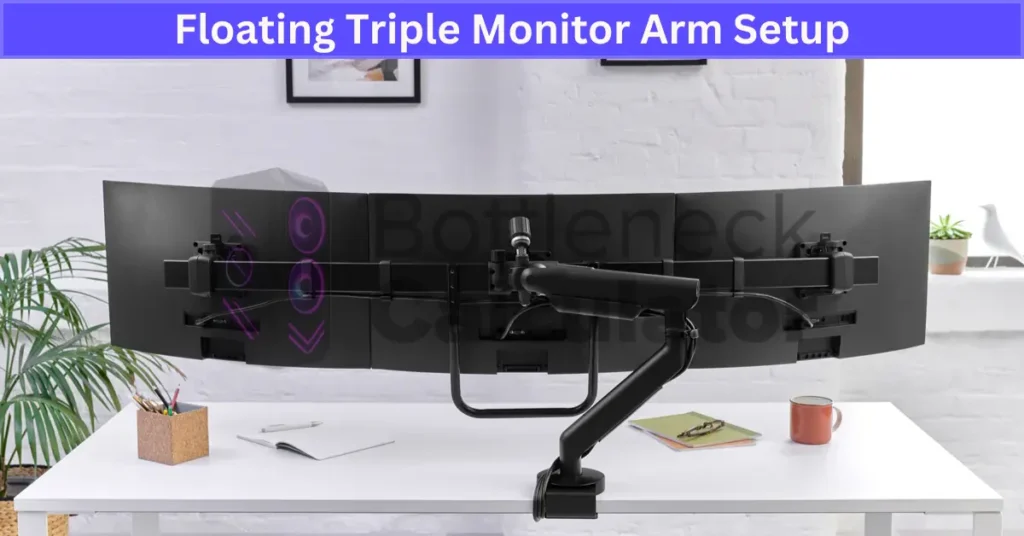
14. Floating Triple Monitor Arm Setup
I like a floating monitor setup because it makes the desk look clean and open. A triple monitor arm setup lifts all screens off the surface. It saves space and gives a modern minimalist desk setup feel. Gas spring monitor arms let me raise or lower screens smoothly without tools.
Perfect for:
• Minimalist desk setup lovers
• Flexible workers who change positions often
• Ergonomic desk design with open space
Tips for the Best Experience:
• Check VESA mount compatibility 75x75mm or 100x100mm and confirm your adjustable monitor mount supports your screen size. Many gas spring arms fit 13 to 27 inch monitors.
• Use built in cable management system channels to hide wires and keep the setup clutter free.
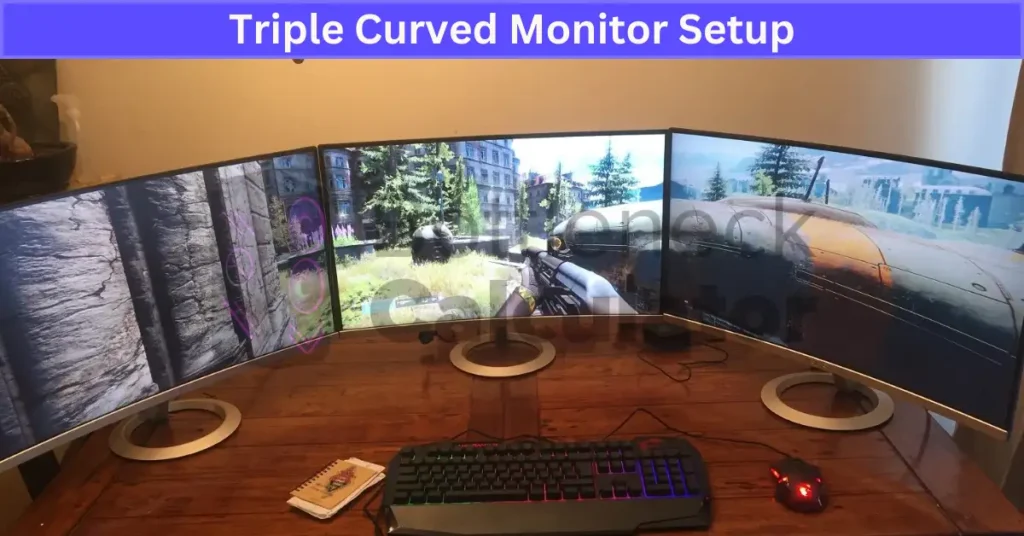
15. Triple Curved Monitor Setup
I like a triple curved monitor setup because it wraps around my vision. Three curved displays create a panoramic screen layout with a more natural ergonomic viewing angle. Many models use 1000R to 1800R curvature, which matches how our eyes see depth. THX viewing guidelines suggest a 30 to 40 degree field of view for comfort, and this curved display configuration follows that idea well.
Great for:
• Writing and research on an immersive workstation
• Social media monitoring with wide dashboards
Tips for the Best Experience:
• Use a 1440p monitor or 4K monitor for better readability and sharper text.
• Angle screens 15 to 30 degrees inward and set text scaling around 125 to 150% for comfortable viewing.
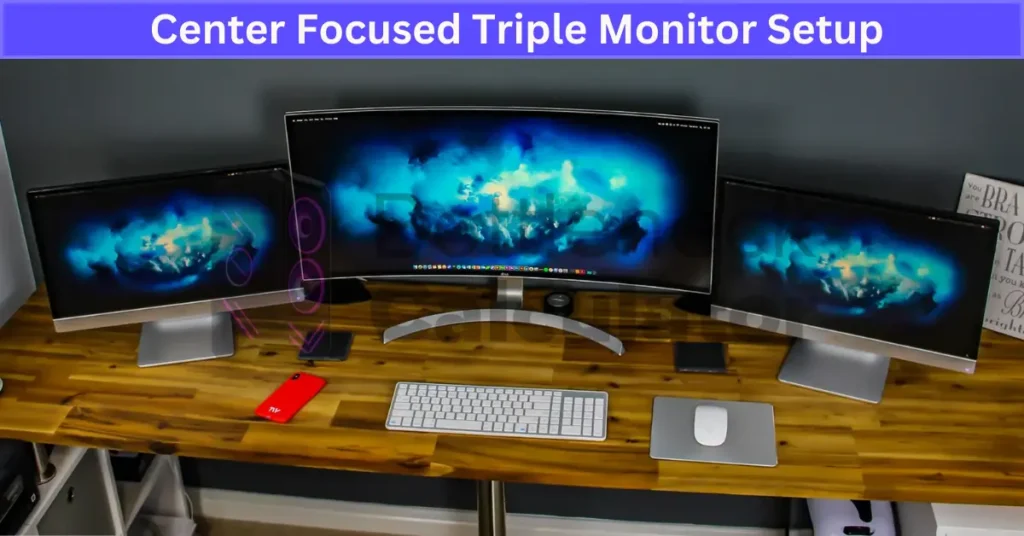
16. Center Focused Triple Monitor Setup
I use this center monitor setup when I need full focus. The main screen stays straight in front. Two angled side monitors support from the sides. This triple monitor layout keeps my focused workstation clean while giving quick access to tools and notes. It works great for a data analysis setup or long writing sessions.
Great for:
• Writers who need a distraction free center
• Data analysts working with charts and sheets
• Productivity desk setup with clear priority screen
Tips for the Best Experience:
• Angle side monitors 15 to 30 degrees inward and keep a 20 to 30 inch viewing distance for ergonomic monitor positioning.
• Use a 1440p display 2560×1440 or 4K 3840×2160 center screen for sharp text. 60Hz works for office use, while a high refresh rate monitor 120 to 144Hz feels smoother.
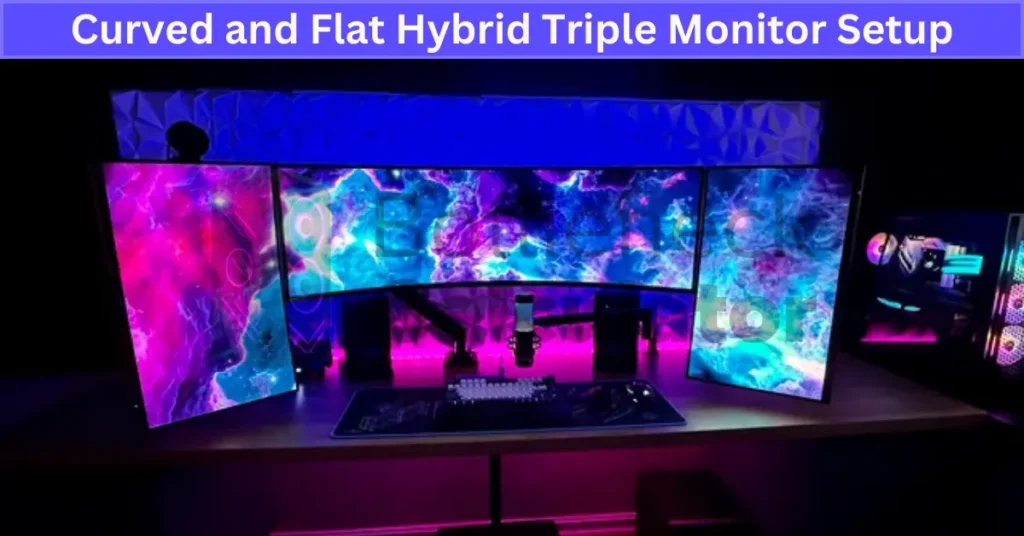
17. Curved and Flat Hybrid Triple Monitor Setup
I like this curved and flat monitor setup because it blends immersion with control. A curved center display wraps the main task around my vision, usually in the 1000R to 1800R range. Flat side panels stay stable for tools and chats. This hybrid triple monitor layout works well for both gaming and productivity setup days.
Perfect for:
• Media editing workstation needing sharp focus
• Gaming and productivity setup combo
• Users who want immersive center with steady side screens
Tips for the Best Experience:
• Angle side monitors 15 to 30 degrees inward and keep a 20 to 30 inch viewing distance for comfort.
• Match color profile calibration using the sRGB standard and consider 1440p or 4K on the curved center display for better clarity.
Should You Stack or Align Triple Monitors Side by Side?
I get this question a lot. Should you use side by side monitors or a stacked monitor setup? Both work. But triple monitor alignment affects comfort more than people think. It really comes down to workstation ergonomics and neck strain prevention.
Side by Side Setup
• Supports natural horizontal eye movement
• Reduces vertical neck extension
• Better for long work sessions
• Easier monitor height alignment at eye level
Stacked Setup
• Saves desk space
• Good for reference screens
• Can increase neck strain if the top screen sits too high
• Works best when the upper monitor is not your primary display
According to Cornell University Ergonomics Web guidelines for computer use, horizontal eye movement is generally less stressful than repeated vertical neck extension. Looking upward for long periods increases neck strain. For most people, side by side monitors work better for full day tasks. If you stack, keep the top screen slightly below eye level and 20 to 30 inches away.
Is a Stacked Monitor Setup Bad for Your Neck?
I’ve seen people worry about this. A stacked monitor setup can cause neck strain if the screens sit too high. The problem is vertical monitor positioning that forces you to tilt your head upward for long periods. That upward angle increases pressure on the cervical spine and affects workstation posture.
According to the Occupational Safety and Health Administration OSHA Computer Workstation eTool, the top of the monitor should sit at or slightly below eye level to reduce neck strain. OSHA workstation guidelines explain that sustained upward head tilt increases discomfort over time. Neutral posture keeps your head upright with ears aligned over shoulders.
How to Reduce Risk:
• Keep your primary screen at or slightly below eye level for proper eye level alignment.
• Avoid placing frequently used content on the top monitor.
• Maintain a 20 to 30 inch viewing distance.
• Use adjustable arms to fine tune ergonomic monitor height.
So stacking is not automatically bad. Poor triple monitor ergonomics and bad positioning cause the real problem.
How to Arrange 27 34 27 Monitors for Maximum Comfort
I like this layout because it feels balanced. A 34 inch ultrawide sits in the center. Two 27 inch monitors stay on the sides. The big screen handles main work. The smaller ones support it. This keeps your primary workflow centered and clean.
Step 1. Center the 34 Inch Ultrawide
Place it directly in front of you.
Keep the top at or slightly below eye level.
Sit about 24 to 30 inches away.
Most 34 inch screens use 3440×1440, which works well as the main workspace.
Step 2. Angle the 27 Inch Side Monitors
Tilt each side monitor 15 to 30 degrees inward.
Keep their height aligned with the center screen.
Use them for chat, dashboards, or references.
Turn slightly from your torso, not just your neck.
Step 3. Match Display Settings
Keep brightness similar on all screens.
Set color temperature around 6500K.
Use scaling like 125% if text feels small.
Match refresh rates such as 60Hz plus 60Hz or 144Hz plus 144Hz.
Comfort Optimization Tips
• Use monitor arms for fine height and angle control.
• Keep a neutral neck posture with ears over shoulders.
• Make sure your desk depth is at least 24 inches.
• Do not place the ultrawide too high.
This setup works because the 34 inch screen reduces window switching. The 27 inch side displays support without crowding your vision.
Optimal Desk Depth for a Triple Monitor Setup
Desk depth matters more than people think. If your desk is too shallow, you lean forward. That leads to eye strain and poor workstation ergonomics. Good triple monitor desk depth keeps your posture upright and relaxed.
According to Ergotron Workspace Planner ergonomic workspace standards, the ideal ergonomic viewing distance is generally 20 to 40 inches, depending on screen size and resolution. Larger or ultrawide monitors usually need more distance than smaller 16:9 screens.
Recommended Desk Depth
• 24 inch monitors → minimum 24 inch desk depth
• 27 inch monitors → 24 to 30 inches recommended
• 32 to 34 inch monitors → 30 inches or more ideal
• Mixed 27 34 27 setup → 30 inches preferred
Practical Setup Tips
• Keep the top of each screen at or slightly below eye level
• Avoid leaning forward to read small text
• Use monitor arms to improve monitor positioning and reclaim space
Deeper desks, around 30 inches or more, help prevent forward head posture and support better desk size for triple monitors.
How to Properly Center Triple Monitors to Minimize Bezel Distraction
Bezel distraction happens when the black frame between screens pulls your eyes away from your work. In a triple monitor alignment, bad centering makes it worse. If you center across all three screens instead of your main one, you force small head turns all day. That leads to visual fatigue.
Step by Step Centering Method
First, align your chair with your desk.
Then place your primary monitor directly in front of your nose. Not centered across all three.
Keep the top of the screen at or slightly below eye level.
Maintain a 20 to 30 inch viewing distance for proper ergonomic monitor positioning.
Bezel Optimization Tips
• Angle side screens 15 to 30 degrees inward for better screen alignment.
• Enable bezel compensation in NVIDIA Surround or AMD Eyefinity. This adjusts pixel output to account for frame gaps.
• Match monitor heights carefully. Use a level if needed.
• Choose thin bezel displays when possible for a cleaner centered monitor setup.
Is an Ultrawide Better as Your Primary Monitor in a Triple Setup?
I’ve tested this in my own triple monitor workstation. A 34 inch ultrawide with 3440×1440 resolution works great as the center screen. It gives about 33% more horizontal pixels than a 2560×1440 display. That means less window switching and fewer bezel breaks in your productivity monitor setup.
Benefits
A curved ultrawide display gives a wider timeline for editing.
It reduces central bezel interruption compared to two 16:9 monitors.
It keeps your main task fully centered.
Drawbacks
It needs more desk depth for ultrawide use, around 30 inches is ideal.
Gaming at 3440×1440 increases GPU load.
If not centered well, it can cause extra head movement.
Best Setup Tips
• Place the ultrawide directly in front of you at eye level.
• Keep 24 to 30 inches viewing distance.
• Angle side monitors 15 to 30 degrees inward for ergonomic monitor positioning.
How to Mount an Ultrawide Above Dual Monitors Safely and Ergonomically
I’ve seen this layout look amazing, but it needs careful setup. A 34 inch ultrawide, usually 3440×1440, sits above two landscape monitors. It saves space, but the top screen should not be your primary display for long sessions. Too much upward viewing increases neck strain.
Step by Step Mounting Guide
1. Verify VESA Compatibility
Most 34 inch ultrawides use 100x100mm VESA.
Check weight. Many range 15 to 25 lbs without the stand.
2. Choose a Strong Mount
Use a heavy duty vertical mount or reinforced arm.
Confirm desk clamp thickness support and total load rating.
3. Position Ergonomically
Lower monitors should sit at or slightly below eye level.
Angle the ultrawide downward 10 to 20 degrees.
Use it for dashboards or reference tasks.
4. Maintain Safe Viewing Distance
Keep about 24 to 30 inches from a 34 inch screen.
General ergonomic guidance suggests 20 to 40 inches depending on size.
Hardware Checklist
• 100x100mm VESA mount
• Arm rated for combined monitor weight
• Desk depth around 30 inches
• Built in cable management
Stacking works well if height is controlled. Keep primary work on the lower screens and limit vertical neck extension.
How to Connect 3 Monitors to One PC HDMI DisplayPort USB C Explained
Connecting three screens is easier than most people think. Most modern GPUs already support multiple outputs. According to the NVIDIA Multi Display Technology Guide, many NVIDIA graphics cards support 3 to 4 simultaneous displays depending on the model and available HDMI or DisplayPort ports.
Understanding Your Connection Options
HDMI
Common and widely compatible.
Supports 1080p, 1440p, and 4K depending on version. HDMI 2.0 and 2.1 handle higher refresh rates.
DisplayPort
Higher bandwidth and better for multi monitor setups.
Supports high refresh rates and MST daisy chaining on supported displays.
USB C / Thunderbolt
Carries video, data, and power.
Thunderbolt 3 or 4 can support high resolution multi display output depending on the device.
How to Connect
- Check available GPU ports.
- Plug monitors into the graphics card, not the motherboard unless using integrated graphics.
- Open display settings and select Extend.
- Arrange screens to match your physical layout.
Quick Troubleshooting
• Update GPU drivers.
• Match refresh rates across screens.
• Use certified high bandwidth cables.
• Confirm your GPU supports three active outputs.
Do You Need a Dedicated GPU for Triple Monitors?
Not always. For basic web browsing, documents, and office tasks, integrated graphics can handle triple monitors if supported. But for gaming, 4K video editing, or 144Hz displays, a dedicated GPU is strongly recommended. Higher resolution and refresh rates need more bandwidth and processing power. If you want smooth performance and stability, especially in a gaming setup, a dedicated graphics card is the safer choice.
Can Integrated Graphics Run 3 Displays?
Yes, in many cases. According to Intel Graphics Display Support Documentation, many Intel integrated GPUs support up to three simultaneous displays depending on the processor, motherboard, and available output configuration.
But there are limits. Not all motherboards provide three physical video ports. BIOS settings may need multi display enabled. Resolution and refresh rate caps can also apply. Before buying adapters, check your CPU model, motherboard specs, and supported display combinations carefully.
VESA Mount Standards Explained
VESA stands for the Video Electronics Standards Association. It is the official group that governs the Mounting Interface Standard MIS for displays. This standard makes sure monitors and mounts fit together correctly.
What Is VESA MIS?
The VESA Mounting Interface Standard defines the spacing in millimeters between mounting holes on the back of a monitor. This ensures arm, stand, and wall bracket compatibility.
What Is MIS D?
According to official VESA documentation, MIS D is the most common category for computer monitors. It usually covers displays under 30 inches. MIS D includes:
• 75×75mm hole pattern
• 100×100mm hole pattern
• Typically M4 screws, length depends on monitor design
These numbers show the horizontal and vertical distance between screw holes.
How to Check Compatibility
• Look for VESA 75×75 or 100×100 in monitor specs
• Confirm the mount supports MIS D
• Check weight capacity
• Use the correct M4 screw length and avoid overtightening
Does 3 Monitors Increase Productivity? Research Summary
I get asked this a lot. Do three screens really help, or is it just hype? Research gives a clear answer.
According to Jon Peddie Research, users working with multiple monitors saw productivity gains ranging from 20% to 42%, depending on workflow complexity. The study found that extra screens reduce time lost switching between windows and improve task continuity. Data analysis, coding, trading, and creative editing showed the biggest improvements.
Triple monitors improve workflow because they reduce window toggling, allow faster side by side comparison, and improve multitasking efficiency. But poor triple monitor alignment or bad ergonomics can reduce those gains.
Gains are highest when:
• Work involves heavy data or dashboards
• Research and writing require constant reference checks
• Editing timelines need wide horizontal space
So yes, three monitors can boost productivity. But only when the setup matches the task and follows good ergonomic positioning.
Conclusion
A triple monitor setup can seriously improve how you work if you set it up the right way. When screens are centered properly, angled 15 to 30 degrees inward, and placed about 20 to 30 inches away, productivity and comfort both improve. Research even shows multi monitor users can see measurable efficiency gains when the layout matches the task.
But more screens do not automatically mean better results. Poor alignment, wrong desk depth, or bad posture can cancel the benefits. If you focus on ergonomic positioning and match the setup to your workflow, three monitors can feel smooth, organized, and surprisingly comfortable.
What is the best setup for 3 monitors?
The best setup depends on your work. For most people, a centered main monitor with two angled side screens works best. This keeps your primary display directly in front of you and reduces neck strain.
Angle side monitors 15 to 30 degrees inward. Keep the top of the screen at or slightly below eye level. Maintain a 20 to 30 inch viewing distance. That layout supports productivity and ergonomic monitor positioning.
Is a 3 monitor setup overkill?
No, not if your workflow needs it. Triple monitors help with multitasking, research, coding, trading, and editing. But if you only browse the web or write simple documents, two screens may be enough.
It depends on task complexity, not trend.
Is 3 monitors too much for a GPU?
Not usually. Most modern GPUs support 3 to 4 displays. The real limit depends on resolution and refresh rate.
Three 1080p 60Hz monitors are easy to run. Three 4K 144Hz displays require a strong graphics card. Gaming across all three screens increases GPU load significantly.
What are the disadvantages of 3 monitors?
Triple monitors take more desk space. They increase cable clutter. They can also cause neck strain if poorly aligned.
Higher resolutions raise GPU demand. And power consumption increases slightly. Proper setup reduces most of these downsides.
Can my CPU handle 3 monitors?
Yes. The CPU does not directly drive displays. The GPU handles video output.
If you use integrated graphics, support depends on your processor and motherboard ports. For heavy gaming or editing, a dedicated GPU improves stability.
What are some creative uses for 3 monitors?
Center screen for writing, sides for research
Gaming on one, stream tools on another
Coding in the middle, documentation on sides
Trading dashboards across three screens
Video editing timeline stretched wide
Triple monitors improve organization when used with a clear workflow plan.
