
PC Bottleneck Calculator
How To Use PC Bottleneck Calculator
Step 1: Choose your CPU from the dropdown.
Step 2: Select your GPU from the list.
Step 3: Pick your preferred resolution.
Step 4: Click “Check Bottleneck” to analyze performance.
Step 5: View your result to see which part limits your system.
To get best performance from your system, it’s necessary to plan a balanced build and try to identify early whether you’re CPU-bound or GPU-bound. Our CPU bottleneck calculator will help you to quickly get your bottleneck percentage so you know what is slowing down the PC.
For detailed help, see our guide on how to Build a Custom PC. If you’re planning a laptop purchase or comparing mobile performance, our full Laptop Buying Guide explains how CPU and GPU balance also applies to modern laptops, helping you choose the best setup for gaming, study, or creative work.
Easy Input
Just select your CPU and GPU—no complex setup needed. Our calculator analyzes component utilization and give estimate impact on FPS at your selected resolution.
Compatibility Check
Know instantly if your CPU and GPU are a good match, thanks to a simple CPU-bound or GPU-bound indicator that works like a cpu gpu bottleneck calculator, helping you understand which part needs an upgrade first.
Bottleneck Score
The bottleneck percentage score clearly shows how big the issue is and points out the limiting component, similar to using a computer bottleneck checker for upgrade planning.
Upgrade Advice
Find out whether you should upgrade your CPU or GPU for better performance.
Smarter Choices
Avoid wasting money by fixing what matters first like driver updates, close background processes or try dual-channel RAM.
How To Use PC Bottleneck Calculator Video
Understanding the PC Bottleneck Calculator
This PC bottleneck calculator pinpoints whether you’re CPU-bound or GPU-bound, so if you ever felt to check “what’s my bottleneck” during gaming and multitasking, you will get clear answer. I find it most useful when frame pacing feels uneven or software isn’t running smoothly, it gives a quick answer instead of guessing. If you want to estimate your actual in-game frame rates before upgrading, try our detailed FPS Calculator to see expected performance at 1080p, 1440p, or 4K.
I designed it to compare your CPU, GPU, and RAM to check their balance, you can say it is working like CPU-GPU combo calculator that highlights mismatches. The CPU-GPU bottleneck calculator analyzes utilization patterns and give you a bottleneck percentage which clearly shows the severity of the issue for gamers and PC builders.
The tool uses smart calculations to detect hardware mismatches. It then gives a percentage score that shows how severe the bottleneck is. For deeper validation, many users cross-check with industry-standard benchmarks like UserBenchmark’s CPU vs GPU comparisons, PassMark’s CPU and GPU charts, or stress tests such as 3DMark by UL Benchmarks. Some people also look at the bottleneck calculator userbenchmark comparison to double-check their numbers.
This is great for checking your system’s current performance, planning future upgrades, or spotting a PC build bottleneck before it slows you down. For many users, it also acts as a simple bottleneck checker that shows whether your system is limited by the CPU or GPU. Even laptop users can benefit, since a dedicated laptop bottleneck calculator helps reveal whether mobile CPUs and GPUs are balanced for gaming or productivity.
Why Our Bottleneck Calculator Is the Right Choice
I’ve tested a lot of tools, and trust matters here. This is why I choose this bottleneck calculator when I want clear answers. It focuses on real results and clean data. That helps me feel sure about every PC bottleneck analysis I run.
Built for everyone and free
Gamers, creators, students, general users. Anyone can use it. Results load fast. No paywalls. Just quick answers that help.
Always updated hardware data
Hardware changes fast. This calculator stays updated with the latest CPU and GPU releases. That makes hardware compatibility checks simple. I can test old builds or new setups without worrying about outdated data. Gaming performance results feel current and useful.
Clear graphs and easy results
I like seeing problems, not guessing them. The performance graphs show limits fast. PC optimization issues stand out right away. Comparisons make choices easier.
Accuracy you can rely on
I care about numbers being real. This tool uses smart algorithms and component level scoring. It checks CPU GPU bottleneck limits using real world benchmarks, like PassMark and Cinebench style workloads. The results match actual system performance I see in games and daily use. It also keeps recalibrating for new game engines, rendering tasks, and multitasking loads.
How to Understand Bottleneck Calculator Results
I’ve noticed people run the tool and then feel stuck. The numbers show up, but the meaning feels fuzzy. Knowing how to read bottleneck calculator results helps you trust the PC bottleneck analysis and make better choices.
Performance Analysis Explained
This part shows how your system performs as a whole. The tool looks at the CPU, GPU, and RAM you picked. It checks them using real world benchmarks, similar to gaming and work tests. No math on screen. Just results. You’ll see labels like No Bottleneck, Moderate, or Bottleneck Detected. A small bottleneck around 5 to 10 percent is normal. I see that a lot, and it usually does not mean you need upgrades.
Utilization Insights Made Simple
Here, the tool shows hardware utilization. CPU, GPU, and RAM usage appear as visual graphs. These performance graphs help spot limits fast. If the GPU hits max while the CPU stays low, that hints at a CPU GPU bottleneck balance issue. You can click and expand graphs to see more detail. Results may change based on use. Gaming at 1080p looks different than 4K or editing work.
Optimization and Upgrade Recommendations
At the end, the tool suggests fixes based on results. I see three clear paths here.
- First, software tweaks for PC optimization.
- Second, setting changes for better balance.
- Third, upgrade recommendations if the bottleneck is heavy and constant.
System Information Check
This part lists detected system info. CPU model, GPU model, RAM size. I always double check this. Wrong info leads to wrong results. Accurate data improves system health score accuracy.
Screenshot shown below this section in the tool.
Comparison Section Overview
This section compares CPU and GPU power side by side. The performance comparison chart shows which part holds the system back. I use this to understand gaming performance limits and PC optimization needs. It keeps things visual and easy to read.
Common CPU vs GPU Bottleneck Scenarios Explained
People look at CPU GPU usage and wonder what it really means. Both parts share the work. The CPU handles logic and tasks. The GPU draws the frames. When one works harder than the other, a PC performance bottleneck shows up. Reading these patterns helps fix gaming performance issues faster.
Low CPU Usage and Low GPU Usage
This setup usually shows light workloads. I see this in older games, browser games, or simple apps. The system utilization stays low because the hardware is not pushed. No real CPU bottleneck or GPU bottleneck here. The fix is simple. Raise game settings or resolution. Let the hardware work.
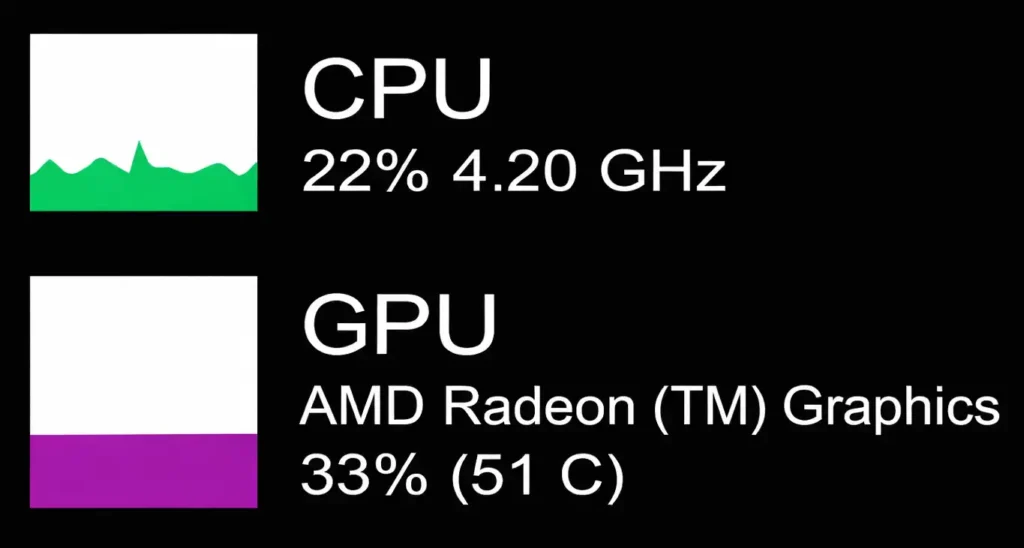
Low CPU Usage and Maximum GPU Usage
This pattern points to a GPU bottleneck. The GPU runs close to 95 to 100 percent, while the CPU stays relaxed. That is normal and even ideal for gaming performance. In modern AAA games at high settings. If frames feel low, lowering graphics or upgrading the GPU helps.
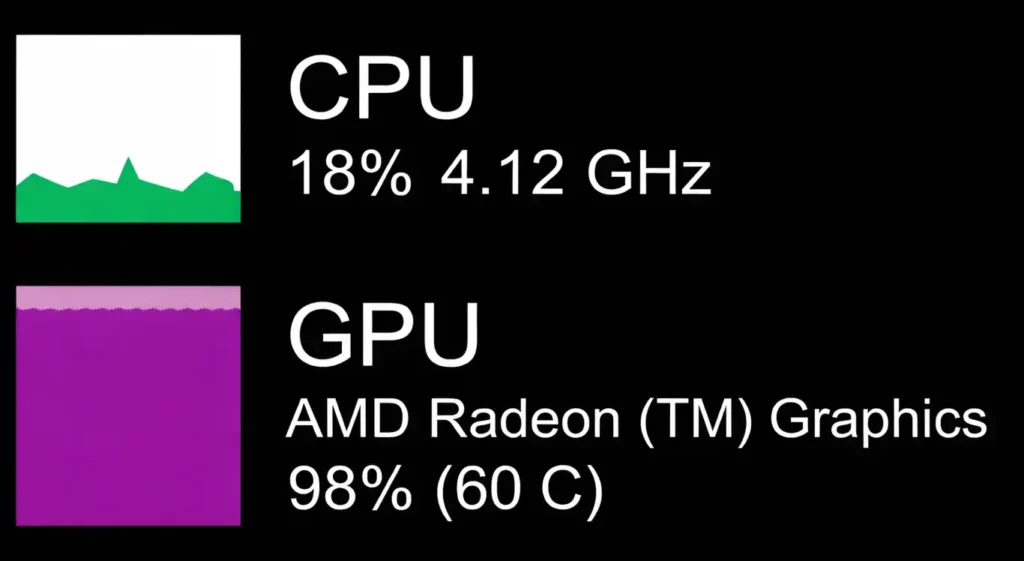
High CPU Usage and Maximum GPU Usage
Here, both parts work hard, but the CPU usually limits things first. Sustained high CPU usage often causes stutters. I notice this in simulations, strategy games, or busy open worlds. This is a CPU bottleneck case. Lowering CPU heavy settings or upgrading the CPU can smooth things out.
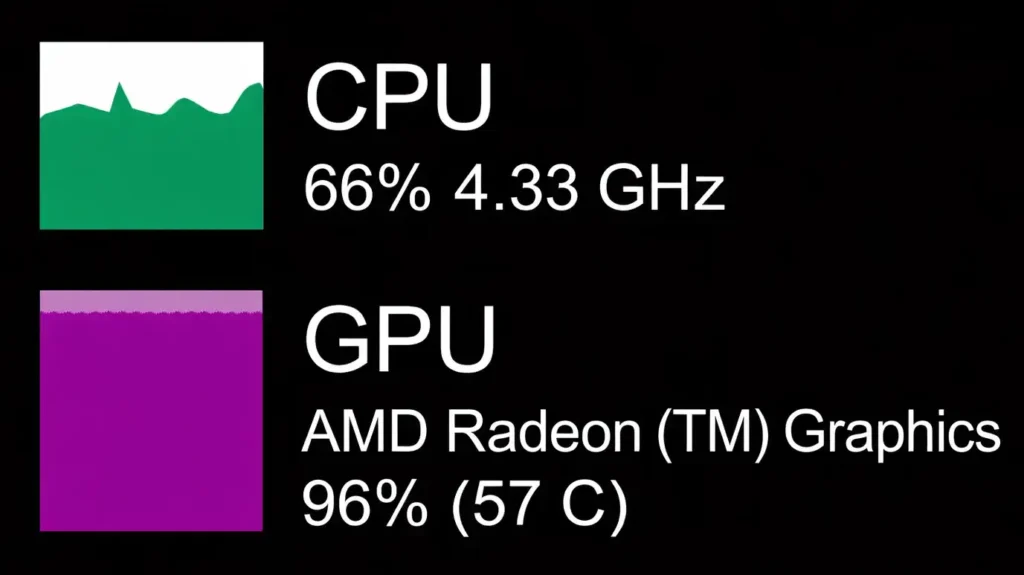
Maximum CPU Usage and Low GPU Usage
This one feels rough. The CPU hits 100 percent, but the GPU waits around. That means a clear CPU bottleneck. The CPU cannot feed frames fast enough. At 1080p in esports games or with older processors. Raising resolution, improving cooling, or upgrading the CPU helps restore workload balance.
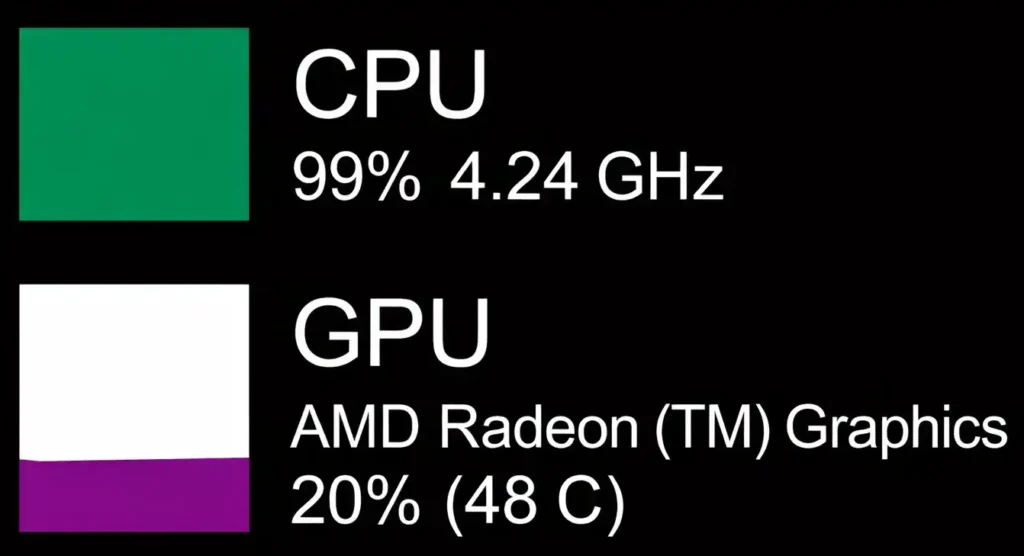
Maximum CPU Usage and High GPU Usage
This looks close to balance, but it’s still CPU-bound. Both parts push hard, yet the CPU stays maxed longer. Short spikes are fine, but constant max CPU causes drops. This often happens during heavy multitasking while gaming. Closing background apps or better cooling can help.
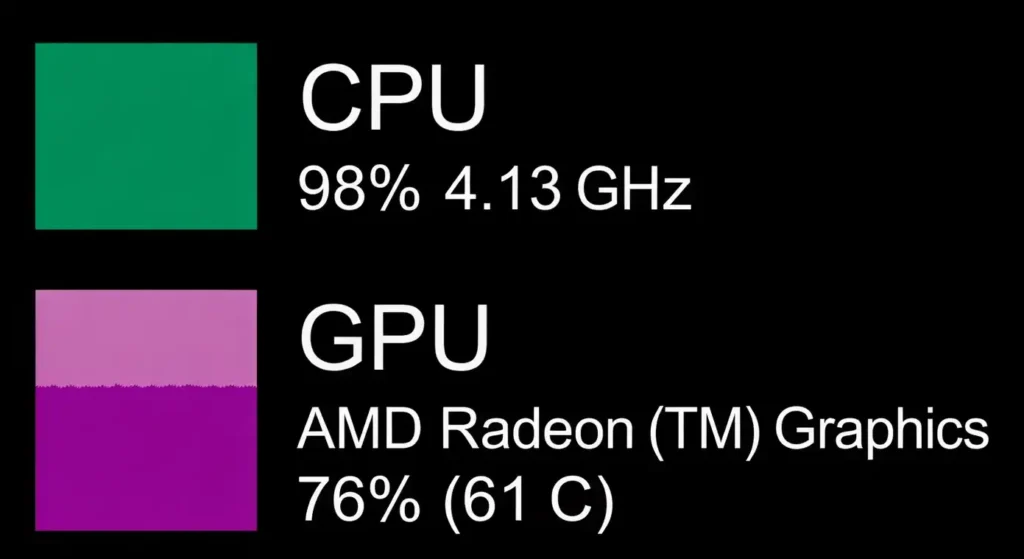
Maximum CPU Usage and Maximum GPU Usage
This means full system utilization. The hardware runs at its limit. Sustained high utilization also increases overall power draw, which can impact long-term electricity costs, something you can estimate using our Electricity Cost Calculator.
It can feel smooth or unstable, depending on cooling and game load. This often shows up in stress tests or demanding titles. If performance feels good, I’d leave it. If not, hardware limitations may need upgrades.
One last thing I’ve learned. Resolution shifts bottlenecks. Higher resolutions also increase pixel density and GPU workload, which you can analyze more precisely using our Pixel Density Calculator.
1080p leans CPU-bound. 4K leans GPU-bound. That context matters every time. You can calculate how resolution changes affect GPU load using our Resolution Scaling Calculator, especially when switching between 1080p, 1440p, and 4K.
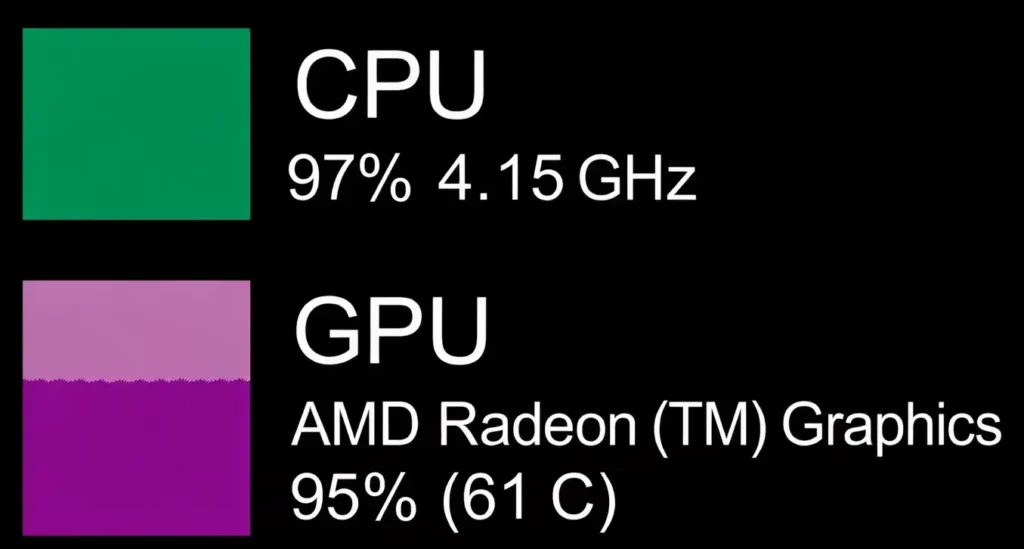
How Bottlenecks Impact PC Performance
A PC bottleneck shows up when one part of the system holds everything back. The CPU, GPU, RAM, or storage can limit the rest. When that happens, system performance drops. You might see low FPS, lag, stutters, or slow load times. CPU GPU bottleneck issues are common in gaming, while RAM or storage limits show up more in work tasks.
How the Bottleneck Calculator Helps You
This is where the tool really helps. The bottleneck calculator checks each part and finds what limits performance. It runs a clean PC bottleneck analysis and shows where the problem starts. Instead of guessing, I can see which part causes performance issues. That makes hardware upgrade decisions smarter and cheaper.
In Gaming
Gaming performance suffers fast when parts are unbalanced. A CPU GPU bottleneck can cause low FPS even with a strong graphics card. Modern games use many CPU cores and heavy GPU power, so balance matters more than raw speed. The calculator shows which part limits frames, so I know whether to lower settings or upgrade the right part.
Video Editing and Rendering
Video editing performance depends on more than the GPU. CPUs handle timelines, effects, and exports, while RAM and storage affect speed too. Slow renders caused by low RAM, not the GPU. The calculator helps spot these limits and avoids wasting money on the wrong upgrade.
General Use
For daily tasks, bottlenecks feel like slow apps and delays. Storage and RAM cause many issues here. The tool helps identify what holds system performance back, so fixes feel simple and focused.
In-Depth Guide to CPU and GPU Bottlenecks
In simple words, a bottleneck occurs when one component, CPU or GPU, limits the whole system. This mismatch will be visible as low FPS, frame stutter, or overheating, even if other parts are high-end.
Using a cpu bottleneck calculator or GPU-focused tool before upgrading helps you see whether the processor is holding back your graphics card.
Gamers see frame drops; creators see slow renders; multitasking becomes difficult when background processes Using a CPU/GPU bottleneck calculator or computer bottleneck calculator before upgrading helps keep the system balanced.
According to AMD’s explanation of how CPUs and GPUs work together, the GPU often becomes the primary performance driver at higher resolutions (1440p/4K), and pairing it with a weaker CPU can expose system imbalances.
Common Reasons for CPU Bottlenecks
A CPU bottleneck happens when the processor can’t keep up with GPU or multitasking demands. Modern games and apps lean on core count, clock speed, and cache; an older or entry-level CPU becomes the limiting factor and can cause uneven frame pacing.
I found that a CPU bottleneck occurs when your processor doesn’t match with your GPU or cant meet the multitasking demands.
As Intel explains in their guide on CPU bottlenecks, modern games and applications demand core count, clock speed, and cache. An older or entry-level CPU can become a primary reason and can cause uneven frame pacing.
🔍 Typical symptoms include:
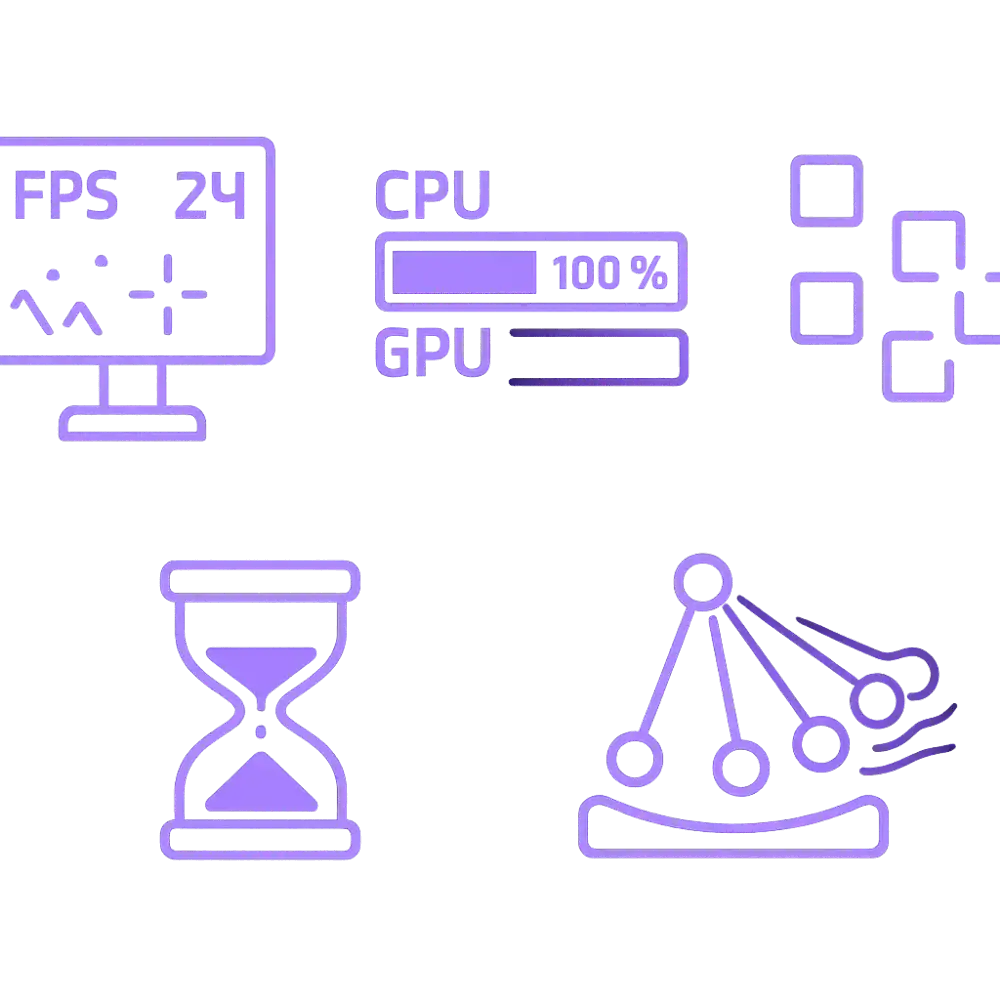
- If you face Low FPS in games even if you have a powerful GPU.
- If GPU usage is low and CPU usage is HIGH like 90 to 100%
- During playing games or video rendering occur Freezing, stuttering, or irregular frame times
- Irritating delays in opening apps and switching between tasks when a lot of background processes active
- Face poor performance in Heavy games simulation software
⚠️ Main causes of CPU bottlenecks:
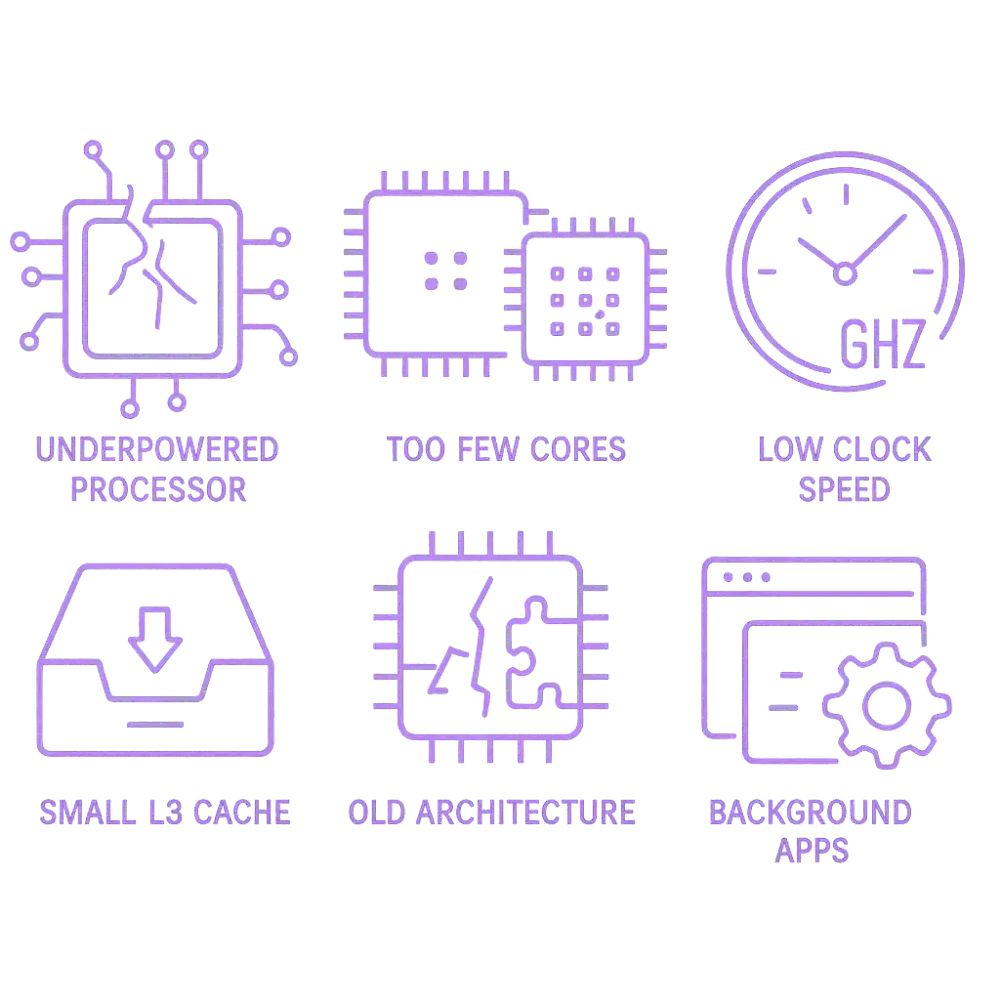
- Underpowered processor: I found during my research Older or entry-level CPUs cant handle modern day tasks.
- Too few cores/threads: I found that most games and creative tools become more efficient with 6+ cores.
- Low clock speed: With so many years of experience I can say that a slower GHz rate can’t compete with high FPS demands
- Outdated CPU architecture: One thing to embrace modern softwares are created for newer CPUs
- Limited instruction set support: Incompatibility with modern softwares cause bottleneck
- Background apps eating CPU: Antivirus, system updates, and heavy browser usage are big bottlenecks
Ways to Reduce or Fix CPU Bottlenecks
- First of all Upgrade your CPU to modern CPU which have more cores/threads, higher base clock
- Enable multithreading (Hyper-Threading/SMT) if available
- You can Overclock your CPU safely if your motherboard and cooler support it
- Background programs are resources drainage so close them
- One thing which works for me is disabling startup apps that slow down my PC
- Sometimes change in-game graphics settings can also work like shadows, post-processing
- Updating BIOS/chipset and GPU drivers is most crucial part
- Try to Improve cooling to avoid any thermal throttling
- I use dual-channel RAM to reduce latency and improve data flow
💡 Pro Tip: Use a Bottleneck Calculator for Precision
- You can instantly identify whether its CPU or GPU the limiting factor
- I make it simple and easy to understand with a clear bottleneck percentage and 0 to 100 balance score
- This tool also tell you the upgrade suggestions
- One thing which our tool helps you to avoid spending on parts that won’t help
- Using this tool you can build a balanced system that works efficiently and lasts longer
This is a must-have tool for anyone serious about gaming, streaming, 3D work, or video production, and many people rely on it as a trusted bottleneck calculator when they want quick and clear results. Many Pro players use it as a gaming bottleneck calculator to check if their CPU and GPU are delivering smooth FPS before investing in upgrades.
Based on my research and testing, this is an essential tool for gaming, streaming, 3D work, or video production.
Real-world tests from sources like NVIDIA’s GPU optimization guides and community reviews on PC Gamer or Tom’s Hardware’s bottlenecking explanations show how much FPS can differ depending on component balance.
Wondering if these tools really give accurate results? Check out our full breakdown here: Are Bottleneck Calculators Accurate.
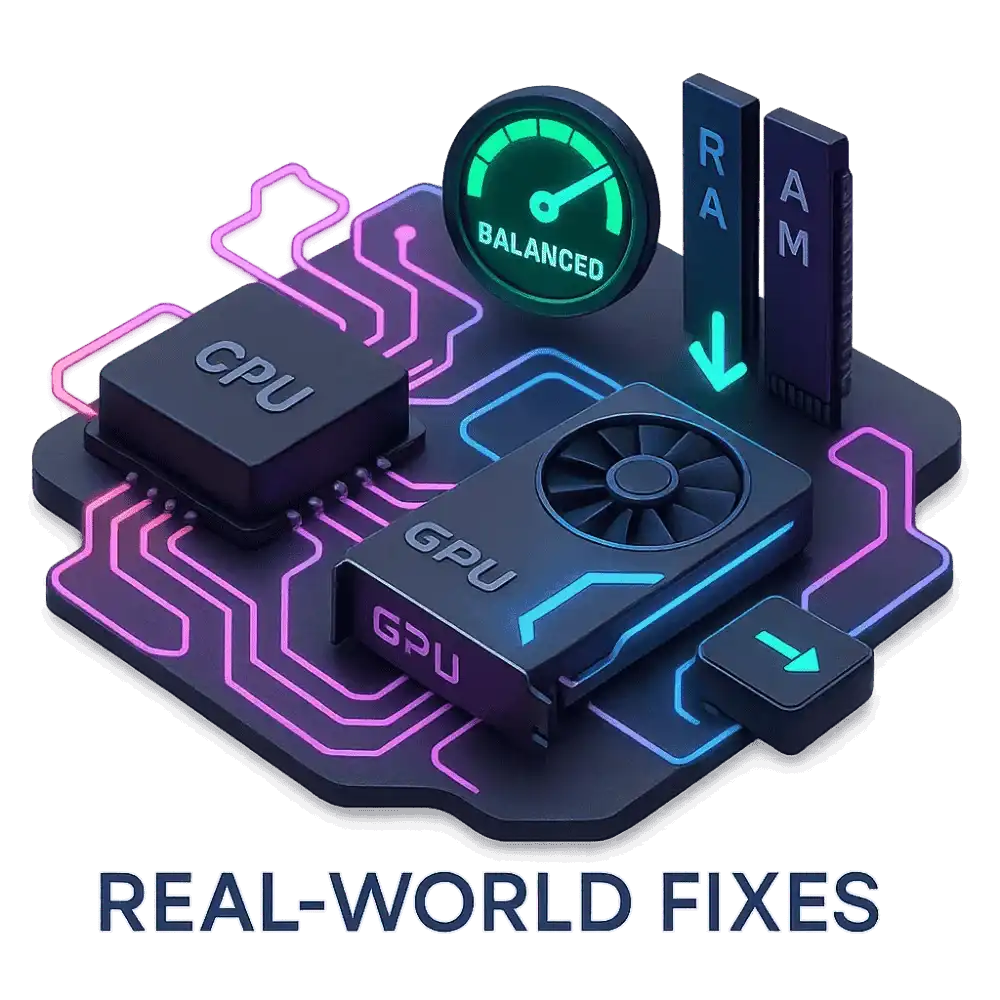
Real-World Fixes for Common PC Bottlenecks
During my research I found that many users assume poor performance indicates the whole system is outdated. But in reality, a single mismatched or underperforming component is the reason.
This is what our bottleneck calculator PC exactly reveals. A simple bottleneck test identify the main component which you can upgrade with maximum FPS impact.
When a High-End GPU Needs a Better CPU
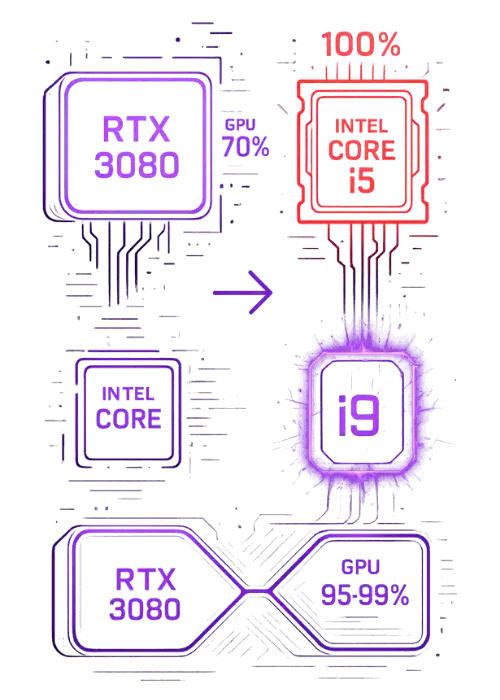
Scenario: A user pairs an RTX 3080 with an older Intel Core i5-7600K. Despite having a powerful GPU, games ran at inconsistent frame rates and the GPU was never being used at its full potential.
What went wrong:
1. That Old CPU lack cores and threads to compete with modern AAA titles
2. I found it cause frame stuttering and limits the data being sent to the GPU
3. In this case I found CPU usage is at max 100% while GPU usage is low around 60-70%
Smart upgrade: Replacing the i5 with a Core i9-10900K (10 cores, 20 threads) gives full boost to the RTX 3080.
Results:
1. You will see Significant FPS boost in games like Cyberpunk 2077 and Warzone
2. Now there is smooth gameplay with no bottlenecks
3. GPU now performs closer to 95–99% usage consistently
How Upgrading RAM Improves Stability
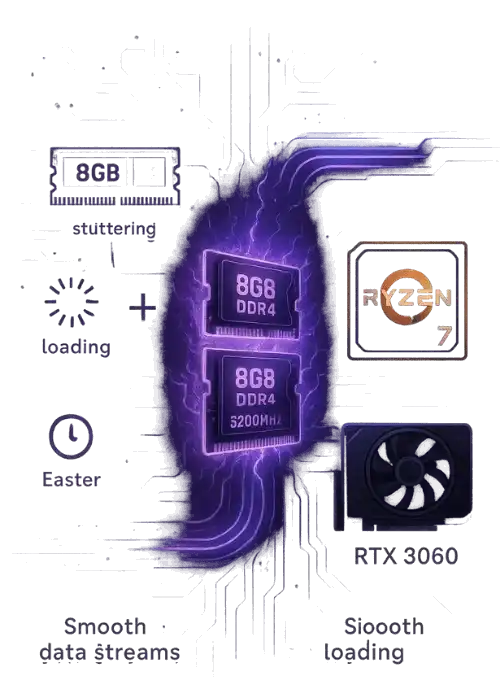
Scenario: A system with a strong CPU (Ryzen 7 5800X) and a solid GPU (RTX 3060) only has 8GB DDR4 RAM. Games load slowly, multitasking is sluggish, and stuttering happens frequently.
What went wrong:
1. Keep in mind now a days games need more than 8GB of RAM to run smoothly
2. Insufficient RAM forces your system to rely on slower page file memory
3. No matter you have modern CPU/GPU, they cant compensate for RAM bottlenecks
Smart upgrade: Installing 16GB (2x8GB) DDR4 RAM at 3200MHz gives your system dramatically boosts
Results:
1. Load your games faster and reduce stuttering
2. Allow multitasking like apps, browsers, and games run smoothly at same time
3. The system becomes stable and fast even under heavy workloads
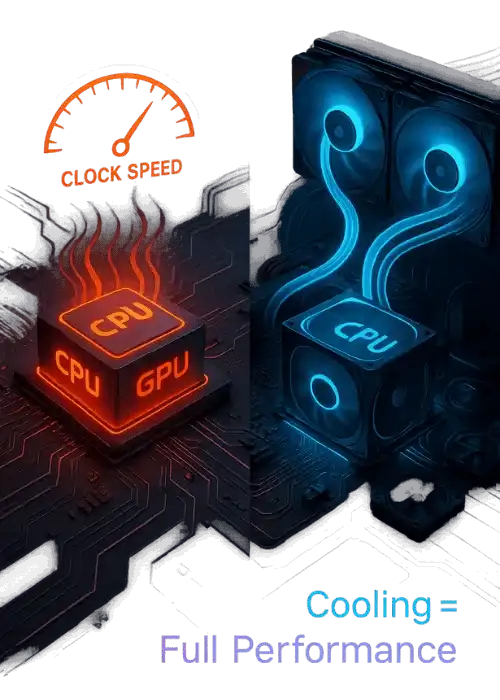
How Better Cooling Can Unlock Full Performance
Scenario: A high-end build with a Ryzen 9 5900X and RTX 4080 struggles under heavy gaming or rendering. Performance dips after 10–15 minutes, and clock speeds drop suddenly.
What went wrong:
1. This particular system is thermal throttling, causing components slow down to avoid overheating
2. This stock cooler can’t handle the heat while working on heavy demanding tasks.
3. At last, poor case airflow traps hot air and won’t allow it to go out, which causes overall system temperature rise.
Smart upgrade: Installing a 240mm AIO liquid cooler and improving case airflow with some additional fans will definitely resolve this heat issue
Results:
1. No more thermal throttling, even under extended loads
2. Consistently higher clock speeds for both CPU and GPU
3. System runs cooler, quieter, and more efficiently
Everything You Should Know to Get Started with Your Bottleneck Results
Understanding your bottleneck calculator results is key to making smart upgrade decisions. The tool make it simple by providing a bottleneck percentage, which indicates how one component whether CPU or GPU is restricting performance at your target settings.


🔢 What the Percentage Really Means
- The % score tells you the severity of the bottleneck.
- A higher percentage means one component is significantly limiting overall performance.
- The result clearly points out which part—CPU or GPU—is causing the issue.
- For example:
- A 75% CPU bottleneck means your processor is too old or low specs for your graphics card.
- A 65% GPU bottleneck results means your GPU is underpowered with your current system.
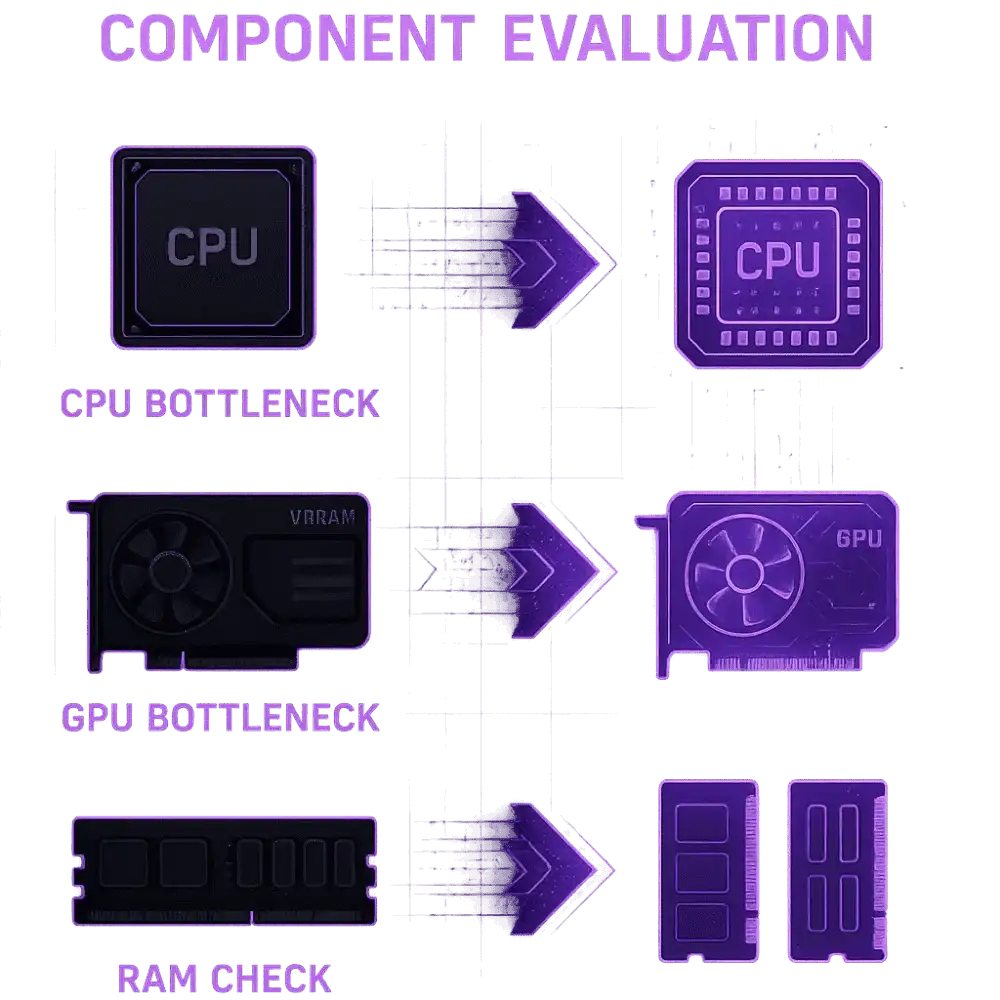
🔍 Evaluating Your Components Based on the Score
- If it’s a CPU bottleneck:
- Must upgrade your CPU with the latest and faster processor having cores and threads.
- Consider those models which are optimized for gaming or multitasking
- If it’s a GPU bottleneck:
- Upgrade you old GPU with stronger and latest GPU with more VRAM and align with your resolution/refresh rate (e.g., 1440p/144Hz or 4K/60)
- RAM is also a crucial factor, so double check complete system specs.
Additional Factors That May Lead to PC Bottlenecks
Curious how screen resolution affects bottlenecks? Check out our detailed guide: Can Screen Resolution Cause a PC Bottleneck?
⚠️ Power Supply and Thermal Limitations
- Power Supply Issues:
- Most people ignore wattage because insufficient wattage can stop your GPU and CPU from running at full capacity.
- A poor quality PSU causes sudden shutdowns and system instability
- One thing which I always check is, proper power connectors which may limit GPU compatibility.
- Thermal Constraints:
- If your system is overheating this may cause thermal throttling, reducing clock speeds
- While building PC consider proper airflow, Poor airflow impact your performance and component lifespan
- Clean your fans regularly, dust in fans or radiators can worsen thermal performance
Solution: Always use the best PSU that meets your wattage needs and ensure proper airflow for effective cooling, also cleans components regularly. Tools like the Seasonic PSU Calculator and the Cooler Master PSU Calculator help you estimate the right wattage before upgrading. Before upgrading your GPU or CPU, check your required wattage using our PSU Wattage Calculator to make sure your power supply can handle the load safely.


🔄 Storage Type and Speed (HDD vs SSD vs NVMe)
Faster storage doesn’t give you more FPS. But a slow hard drive makes games load longer and can cause little freezes when the game loads new stuff. In my testing, switching to a fast drive (SSD or NVMe) made levels load much quicker and the whole PC feel snappier.
Storage speed doesn’t raise FPS directly, but it may cause slow drives increase loading and additionally worsen perceived stutter during asset streaming. Upgrading to SSD or NVMe improves load times and responsiveness.
Solution: One of industry proven thing is upgrade your HDD to SATA SSD or NVMe SSD for faster game loads and smooth multitasking. As Western Digital notes in their SSD vs HDD performance article, SSDs significantly reduce load times, while Samsung highlights the advantages of NVMe drives in high-speed workflows.
🔧 Motherboard Limitations That Affect Performance
- Check PCIe lanes because limited lanes can reduce GPU or SSD performance
- During my testing I found that weak or outdated VRMs (Voltage Regulator Modules) can limit CPU overclocking or stability
- Motherboard with low ram speed or lack of dual-channel memory
- Missing M.2 slots or Gen 4 support can also restrict SSD performance
- In my tests, old chipsets didn’t support newer features like Resizable BAR, USB 3.2, or Wi-Fi 6.
Now thats why some people now even use a motherboard bottleneck calculator to check board-related slowdowns)
Solution: Use our tool to choose a motherboard that supports your CPU’s full potential. Look for strong VRM design, PCIe Gen 4 or 5 support, and ample expansion slots. Make sure it has proper BIOS support for modern features.
Practical Ways to Fix and Avoid PC Bottlenecks
- Run a bottleneck calculator first to see what actually limits your system.
- Upgrade only the part causing the PC bottleneck, not everything at once.
- Keep a clean CPU GPU balance so one part does not hold back gaming performance.
- Match parts from the same performance tier to avoid hardware compatibility issues.
- Check cooling performance, because heat can slow parts and fake a CPU bottleneck.
- Close heavy background apps and use high performance power mode to prevent bottlenecks.
- Upgrade storage from HDD to SSD or NVMe to fix slow system performance in daily use.
- Retest after upgrades to confirm the fix and fine tune PC upgrade tips.
Best Times to Use a Bottleneck Calculator
Our computer bottleneck tester can help you to avoid costly mistakes by showing how your CPU and GPU interact in real-world FPS and frame pacing. Whether you’re troubleshooting or planning a new build, it gives you clear insights into how your components work together.
🕹️ When You’re Facing Gaming or Rendering Problems
- If you face sudden frame drop or inconsistent FPS, first confirm whether it’s hardware or network related, you can check your real-time connection stability using our Valorant Ping Test before changing hardware.
- If your GPU usage is low but CPU usage shows 100% or vice versa, this calculator tells you which part is lacking so you don’t replace the wrong part.
- If it took too much time in rendering software like Adobe Premiere or Blender, especially when working with frame-based timelines or export settings, you can double-check exact frame counts and timestamps using our Timecode to Frame Converter.
- Face stuttering, lag, or overheating without clear reason
Why use the calculator: The best thing in this calculator is to show exactly which part is lacking behind. So, you can change that specific component without spending too much on changing the wrong part.

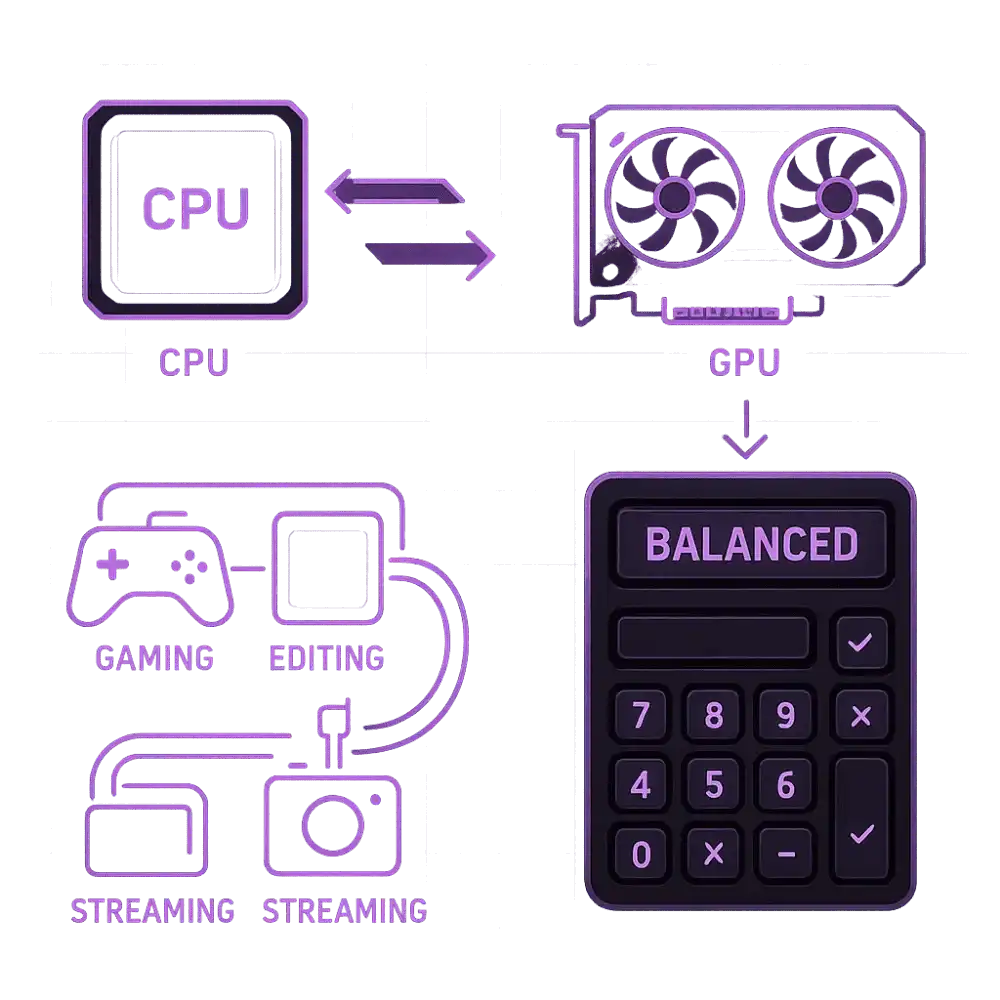
🧩 When Planning a New PC Build
- Will this CPU bottleneck the GPU I chose at my target resolution and refresh rate?
- Is my chosen GPU overkill for my processor, or do they have proper cpu gpu compatibility for the performance I want?
- Are my component choices balanced for gaming, editing, or streaming?
Why use the calculator: It helps you create a balanced system so your spend translates into real-world performance.
🔄 When You’re Upgrading One Part of Your Setup
- Check whether a new GPU will be CPU-bound on your current platform, confirm PCIe lanes and PSU headroom, and estimate the ROI of the upgrade before you buy.
- See if the new CPU can keep up with your existing GPU
- Ensure your power supply and motherboard still support the upgrade
Why use the calculator: It prevents mismatched upgrades and helps you get the most value out of your investment.

Bottleneck Calculator vs. Manual System Analysis
Use the calculator for a fast CPU-bound/GPU-bound snapshot, then confirm with live monitoring for accuracy before making big purchases. Each method has its strengths, and knowing when to trust the tool versus when to dig deeper manually can make or break your upgrade decisions.
🔍 When Manual Analysis is Better
- You’re already facing real-world performance issues
- You want to analyze RAM, storage, PSU, or thermals
- You need insights per game or software
- You want to monitor live hardware behavior during tasks
🛠️ Tools for Manual Analysis
- MSI Afterburner / RivaTuner for live CPU/GPU monitoring
- HWMonitor to check voltage, power, and thermal readings
- Task Manager / Resource Monitor for usage tracking
- UserBenchMark, Cinebench, 3DMark for stress testing
- CapFrameX this help in frame analysis for gamers
Pro-Level Comparison Table: Bottleneck Calculator vs Manual Analysis
| Feature/Aspect | Bottleneck Calculator | Manual Analysis |
|---|---|---|
| Ease of Use | Super simple to use, just enter your parts and go | Takes more time and some technical know-how |
| Accuracy | Gives a close idea based on general data | Very accurate since it checks your own system’s behavior |
| Speed of Results | Instant results in a few seconds | Slower because it needs real tests and tracking |
| Components Analyzed | Mainly looks at CPU and GPU | Checks everything like CPU, GPU, RAM, PSU, temperature, and background apps |
| Context Awareness | Doesn’t know which game or app you’re running | Can test how each game or program really performs |
| Live Performance Tracking | No live tracking options | Yes, you can see FPS, usage, and other live stats |
| Thermal and Power Checks | Doesn’t check for heat or power limits | Can show if your system is overheating or losing power |
| Upgrade Planning | Good for basic upgrade advice | Helps find the exact part that needs upgrading |
| Risk of Generalization | Can group hardware by type, not by exact model | Completely based on your real hardware and setup |
| Cost | Usually free and quick to use | Free with tools, but takes more time to do right |
Ready-to-Use Balanced PC Builds (Entry to Advanced)
I’ve put these together for people who want a bottleneck-free PC build without overthinking parts. Each setup keeps CPU GPU compatibility in check.
| Tier | Lite | Mid | Advanced |
|---|---|---|---|
| CPU | Ryzen 5 3600 / i5-10400 | Ryzen 5 5600 / i5-12400F | Ryzen 7 7800X3D / i7-13700K |
| GPU | GTX 1660 Super | RTX 3060 | RTX 4080 |
| RAM | 16GB DDR4 | 16GB DDR4 | 32GB DDR5 |
| Storage | 500GB SSD | 1TB NVMe SSD | 2TB NVMe SSD |
| Price Range | $600–$800 | $900–$1,200 | $1,800–$2,400 |
💡 Tip
These builds balance core count, GPU power, RAM speed, and cooling. Use them as a base or tweak based on your needs.
Bottleneck Calculator Comparison: Ours vs Other Tools
I’ve tried a few tools, and comparing them side by side makes the differences pretty clear. This is a straight bottleneck calculator comparison focused on what actually helps users.
| Feature | Our Tool | Other Tools |
|---|---|---|
| Component Coverage | CPU, GPU, RAM, storage, resolution, workload | Mostly CPU GPU bottleneck test only |
| Result Depth | Full PC performance analysis with scores and graphs | Basic text output |
| Recommendations | Clear, actionable upgrade suggestions | Generic advice |
| Workload Awareness | Gaming, editing, multitasking considered | Often ignored |
| Hardware Support | Modern CPUs and GPUs with frequent updates | Outdated databases |
| Mobile Friendly | Fully responsive on phones and tablets | Limited or broken |
| Accuracy Focus | Hardware compatibility tool using real scenarios | Simplified estimates |
💡 Expert Recommendation
- Use both methods one by one for best results:
- Start with our bottleneck calculator tool to get a quick overview
- Then try manual tools if you’re seeing inconsistent performance.
- With my personal experience I will suggest that gamers, video editors, and power users should always double-check manually before major upgrades
- Manual analysis is also better when comparing real-world performance per game, since calculators don’t simulate software behavior
Best No-Bottleneck PC Builds for 2026
Looking for perfectly balanced PC setups? Here are well my researched, tested and recommended balanced builds, which are tested with our PC bottleneck calculator to ensure minimal bottleneck.
Entry-Level Build
CPU: AMD Ryzen 5 5600
GPU: NVIDIA RTX 4060
Result: ~0% bottleneck
Ideal For: Esports, light AAA gaming, students
Mid-Range Build
CPU: Intel Core i5-13600K
GPU: NVIDIA RTX 4070 Super
Result: ~1–2% bottleneck
Ideal For: Streamers, editors, multitaskers
High-End Build
CPU: AMD Ryzen 7 7800X3D
GPU: NVIDIA RTX 4080 Super
Result: ~0% bottleneck
Ideal For: 4K gaming, 3D modeling, VR
Enthusiast Build
CPU: Intel Core i9-14900K
GPU: NVIDIA RTX 4090
Result: ~1% bottleneck (GPU-limited rarely)
Ideal For: Pro gamers, AI/ML devs, creators
A Trusted & Accurate Bottleneck Calculator
CPU Bottleneck
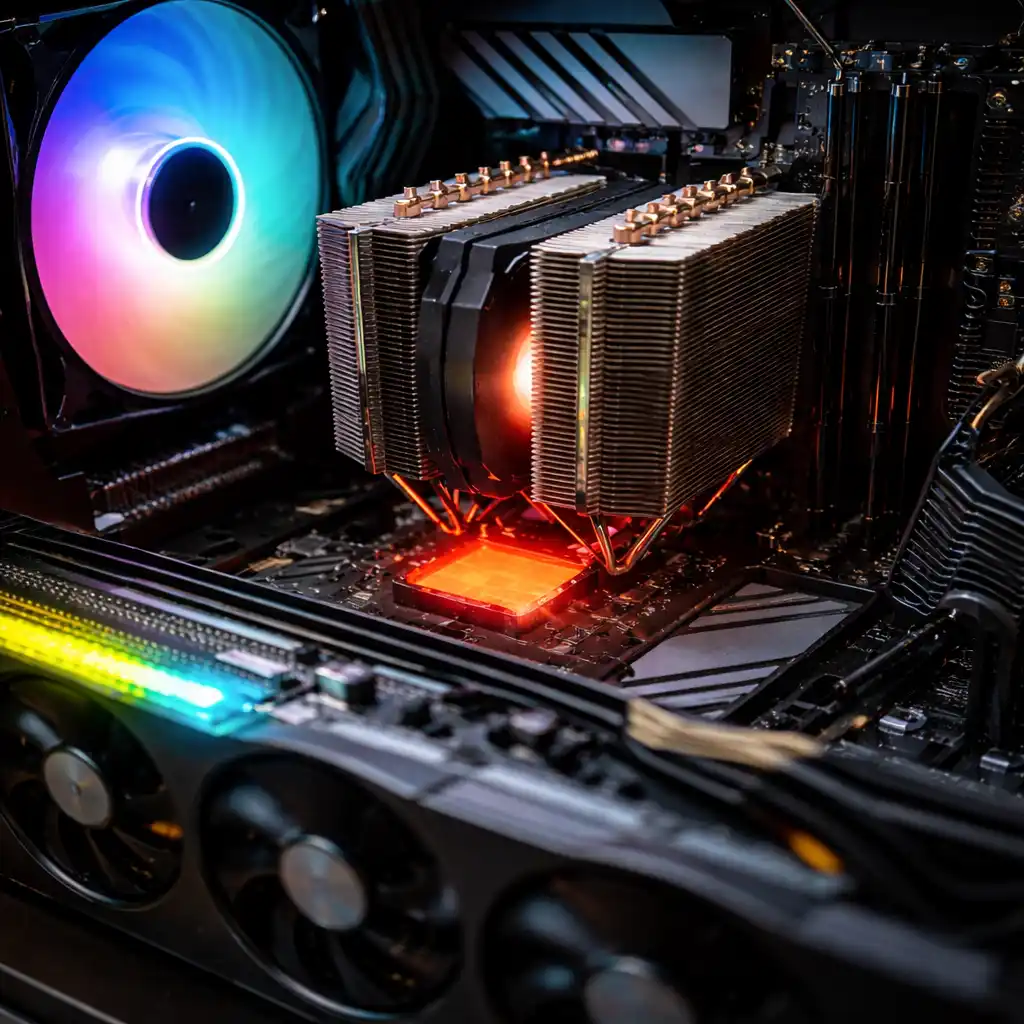
A CPU bottleneck happens when the processor cannot keep up with the GPU. The CPU handles game logic, physics, AI, and draw calls. When it slows down, the GPU waits. That leads to PC performance issues like low FPS, stutter, and input lag. Cases where a high end GPU still gives poor gaming results because the processor hits its limit. This shows up more at 1080p and high refresh rates, where the CPU must push more frames every second.
If you’re unsure whether your monitor is actually running at its full refresh rate, you can verify it using our Refresh Rate Test. Modern games from 2020 and later use 6 to 8 cores better, so older quad core CPUs struggle more now.
Signs of a CPU Bottleneck
- CPU usage stays near 100 percent during games
- GPU usage sits below 70 to 80 percent
- Low FPS with a high end GPU
- Gaming stutter during busy scenes
- Input lag and slow response when switching tabs
CPU Bottleneck Causes and Solutions
| Cause | Why It Happens | Solution |
|---|---|---|
| Old or weak CPU | Cannot process frames fast enough | Upgrade to a newer multi core CPU |
| High refresh rate gaming | CPU must deliver more FPS | Lower refresh rate or upgrade CPU |
| Background tasks | Apps steal CPU time | Close apps or optimize startup |
| Poor cooling | CPU throttles at high temps | Improve cooling and airflow |
GPU Bottleneck
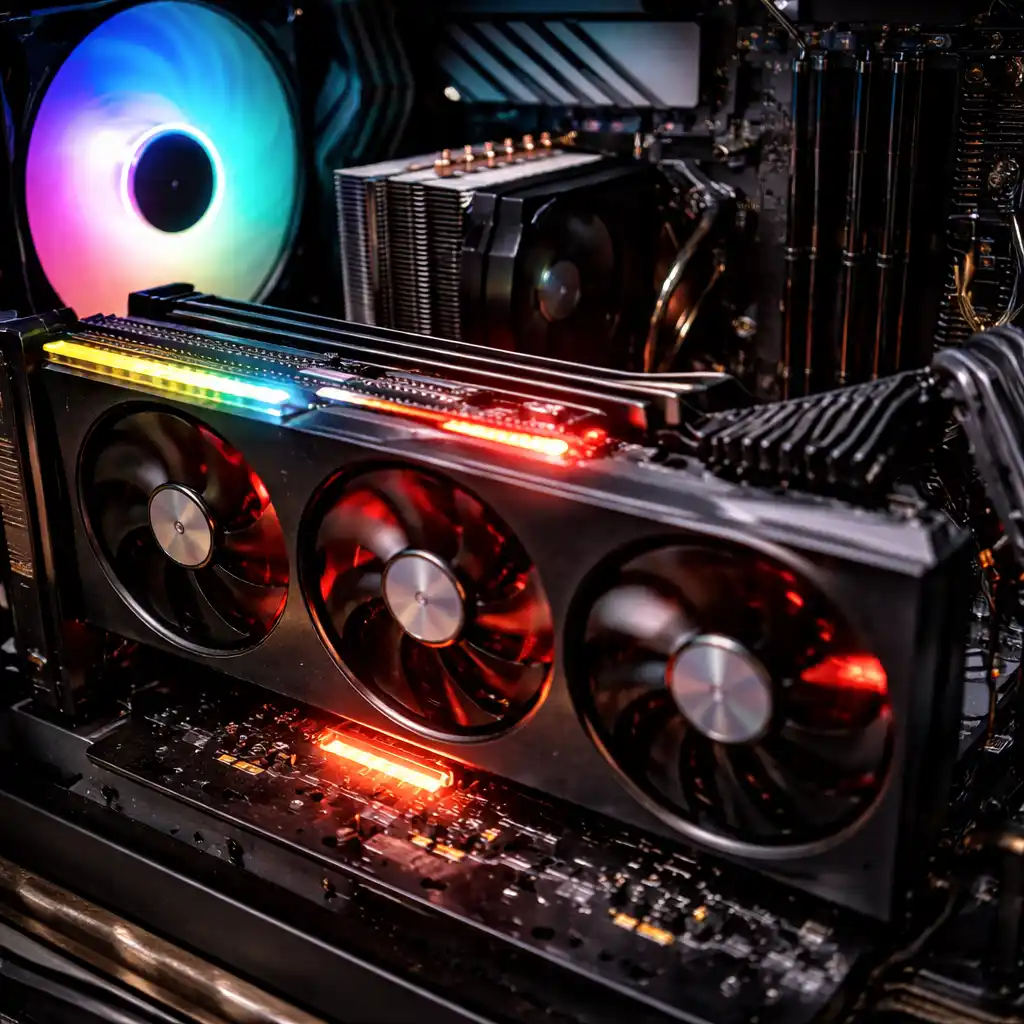
A GPU bottleneck happens when the graphics card becomes the slowest part of the system. The GPU handles parallel processing, shaders, textures, and VRAM tasks. It draws every frame you see on screen. When the workload is too heavy, the GPU cannot keep up, even if the CPU is ready. That creates a graphics card limitation where frames take longer to render.
This problem shows up more in high resolution gaming. At 1440p and 4K, the GPU must process far more pixels per frame. Modern games after 2020 also push higher texture quality and effects. Many of them can use more than 6 to 8 GB of VRAM at high or ultra settings. When VRAM runs out or the GPU maxes out, PC gaming performance drops. You may notice lag, instability, or sudden FPS dips at high settings.
Signs of a GPU Bottleneck
- Low FPS at high settings
- GPU usage near 95 to 100 percent
- CPU usage stays moderate
- Stutters during heavy scenes
- GPU overheating under load
GPU Bottleneck Causes and Solutions
| Cause | Why It Happens | Solution |
|---|---|---|
| Older GPU | Lacks power for modern games | Upgrade to a stronger GPU |
| Low VRAM | Textures exceed memory limit | Lower texture quality or upgrade GPU |
| High resolution gaming | Pixel load overwhelms GPU | Reduce resolution or settings |
| Ultra graphics settings | Effects push GPU too hard | Tune settings for balance |
| Outdated drivers | Poor optimization and bugs | Install latest driver updates |
| Poor cooling | GPU throttles due to heat | Improve airflow and cooling |
RAM Bottleneck
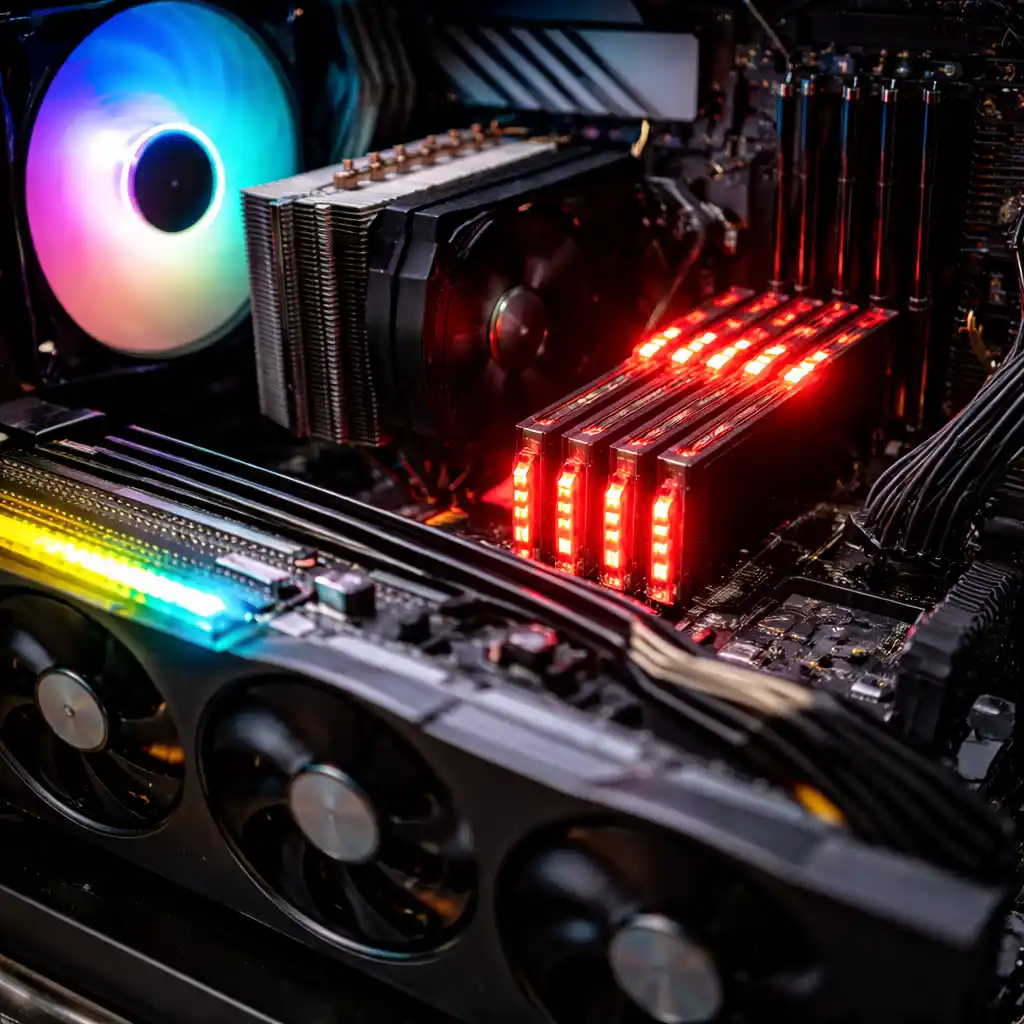
A RAM bottleneck happens when system memory runs out of space or speed. RAM holds game data, apps, and background tasks so the CPU and GPU can work fast. When RAM fills up, the system starts memory swapping. That means it pushes data to the SSD or HDD, which is much slower. This causes PC stuttering and slow performance with strong CPU GPU setups.
When RAM is limited, even powerful hardware feels weak. I’ve seen systems with great CPUs and GPUs still lag because memory stays full. Modern games and creative apps from 2020 and later often use more than 12 to 16 GB RAM, especially with browsers or launchers open. This is not bad hardware. It’s just a workload and capacity mismatch that’s easy to fix.
The good news is RAM bottlenecks are one of the simplest problems to solve. Adding memory or setting it up correctly can unlock performance right away. Dual channel memory and proper settings often make a noticeable difference. To calculate true memory response time and compare RAM kits, use our RAM Latency Calculator for precise nanosecond results.
Signs of a RAM Bottleneck
- RAM usage stays near 90 to 100 percent
- PC stuttering during games or multitasking
- Slow alt tab or app switching
- Heavy disk activity while apps are open
- FPS drops despite low CPU and GPU usage
RAM Bottleneck Causes and Solutions
| Cause | Why It Happens | Solution |
|---|---|---|
| Low RAM capacity | Apps exceed available memory | Upgrade to 16GB or 32GB RAM |
| Single channel memory | Limited memory bandwidth | Use dual-channel memory |
| Low RAM speed | Slower data transfer | Upgrade to faster RAM |
| XMP not enabled | RAM runs below rated speed | Enable XMP or DOCP in BIOS |
| Too many background apps | Memory fills quickly | Close apps or optimize startup |
Storage Bottleneck
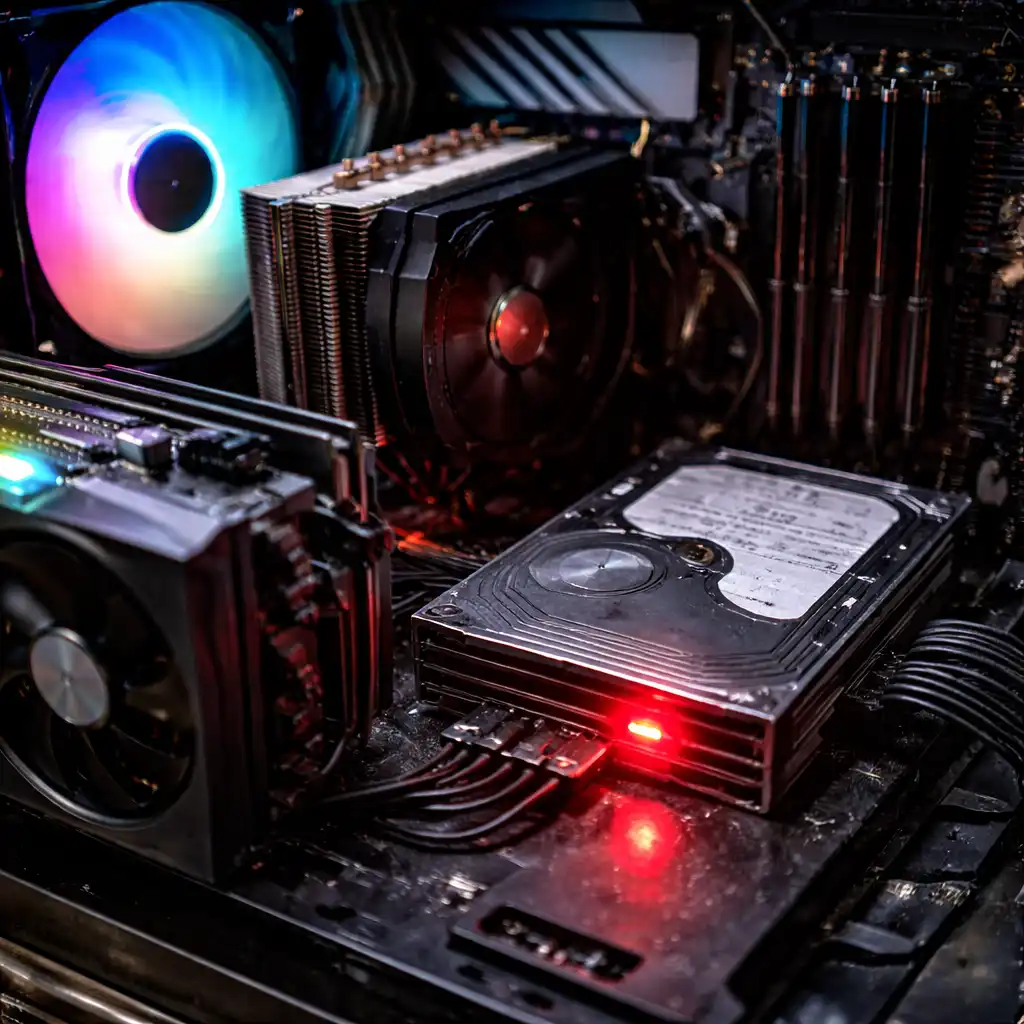
A storage bottleneck happens when data moves too slowly from the drive to the CPU, RAM, or GPU. Storage controls boot time, load screens, file transfers, and app launch speed. When the drive cannot deliver data fast enough, the whole system feels slow. Even a strong CPU and GPU cannot work well if they are waiting on storage.
This shows up a lot on older systems using hard drives. Modern games and creative apps now stream data in real time. That makes storage speed more important than ever. Moving from an HDD to an SSD can cut boot time by three to five times. NVMe drives go even further, especially in load heavy workflows. If you’re planning multiple drives for performance or redundancy, our RAID Calculator helps you estimate usable capacity and fault tolerance before setting up RAID 0, 1, 5, or 10.
Signs of a Storage Bottleneck
- Disk usage stays near 100 percent
- Very slow boot time
- Long game or app load screens
- System freezes during file transfers
- Sluggish response even at low CPU usage
Storage Bottleneck Causes and Solutions
| Cause | Why It Happens | Solution |
|---|---|---|
| Hard drive used as main drive | Very low read and write speed | Upgrade to SATA or NVMe SSD |
| Old SATA mode | Drive runs below full speed | Enable AHCI in BIOS |
| Nearly full drive | No space for fast caching | Free up storage space |
| Outdated storage drivers | Poor performance handling | Update chipset and drive drivers |
| Heavy background disk activity | Apps constantly access disk | Reduce startup and background tasks |
How to Minimize and Eliminate PC Bottlenecks
Once I spot a problem, I don’t stop there. Finding a bottleneck is step one. Fixing it the right way is what really improves PC performance. The goal is to reduce PC bottlenecks without wasting money or over upgrading parts that already work fine.
Fixing a CPU Bottleneck
A CPU bottleneck shows up when the processor stays busy while the GPU waits. I see this a lot in 1080p gaming, where games lean more on the CPU. A CPU bottleneck fix usually means choosing a processor that matches the GPU level. More cores and higher clock speeds help modern games and apps that use multi core workloads. I try not to jump to the top tier. Balance matters more than raw power.
Solving a GPU Bottleneck
A GPU bottleneck solution makes sense when the graphics card runs near full load and frames still feel low. This is common at 1440p or 4K, where the GPU does most of the work. Upgrading the GPU helps, but only if the CPU can keep up. I always check both parts together to avoid shifting the bottleneck instead of fixing it.
Increase Your RAM
A RAM bottleneck causes stutters, slow loads, and lag during multitasking. I’ve seen this hurt both gaming and work tasks.
- Upgrade to at least 16GB for modern use
- Use dual channel RAM for better bandwidth
- Choose higher RAM speed if the CPU supports it
Upgrade Your Monitor
Sometimes the limit is not inside the PC. The display can hold things back.
- Match refresh rate with GPU power
- Use higher resolution only if the GPU can handle it
- Avoid pairing high end GPUs with low refresh monitors, and use our Monitor Size Comparison Tool to choose the right screen size, resolution, and viewing distance for your setup.
Maximize Cooling and Airflow
Cooling airflow affects speed more than people think. Thermal throttling reduces clock speeds to protect parts.
- Improve case airflow with proper fan layout
- Use a better CPU cooler if temps run high
- Clean dust to maintain cooling performance
Thermal throttling often starts around 90 to 100°C, so cooling is a performance issue, not just safety.
Conclusion
Keeping your PC balanced is very important for smooth and fast performance. From my own research and testing, I learned that even one weak part like an old CPU, slow drive, or poor cooling can slow everything down. The PC Bottleneck Calculator helps you quickly find what is causing the slowdown so you can fix it easily. By checking before upgrading, you save money, get higher FPS, and make your computer run better and last longer.
