
Valorant Ping Test
This free Valorant ping test tool runs an instant latency test across all major Riot server regions so you can find the lowest-ping server before you queue. The Valorant ping test measures your real-time network latency in milliseconds (ms) and shows you exactly which data center gives you the smoothest gaming performance in this tactical 5v5 hero shooter by Riot Games.
Under 20ms feels excellent, 20 to 50ms stays smooth, 50 to 100ms feels playable, and above 100ms can cause lag. Since Valorant runs on 128-tick servers, low ping makes server selection even more important.
This Valorant ping test online runs directly in your browser, no download, no sign-up, no installation required. For more system performance tools, you can explore our full collection on the PC Bottleneck Calculator.
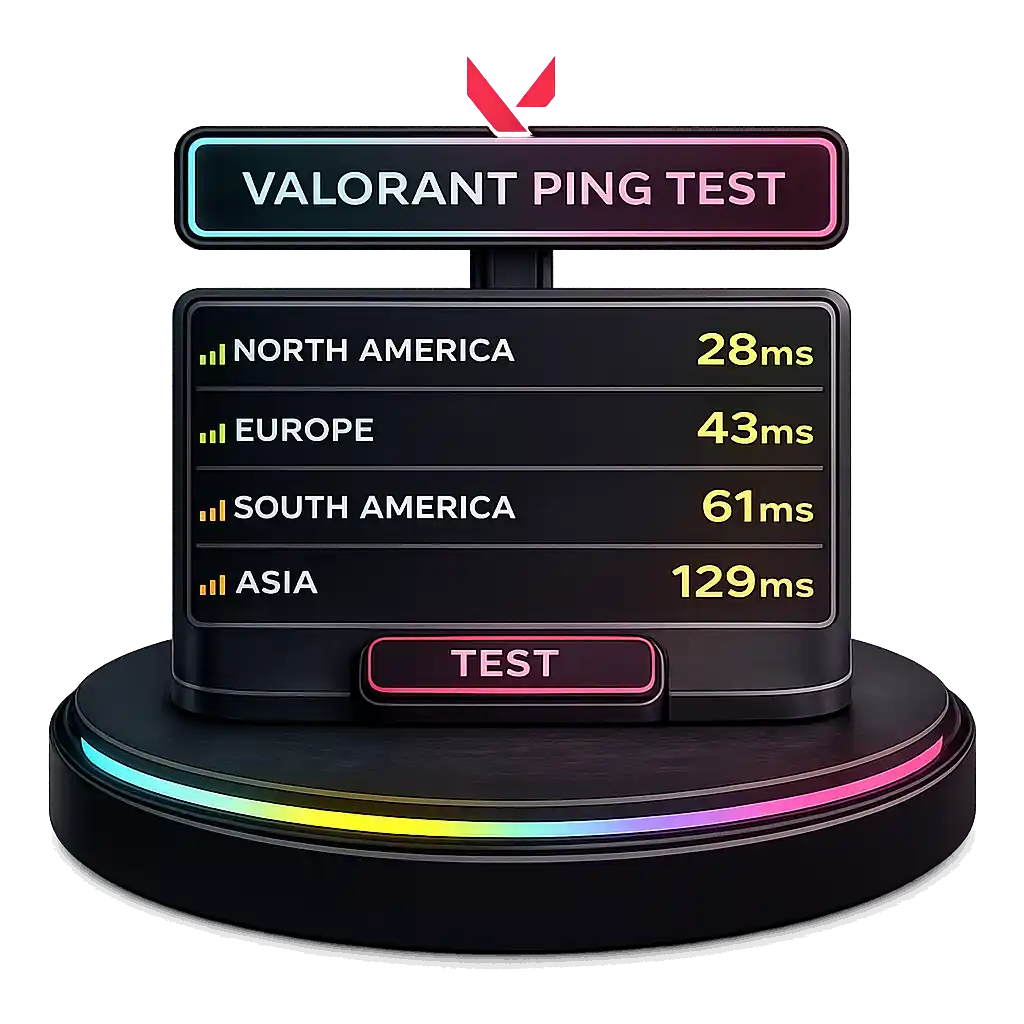
How to Reduce High Ping in Valorant
I have seen high ping ruin matches fast. Shots feel delayed. Peeking feels slow. High ping usually comes from poor ISP network routing, congestion, or packet loss. Not just slow internet speed. In a 128-tick FPS game like Valorant, even a 10 to 20ms latency difference can change hit registration. If you want to see how latency affects frame delivery and smoothness, you can also test your system using our FPS Calculator.
Software-Based Methods to Reduce Valorant Ping
If you've already optimized your hardware and still face high ping, software-level fixes can help stabilize your routing:
- Enable Windows Gaming Mode (Settings → Gaming → Game Mode)
- Disable background apps using bandwidth (Task Manager → Network column)
- Flush DNS cache via Command Prompt:
ipconfig /flushdns - Reset Winsock for corrupted network configs:
netsh winsock reset - Disable Nagle's Algorithm in registry for reduced TCP delay
- Use a reputable gaming VPN (only if your ISP has poor peering with Riot — test both ways)
These methods don't require paid software and address the actual root causes of high Valorant ping.
Hardware Upgrades That Actually Reduce Valorant Ping
If software tweaks aren't enough, these hardware changes make a measurable difference:
- Switch from Wi-Fi to Ethernet — cuts jitter by 5–15 ms and eliminates interference
- Upgrade to a Wi-Fi 6 (802.11ax) router — reduces latency variance on wireless setups
- Use a router with QoS (Quality of Service) — prioritizes gaming packets over streaming/downloads
- Replace old Cat 5 cables with Cat 6 or Cat 6a — supports gigabit speeds with lower latency
- Place router in a central, unobstructed location if Ethernet isn't possible
- Upgrade your modem if it's more than 4–5 years old — outdated DOCSIS versions add delay
Console players (PS5, Xbox Series X/S) benefit especially from wired Ethernet, since console Wi-Fi chipsets often have higher baseline latency than modern PCs.
Is Valorant Down? Check Live Server Status
Before you blame your internet, check if Valorant servers are actually online. If you can't connect to a match, your ping is spiking everywhere, or the Riot client is stuck loading, the issue may be on Riot's side — not yours.
How to tell if Valorant is down:
1. Use this ping test above. If every regional server returns "timeout" or unusually high ping at once, Riot's servers are likely experiencing an outage. A single region showing issues usually means that specific data center has a problem — not a full outage.
2. Check Riot's official status page. Visit status.riotgames.com and select Valorant in your region. Riot publishes real-time updates during incidents, maintenance, and rollouts.
3. Check community reports. Platforms like Downdetector, Twitter/X (search "Valorant down"), and the r/VALORANT subreddit show user-reported outages faster than official channels.
Common Valorant server issues:
- Scheduled maintenance — usually Tuesdays during patch deployments
- Regional data center outages — affects only one server (e.g., Mumbai down but Singapore works)
- DDoS attacks — occasionally affect competitive servers during high-profile matches
- Riot client authentication errors — often fixed by restarting the client
What to do if Valorant is down:
If servers are confirmed down, there's no fix on your end. Wait for Riot to resolve it. In the meantime, you can:
- Switch to a different regional server if available
- Restart the Riot client and Vanguard anti-cheat
- Verify your internet connection with a quick ping test to Google (
ping google.com) - Follow @PlayVALORANT on Twitter/X for updates
What Is a Good Ping in Valorant?
I’d say a good ping in Valorant means low latency and fast response time. Ping measures network delay in milliseconds (ms). For competitive gameplay, I always try to stay below 50ms. Lower ping gives smoother gameplay, better reaction time, and less lag. Since Valorant runs on 128-tick servers, even small delays feel more noticeable.
Ping ranges explained:
- 0 to 20ms – Excellent: Super responsive gaming. Almost no network delay.
- 20 to 50ms – Good: Smooth gameplay. Great for ranked matches.
- 50 to 100ms – Playable: Some delay. Still manageable.
- 100 to 150ms – Poor: Noticeable lag. Shots may feel late.
- 150ms and above – Unplayable: Desync and hit issues can happen.
If I want a real edge in competitive matches, I keep my ping as low as possible.
Method 2: How to Check Ping Inside Valorant (In-Game)
Valorant has a built-in network stats overlay that shows your real-time ping, packet loss, and round-trip time during any match. Here's how to enable it:
Enable the in-game ping display:
- Launch Valorant and open Settings (gear icon, top right)
- Click the Video tab
- Scroll down to the Stats section
- Find Network Round Trip Time and set it to Text, Graph, or Both
- Enable Packet Loss and Total Frames Per Second (Client) for extra info
- Close Settings, your ping now shows in the top-left corner during matches
Quick in-game ping check shortcut:
Valorant doesn't have a dedicated ping overlay hotkey, but you can enable your system-level network monitor any time with Ctrl + Shift + Esc to open Task Manager → Performance tab → Ethernet/Wi-Fi. This shows overall network activity while the game's built-in stats show exact server ping.
What the in-game ping numbers mean:
- RTT (Round-Trip Time) — your actual ping to the Riot server (this is the one that matters)
- Packet Loss — should be 0.0%; anything above 1% causes noticeable issues
- Client FPS — your frame rate, separate from ping but affects perceived responsiveness
Pre-match ping check (before queueing):
On the Valorant home screen, click the server selection icon next to the Play button. You'll see a list of available regional servers with live estimated ping for each. This is the fastest way to do a Valorant ping check before committing to a ranked match. Pick the server with the lowest, most stable ping — ideally under 50 ms.
Method 3: Ping Valorant Servers via Command Prompt (Advanced)
For advanced troubleshooting, you can ping Riot's regional servers directly through Windows Command Prompt. This method bypasses the game client entirely and tests raw network path stability — useful when you're diagnosing ISP routing issues or working with your provider's support team.
Step-by-step Command Prompt ping test:
- Press Win + R, type
cmd, and press Enter - In the Command Prompt window, type:
ping [server-IP] -t - Press Enter — the test runs continuously until you press Ctrl + C to stop
- Watch the output for response times and packet loss
Riot Valorant server IP addresses by region:
Based on IPs shared by Riot Support and community sources, here are known Valorant server endpoints you can ping:
| Region | Server IP (verified community source) |
|---|---|
| Mumbai (India) | 151.106.246.1 |
| Singapore | 151.106.248.1 |
| Other APAC/global routes | 99.83.187.195 |
Note: Riot occasionally changes server IPs. If a ping returns "Request timed out," the IP may be outdated — contact Riot Support for your region's current IP, or rely on the browser-based Valorant ping test at the top of this page (it always uses current server endpoints).
How to read the Command Prompt ping output:
You'll see lines like: Reply from 151.106.248.1: bytes=32 time=42ms TTL=54
- time=42ms → your ping to that server (the lower, the better)
- Request timed out → packet lost in transit (indicates packet loss or dead IP)
- TTL → time-to-live hops; lower TTL suggests a longer routing path
Let the test run for 30–60 seconds to spot jitter. If your ping fluctuates wildly (e.g., 40 ms → 180 ms → 50 ms), you have unstable routing that needs ISP attention.
What Is Jitter in Valorant? (And Why It's Worse Than High Ping)
Jitter is the variation in your ping over time — not the ping itself. You can have a 30 ms average ping, but if it jumps between 15 ms and 80 ms constantly, your gameplay will feel worse than someone with a steady 60 ms ping.
Ping vs. jitter — the critical difference:
- Ping = the average round-trip time to the server
- Jitter = how much your ping fluctuates between measurements
A steady 45 ms ping with 2 ms jitter feels smooth. A 25 ms ping with 40 ms jitter feels terrible — shots feel inconsistent, peeker timing is unpredictable, and hit registration seems random.
Jitter rating scale for Valorant:
| Jitter Level | Rating | In-Game Feel |
|---|---|---|
| 0–2 ms | Excellent | Rock-solid, competitive-grade |
| 2–10 ms | Good | Smooth, barely perceptible |
| 10–30 ms | Fair | Occasional desync, manageable |
| 30–50 ms | Poor | Noticeable rubber-banding |
| 50 ms+ | Unplayable | Constant instability |
Why jitter is harder to fix than ping:
High ping usually comes from distance to the server — something you can fix by changing regions. Jitter comes from unstable routing, Wi-Fi interference, or ISP congestion — issues that fluctuate unpredictably.
How to measure jitter:
- Run the Valorant ping test tool above for at least 30 seconds
- Note the lowest and highest ping values during the test
- Subtract:
Highest ping − Lowest ping = approximate jitter - Alternatively, check Network Round Trip Time in Valorant's Stats overlay during a match
How to reduce jitter in Valorant:
- Switch from Wi-Fi to Ethernet (biggest single improvement — can cut jitter by 10–20 ms)
- Close background applications using bandwidth
- Disable QoS on congested shared networks
- Update router firmware
- Replace old network cables (Cat 5 → Cat 6/6a)
- Move closer to your router if you must use Wi-Fi, and use 5 GHz band
How to Test for Packet Loss in Valorant
Packet loss happens when data traveling between your device and Riot's server fails to arrive. Even 1–2% packet loss in Valorant causes missed shots, teleporting enemies, and failed ability activations — even if your average ping looks fine.
Packet loss severity in Valorant:
- 0% — perfect, no issues
- 0.1–1% — occasional minor hiccups, usually imperceptible
- 1–2% — noticeable desync in fast duels
- 2–5% — broken hit registration, rubber-banding
- 5%+ — unplayable, expect disconnects
Method 1 — Check packet loss in-game:
Enable Packet Loss under Settings → Video → Stats in Valorant. During any match, watch the top-left corner. Anything above 0.1% consistently indicates a problem.
Method 2 — Command Prompt packet loss test:
- Open Command Prompt (Win + R → type
cmd→ Enter) - Type:
ping [Valorant-server-IP] -n 100 - Wait for the test to complete (100 packets)
- Read the summary line:
Packets: Sent = 100, Received = 98, Lost = 2 (2% loss)
Any loss above 0% that's consistent across multiple tests indicates a routing or connection problem.
Method 3 — Use this Valorant ping test tool:
Our tool automatically tracks missed packets during the ping test. If the tool shows any regional server returning zero responses during a 30-second test, that's effectively 100% packet loss — either the server is down or your route to it is broken.
Common causes of Valorant packet loss:
- Unstable Wi-Fi connection — weakest link in most home setups
- Outdated router firmware — updates often fix packet handling bugs
- ISP peering issues with Riot's network
- Damaged Ethernet cables — inspect for kinks or loose connectors
- Network congestion during peak hours (6–11 PM local time)
- VPN misconfiguration — sometimes VPNs cause packet loss they claim to fix
How to Test Valorant Ping on Console and Mobile
Valorant is no longer PC-exclusive. With the release of Valorant on PlayStation 5 and Xbox Series X/S (plus Valorant Mobile in select regions), console and mobile players also need reliable ways to check server ping.
Valorant Ping Test on PS5:
- Enable the in-game network stats overlay:
- Settings → Video → Stats → Network Round Trip Time → Text
- Use PS5 system-level connection test:
- Settings → Network → Test Internet Connection
- Shows download speed, upload speed, and NAT type (but not Riot-specific ping)
- For Riot-specific ping, use this browser-based Valorant ping test on your phone or PC before queueing — it predicts what you'll see in-game.
Valorant Ping Test on Xbox Series X/S:
- Enable in-game stats: Settings → Video → Stats → Network Round Trip Time
- Check Xbox Network Settings:
- Settings → General → Network Settings → Test network connection
- Use the Xbox Edge browser to visit this Valorant ping test page for regional server comparison
Console-specific ping tips:
- Always use wired Ethernet — console Wi-Fi chipsets often have higher baseline latency than PC
- Close background apps/games — consoles keep suspended games running in the background
- Disable HDR or other visual features if they cause display input lag (separate from network ping)
- Enable 120Hz / VRR if your display supports it — reduces perceived input lag
Valorant Mobile ping considerations:
- Mobile connections add inherent latency vs. PC/console (cellular routing adds 10–30 ms)
- Use 5 GHz Wi-Fi whenever possible — avoid 2.4 GHz on crowded networks
- Disable battery saver mode during matches — it throttles network performance
- Avoid VPNs on mobile unless absolutely necessary for routing fixes
- Enable Game Mode on Android/iOS to prioritize Valorant's network traffic
How to Quickly Fix Valorant Game Lag
Game lag feels different from high ping. High ping is delay. Lag usually comes from packet loss, jitter, or network congestion. Even 1 to 2 percent packet loss can mess up a competitive FPS game like Valorant. Because the game depends on tight server sync, small instability can affect movement and hit registration.
How to Fix Valorant Crashes Caused by Network Instability
I’ve seen Valorant crash even when my PC was fine. If you're recording gameplay or editing match clips, accurate frame timing also matters, you can convert timestamps precisely using our Timecode to Frame Converter.
A lot of times, the real issue is network instability. Packet loss, sudden connection drop, or network fluctuation can break server sync. Even 2 to 5 percent packet loss can cause disconnect behavior in FPS games. Since Valorant uses a server authoritative system, unstable links can trigger forced disconnects.
To fix Valorant crashes, I focus on game optimization through smart routing. The goal is simple. Reduce ping, lower packet loss, and keep a stable connection.
Advantages include:
- Reduces packet loss spikes
- Helps prevent connection drop
- Supports crash prevention through stable routing
- Improves overall stability
Steps I follow:
- Install a smart routing game optimization tool.
- Select Valorant from the dashboard.
- Enable routing optimization.
- Launch the game and monitor connection stability.
That usually keeps crashes away.
What Is Ping in Online Gaming?
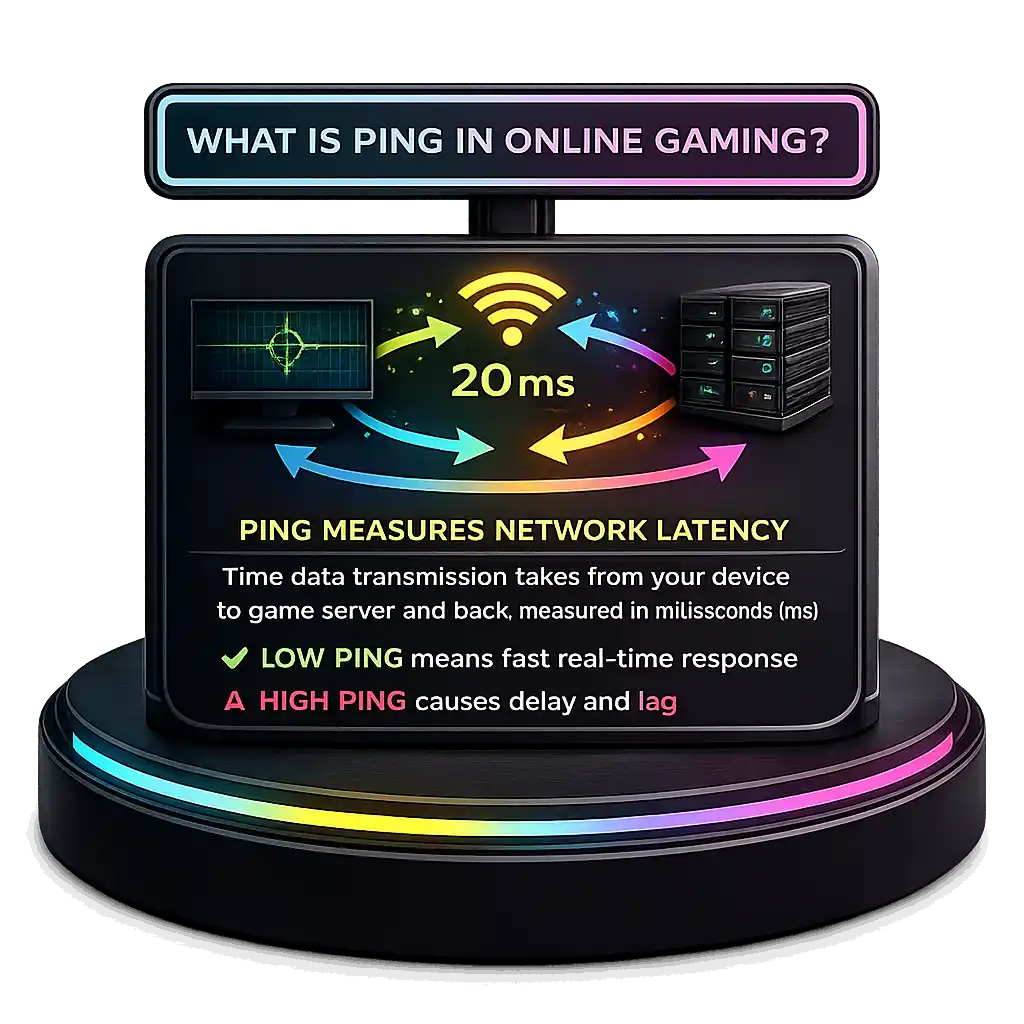
Ping is the pulse of your gaming experience. It measures network latency, which means the time data transmission takes to travel from your device to the game server and back. Cloudflare explains latency as round-trip time measured in milliseconds (ms). In online gaming, low ping means faster real time communication and better responsiveness. High latency creates delay between your action and what happens on screen. Ping usually works through ICMP to check this round-trip speed. And just to be clear, ping measures delay, while lag can also happen from packet loss or jitter, not only high latency.
What Is a Valorant Ping Test Tool?
A Valorant ping tester is a free tool that checks server latency before you queue into a match. This Valo ping test measures round-trip time between your device and every Riot regional server, showing real-time ping in milliseconds (ms). Running a ping test Valo players trust helps you spot connection instability early, before it costs you a ranked round. This latency measurement helps me see how stable my network connection really is. This Valorant network test also works as a full connection diagnostic, so you can spot internet stability issues early.
Running a Valorant latency test before ranked helps you detect packet loss, jitter spikes, and routing problems, the three issues that cause most in-game lag even when your download speed looks fine. Since Valorant runs on 128-tick servers, even small latency differences affect competitive gameplay. By checking server latency first, I can pick the lowest delay region and avoid problems before matchmaking starts.
The Ultimate Valorant Ping Checker Tool
Use this Valorant ping checker whenever you need an accurate latency measurement before a ranked match. The Valorant ping check runs a gaming connection test across every regional server and displays real-time ping for each one, so you can check Valorant ping with a single click. Unlike generic speed tests that only measure download and upload bandwidth, this ping checker focuses on what actually matters for FPS performance: latency, jitter, and packet stability.
That gives me server specific latency instead of random numbers. Generic speed tests mostly check download and upload bandwidth, but online FPS performance depends more on latency, jitter, and packet stability. Because Valorant relies on fast input registration, lower delay really matters. With proper network performance checks, I can choose the best server and prepare properly before queueing.
How to Test Your Valorant Ping
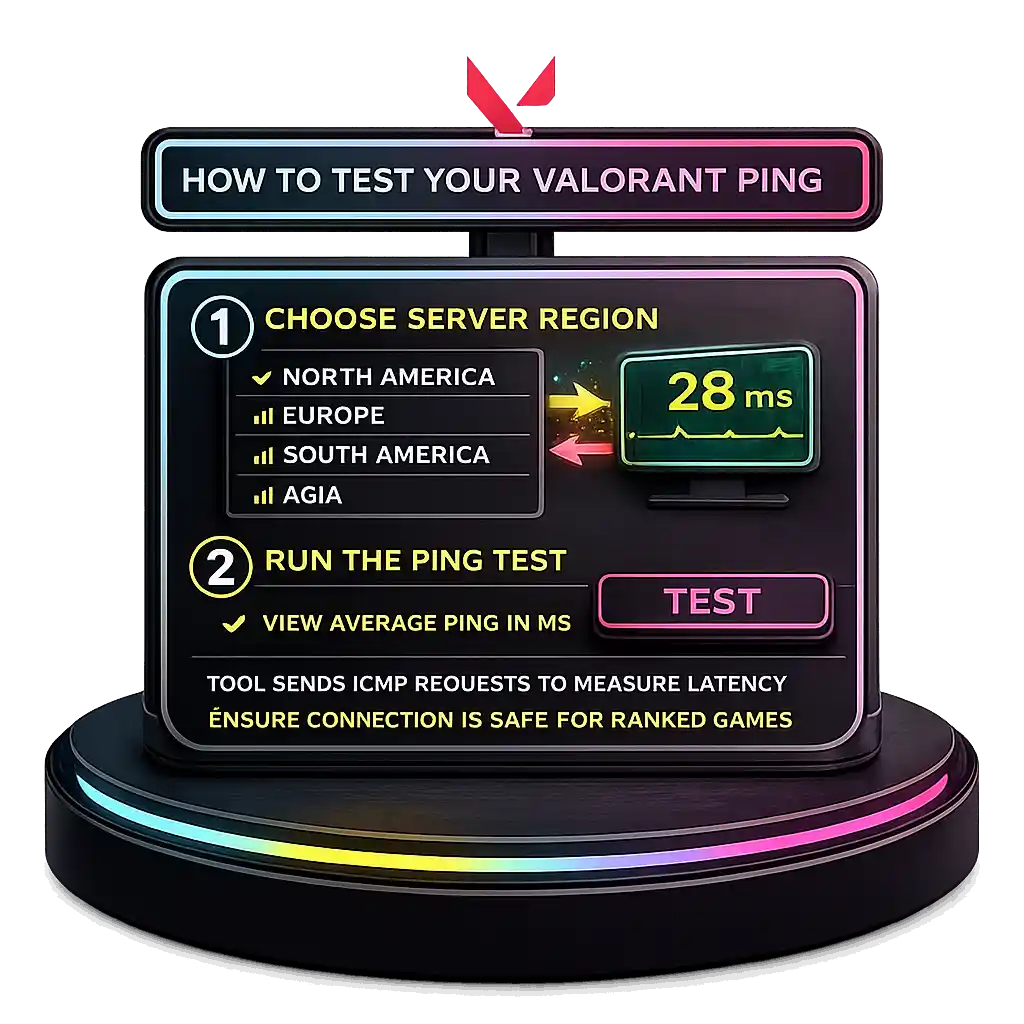
Here's how to test ping Valorant servers in seconds: pick your server region, then run the ping test. The Valorant ping test tool sends multiple ICMP echo requests to each regional server and calculates your average round-trip latency. You'll see real-time results in milliseconds (ms), so you can check Valorant ping across every region before you start a match.
It shows real time results in milliseconds (ms), so I can see my network stability clearly. This average round-trip time helps me know if my connection is safe for ranked games before I queue up.
Why Every Millisecond Matters in Valorant
Every millisecond can decide a round in a tactical FPS like Valorant. Low latency improves reaction time, reduces network delay, and makes precise shooting feel instant. High ping adds delay between your click and hit registration, which can cost duels. Riot Games confirmed in its developer blog that Valorant runs on 128-tick servers, meaning updates happen 128 times per second, so low latency becomes critical for accuracy.
Even a 20 to 30 milliseconds (ms) difference can change peeker fights and ability timing. Visual clarity also matters in gunfights, you can compare sharpness and screen clarity using our Pixel Density Calculator. That small edge can turn into a real competitive advantage, especially when your screen size, resolution, and pixel density are optimized using our Monitor Size Comparison.
Proven Ways to Reduce Valorant Ping
If I want to lower Valorant ping, I focus on connection stability first. Small changes can reduce latency fast.
- Use a wired connection with an Ethernet cable because it reduces jitter and avoids Wi-Fi interference. Wired setups can lower delay swings by around 5 to 15ms compared to crowded 2.4GHz networks.
- Close background apps using bandwidth since high bandwidth usage creates network congestion and adds delay.
- Update network drivers to fix bugs that may affect packet handling.
- Select the nearest server region because shorter distance usually means lower latency.
- Try a gaming VPN with routing optimization to bypass congested ISP paths.
Valorant runs on 128-tick servers, so stable latency really matters.
Why Is My Valorant Ping So High?
I’ve seen high ping in Valorant happen even with fast internet. The problem is usually not download speed. It is latency, routing, or stability.
- Network congestion can slow data during peak hours.
- Background applications increase bandwidth usage without you noticing.
- Unstable internet creates packet loss and delay spikes.
- Poor ISP routing sends data through longer paths, raising latency.
- Server distance matters because farther servers increase travel time.
- Router configuration issues can cause weak signal or interference.
- Ethernet vs Wi-Fi makes a difference since wired is more stable.
High ping often comes from inefficient ISP routing, not slow speed. And since Valorant uses 128-tick servers, even 10 to 20ms spikes can affect accuracy. I usually start by switching to Ethernet and checking my network setup.
Additional Ways to Improve Valorant Ping
If basic fixes do not work, I try a few advanced tweaks. These help improve Valorant ping by cleaning up small network issues that affect stability.
Update Network Drivers
Old drivers can slow your network adapter and cause delay spikes. Updating them supports latency optimization in Windows network settings.
Steps:
- Open Device Manager.
- Click Network Adapter.
- Right click your adapter and choose Update driver.
- Select automatic search and install updates.
Optimize DNS Settings
Changing your DNS server can improve connection stability during server handshakes. It does not directly lower game latency, but it can reduce DNS lookup delay.
DNS Options:
- Google DNS: 8.8.8.8 and 8.8.4.4
- Cloudflare DNS: 1.1.1.1 and 1.0.0.1
Steps:
- Open Control Panel and go to Network settings.
- Select your active connection.
- Open IPv4 properties.
- Enter preferred DNS addresses above.
Then open Command Prompt and run:
ipconfig /flushdns
Since Valorant uses 128-tick servers, stable routing and clean DNS resolution help prevent sudden spikes.
What Ping Range Is Considered Good in Valorant?
According to Riot Games Support Network Troubleshooting guidelines, a stable latency under 35ms is ideal, while anything under 60ms is generally playable for competitive gaming.
- 0 to 35ms – Ideal: Best good ping value for ranked play. Smooth, low latency, strong hit registration.
- 35 to 60ms – Playable: Stable connection for most players. Still competitive.
- 60 to 100ms – Fair: Delay becomes noticeable.
- 100ms and above – Poor: High latency affects accuracy.
Radiant and Immortal players need consistent stability, not just low average ping.
Official Valorant Server Locations by Region
Running a Valorant server ping test helps you find the closest data center with the most stable routing. Valorant uses regional servers around the world to keep gameplay stable, and a proper Valorant server test checks latency to each one individually.
According to Riot Games Support documentation on server locations, Valorant provides region-based servers to minimize round-trip latency between players and data centers, the closer the server, the lower your ping. The closer you are to a physical server, the lower your round-trip time RTT and ping.
Major Valorant server regions include:
- North America: Oregon, California, Texas, Illinois
- Europe: London, Paris, Frankfurt, Istanbul, Stockholm, Warsaw
- Asia Pacific: Mumbai, Singapore, Tokyo, Seoul, Hong Kong, Sydney
- Brazil: São Paulo
- Latin America: Mexico City, Santiago
- Middle East: Dubai
- South Africa: Johannesburg
Valorant often auto selects the nearest server, but choosing the nearest server manually can improve competitive consistency.
How the Valorant Ping Test Tool Works
This real time ping test sends repeated echo requests to AWS servers hosted on Amazon Web Services infrastructure near major Valorant server regions. It measures latency measurement by calculating round-trip time RTT and averaging the response time. Results auto refresh every 5 seconds to show updated estimated latency.
How to Reduce Ping in Valorant Effectively
If I want to lower ping and reduce latency, I focus on these quick fixes:
- Use an Ethernet connection because it avoids Wi-Fi interference and keeps latency stable.
- Choose the nearest server region since closer distance lowers travel time.
- Enable QoS settings so the router prioritizes gaming traffic over downloads.
- Limit bandwidth management issues by pausing streaming on shared networks.
- Check router configuration to avoid outdated firmware problems.
- Test a gaming VPN because it may improve or worsen ISP routing.
- Upgrade your ISP package if needed to prevent congestion during peak hours. If you're optimizing your full gaming setup, you can also estimate system power usage with our Electricity Cost Calculator.
Small jitter spikes can affect Valorant due to its 128-tick servers.
How to Switch Server Regions in Valorant
If I want to change Valorant server for better stability, I adjust it before queueing.
- Open Valorant and go to the main lobby screen.
- Look at the server selection icon near the Play button.
- Click it to view available server regions and their real time latency.
- Compare the numbers and choose the lowest ping server, ideally under 50ms to reduce input lag and network buffering.
- Confirm and start matchmaking.
Valorant shows in game ping next to each region, which helps me compare quickly. Lower latency improves competitive consistency, but limiting server regions may increase matchmaking time. To understand how your monitor refresh impacts input delay, try our Refresh Rate Test.
The AWS based ping test shows estimated latency with about 5 to 15ms variance. For exact in game ping, I test inside a custom match since live server load can affect round-trip time.
Why Is My Ping Low in Speed Tests but High in Valorant?
I see this a lot. A speed test shows low ping, but Valorant shows high ping in game. That happens because speed tests check nearby ISP servers, not the actual game server you connect to.
- ISP routing issues can send game traffic through longer paths.
- Network congestion during peak hours increases delay.
- Packet loss can raise gaming latency even with fast internet.
- Jitter spikes cause unstable response times.
- Server distance increases round-trip travel time.
- Router or firewall configuration may interfere with traffic.
Bandwidth vs latency is different. Even 500 Mbps cannot fix unstable routing. Since Valorant uses 128-tick servers, small 10 to 20ms jitter spikes can hurt performance. I usually test server selection, use Ethernet, and check routing stability first.
How to Fix High Ping in Valorant Even with Fast Internet
I’ve seen high ping despite fast internet like 300 to 500 Mbps. Speed does not equal low network latency. Gaming depends more on routing quality than raw bandwidth.
Why it happens:
- Network congestion slows data during busy hours.
- Inefficient ISP routing adds extra network hops.
- Packet loss increases delay and instability.
- Weak router hardware affects traffic handling, and overall system stability can also suffer if your PC power delivery is unstable, you can estimate proper power requirements using our PSU Wattage Calculator.
- ISP peering issues lengthen the path to the game server.
According to Cisco, network latency is mainly affected by congestion, routing path, packet loss, and hardware performance. If you're storing game recordings or running multiple drives, understanding redundancy and speed tradeoffs is important, you can calculate configurations using our RAID Calculator.
How to fix it:
- Use Ethernet vs Wi-Fi for stability.
- Restart modem and router.
- Update router firmware.
- Enable QoS configuration for gaming traffic.
- Reduce household bandwidth usage.
- Ask ISP about routing optimization.
- Test different Valorant server regions.
Stable latency matters more than speed in Valorant’s 128-tick system.
Does Server Location Impact Valorant Ping?
Yes, server location directly affects ping. The closer you are to a game server, the lower your round-trip time RTT. Greater geographic distance increases latency because data must physically travel farther.
According to Amazon Web Services Global Infrastructure documentation, latency rises as geographic distance grows due to propagation delay in fiber optic routing. Signals travel near 200,000 km per second in fiber, so longer paths increase delay. Even 1,000 km can add about 5 to 10ms. Indirect routing and extra network hops also increase RTT. AWS reduces this by using regional data centers and edge infrastructure worldwide.
What affects latency:
- Geographic distance
- Fiber routing efficiency
- Number of network hops
- Regional data centers
- ISP peering agreements
Choosing the nearest server supports latency optimization and better consistency in Valorant.
Why Is Speed Test Ping Different from In-Game Ping?
I see people confused about this all the time. Speed test ping looks low, but in game ping feels higher. They measure different things.
According to Ookla Speedtest methodology FAQ, speed tests measure latency to the nearest ISP test server, usually inside your provider’s network or a nearby node. They do not measure delay to external game server infrastructure.
Speed Test Ping:
- Connects to closest ISP test server
- Uses optimized routing path
- Very short physical distance
In Game Ping:
- Measures round-trip time RTT to regional game servers
- Depends on ISP routing and peering
- Affected by network congestion, packet loss, and jitter
Low speed test ping does not always mean low gaming latency.
How to Resolve ISP Peering Issues with Riot Servers
Sometimes high latency has nothing to do with your home setup. ISP peering problems can increase round-trip time RTT even if your bandwidth looks fine.
According to the Cloudflare networking glossary, ISP peering is the network interconnection between different internet providers and data centers that allows traffic exchange. If your ISP has weak peering agreement with Riot servers, traffic may travel through indirect transit networks. Congestion at an internet exchange point IXP can add 20 to 40ms due to routing inefficiency, especially during peak hours.
Symptoms:
- Low speed test ping but high in game latency
- Spikes during evening congestion
- High latency only to specific Riot servers
- Stable bandwidth but unstable RTT
How to fix:
- Ask ISP about routing optimization
- Test different Valorant server regions
- Use Ethernet instead of Wi-Fi
- Try alternative routing services
- Consider changing ISP if persistent
Strong peering ensures stable competitive latency in Valorant.
What Ping Do Professional Valorant Players Typically Have?
At the pro level, latency gets very serious. Small delays can change rounds. Professional players compete in extremely low latency environments because reaction time matters in every duel.
According to Riot developer insights, competitive integrity in Valorant depends on low latency servers and equalized regional infrastructure. Riot focuses on keeping server performance fair across regions.
LAN Events:
- Usually sub 20ms latency
- Often 1 to 10ms on controlled esports network conditions
Online Competitive Play:
- Commonly 20 to 35ms latency
- Sub 35ms considered ideal for high level ranked and scrims
At elite levels, even a 10ms gap can affect peeker timing. Riot’s 128-tick system makes stable latency critical.
Ideal Ping for Ranked and Competitive Valorant Matches
Ideal ping depends on how serious the match is. In ranked Valorant, a stable connection matters more than chasing the lowest number. Low latency gaming feels better, but consistency wins games.
Standard Ranked Play Iron to Ascendant:
- Ideal: Below 50ms
- Playable: 50 to 70ms
- Focus on stable connection, not just low average ping
High Elo Competitive Play Immortal to Radiant:
- Ideal: 20 to 35ms
- Advantageous: Sub 25ms
- High elo latency must stay consistent, especially when adjusting graphics settings for performance. If you're lowering render resolution to improve FPS, test changes using our Resolution Scaling Calculator.
Even 10 to 15ms can affect reaction time because Valorant runs on 128-tick servers. Internal memory delay can also impact 1% low FPS, which you can measure using our RAM Latency Calculator. Jitter above 5 to 10ms variance can feel worse than steady 45ms latency. Competitive players often choose stability over faster matchmaking.
Average Valorant Ping by Region (2026 Data)
Here’s a more detailed look at typical average ping values players might see when connecting to major Valorant server regions — actual numbers can vary by ISP, routing, and physical distance from data centers:
| Region | Typical Average Ping (ms) | Recommended ISP Type |
|---|---|---|
| North America (NA) | ~20–40 ms | Broadband with strong routing |
| Europe (EU) | ~15–35 ms | Fiber or high-quality cable |
| Asia Pacific (APAC) | ~30–70 ms | Fiber / low-latency peering |
| South America (SA) | ~50–90 ms | Stable cable / fiber |
| Middle East & MENA | ~40–80 ms | Fiber / optimized routing |
| Oceania (OCE) | ~60–100 ms | High-quality broadband |
| Africa (AF) | ~100–200+ ms | Broadband / limited local servers |
These values are rough averages based on real-time ping tests to official regional servers; your results depend heavily on ISP routing, peering, and proximity to datacenters. In general, closer physical location to the server and quality of network path reduce round-trip time and improve gameplay responsiveness.
👉 Note: Selecting the nearest server region is key to lower ping and stable competitive performance in Valorant.
People Also Ask
How to test ping on Valorant?
You can test ping inside Valorant by checking the server selection menu before queueing. The game shows real time latency in milliseconds next to each server region. You can also enable the in game network stats to see live ping during a match. Using a Valorant ping test tool before ranked helps avoid unstable connections.
Is 40 ping bad for Valorant?
No, 40ms ping is not bad. It is considered good for ranked play. Most players experience smooth gameplay under 50ms. If the connection is stable with low jitter, 40ms feels responsive and competitive.
Is 200ms ping good or bad?
200ms ping is bad for Valorant. That level of network delay causes noticeable lag, delayed hit registration, and slower reaction timing. Competitive play becomes very difficult above 150ms.
Is 28 ms ping good?
Yes, 28ms ping is very good. It falls within ideal latency for competitive matches. At this level, reaction time and shooting feel accurate and smooth.
Is 2ms ping fast?
Yes, 2ms ping is extremely fast. This usually happens on LAN or very close regional servers. It provides near instant response and minimal input delay.
Is 0 ping possible?
No, 0ms ping is not possible in real world networking. Data always takes time to travel, even over short fiber connections. The lowest you can see is close to 1–2ms in controlled environments.
