
Assetto Corsa PC System Requirements and Recommended Specs
I’ve seen many people ask if their PC can run Assetto Corsa. The game is a sim racing title that released in 2014, and it still runs well on many systems today. On Steam, the game lists both minimum requirements and recommended specs so players can check if their PC can handle it. And yeah, the release date shown on some requirements sites is November 08, 2013, which sometimes causes confusion. The strong modding community also keeps the game active with new tracks, cars, and mods.
The system requirements are official numbers, but real performance can change depending on resolution, VR, installed mods, and graphics drivers.
Key Takeaways
- The minimum requirements can start Assetto Corsa, but settings will likely stay low. Some visual options like shadows or reflections may need to go down.
- The recommended specs give a safer setup for smoother sim racing and more stable gameplay.
- A clean install uses about 15–30 GB, but mods like car packs and track libraries can push storage much higher and increase RAM and VRAM usage.
- VR play needs extra performance headroom because stable frametimes matter more than average FPS.
- Tools that show frametimes, 1% lows, temperatures, and hardware utilization help find real performance limits before upgrading.
- Many stutter problems come from GPU drivers, Windows power settings, or high CPU/GPU temperatures rather than weak hardware.
Official Minimum System Requirements for Assetto Corsa (PC)
According to the Steam listing, these are the official minimum system requirements to launch Assetto Corsa on PC.
| Label | Value |
| OS | Windows Vista SP2 / Windows 7 SP1 / Windows 8 / Windows 8.1 / Windows 10 |
| CPU | AMD Athlon X2 2.8 GHZ or Intel Core 2 Duo 2.4 GHZ |
| RAM | 2 GB RAM |
| GPU | AMD Radeon HD 6450 or Nvidia GeForce GT 460 |
| DirectX | Version 11 |
| Storage | 15 GB available space |
| Sound | Integrated sound card |
| Network | Broadband internet connection |
The minimum requirements let the game start, but settings may need to stay low. Shadows, anti aliasing, and reflections usually need to drop first.
One small thing that confuses people. The GPU examples like GeForce GT 460 or Radeon HD 6450 come from the DirectX 10.1 class era, but the game itself runs on DirectX 11. The hardware simply needs enough capability to handle the DX11 engine. VR through SteamVR or Oculus PC also needs stronger hardware than these minimum specs.
Minimum Specs Legacy to Modern Hardware Mapping
The official list shows older hardware. So I usually compare it to rough modern tiers just to make it easier to understand.
| Legacy Part | Modern Rough Tier |
| Intel Core 2 Duo / AMD Athlon X2 | Older dual core class CPU, similar to basic modern entry level CPUs |
| Nvidia GeForce GT 460 | Entry level GPU tier today |
| AMD Radeon HD 6450 | Very low entry level GPU tier |
This mapping is only a conservative estimate. Real performance depends on drivers, resolution, and settings. I always confirm with monitoring tools like MSI Afterburner or HWiNFO before judging hardware limits.
Storage Reality Check Minimum SSD vs HDD and Mods
The official spec lists 15 GB available space, which is enough for the base game. But that number grows quickly once mods come in.
- Stock install: about 15 GB and normal load times.
- Light modded install: extra cars or tracks can push storage higher.
- Heavy modding: large track libraries and car packs often add 20 to 100 GB depending on the libraries.
And honestly, installing the game on an SSD helps a lot. Tracks load faster and big mod packs feel smoother than running the game from an HDD.
Official Assetto Corsa Recommended System Requirements (PC)
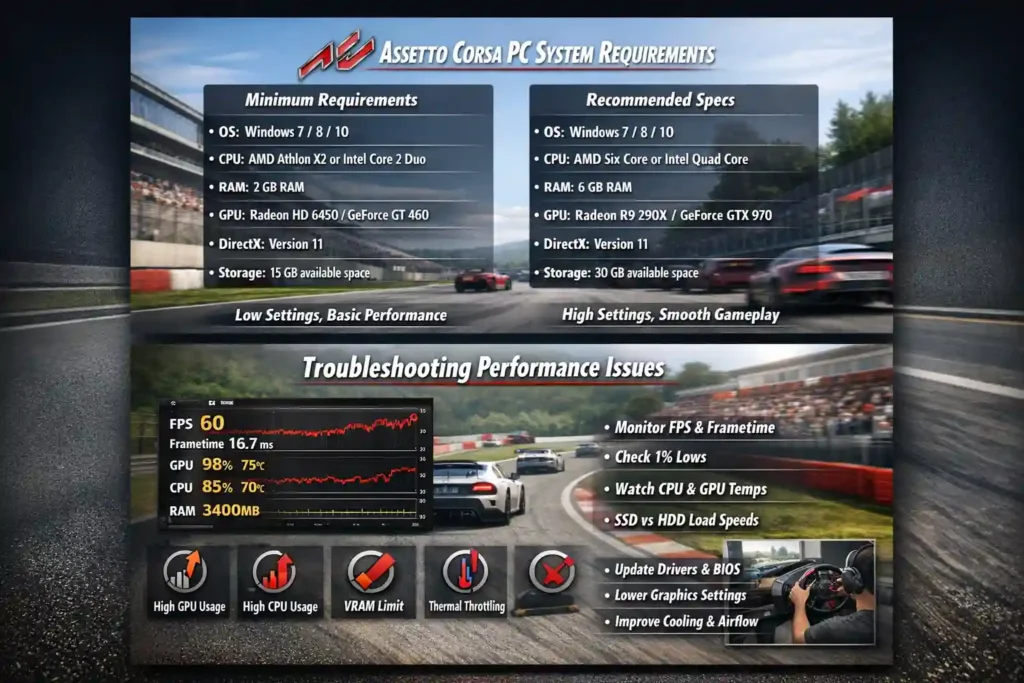
These are the official recommended system requirements for Assetto Corsa listed on Steam. This setup targets smoother sim racing and allows higher graphics settings than the minimum system requirements.
| Label | Value |
| OS | Windows Vista SP2 / Windows 7 SP1 / Windows 8 / Windows 8.1 / Windows 10 |
| CPU | AMD Six Core CPU or Intel Quad Core CPU |
| RAM | 6 GB RAM |
| GPU | AMD Radeon 290x or Nvidia GeForce GTX 970 |
| DirectX | Version 11 |
| Storage | 30 GB available space |
| Sound | Integrated sound card |
| Network | Broadband internet connection |
The recommended specs provide better stability and allow higher visual settings compared with minimum hardware. If you plan to use VR or install many mods, leaving extra performance headroom usually helps maintain smoother gameplay.
Recommended Specs Legacy to Modern Hardware Mapping
The official list still shows older GPUs and CPUs. So I usually compare them to modern hardware tiers just to give a rough idea.
| Legacy Part | Modern Rough Tier |
| Intel Quad Core CPU / AMD Six Core CPU | Modern midrange CPU class with similar multithread headroom |
| Nvidia GeForce GTX 970 | Midrange GPU tier today |
| AMD Radeon 290x | Midrange GPU tier today |
This comparison only shows a modern equivalent range, not exact matches. Real performance changes based on drivers, resolution like 1080p or 1440p, and game settings. I always verify using a benchmarking and monitoring workflow before assuming hardware limits.
Graphics Settings Starting Point (Tie Settings to Bottlenecks)
When performance drops or frametime spikes appear, the first step is adjusting settings based on which part of the system is under load.
GPU heavy settings
- Shadows
- Anti aliasing
- Reflections
- Post processing and visual effects
CPU heavy settings
- AI count in races
- Track objects and draw distance
- Physics calculations in large races
If stutter appears, I usually try these changes first:
- Lower shadows and reflections, since they often hit the GPU hardest.
- Reduce AI count when racing with many cars on track.
- Lower anti aliasing if frametime spikes continue.
More detailed tuning ideas are covered in this guide Best graphics settings.
Can My PC Run Assetto Corsa? Quick Self Check
I get this question a lot. The good news is Assetto Corsa is not a very heavy game. It released in 2014, so most modern PC builds can run it without much trouble. Even a low end PC can usually start the game if it meets the minimum requirements. The real difference comes from graphics settings and how much framerate stability you want. Some players prefer visual quality, while others lower settings for smoother racing.
Quick things I usually check first:
- Compare your CPU, GPU, and RAM with the official system requirements.
- Check if your PC meets the recommended specs, not just the minimum.
- Lower graphics options if performance drops. Small settings tweaks can improve framerate a lot.
- Watch system load during races. Large grids and heavy tracks push hardware harder.
Simple flow I follow:
Compare specs → monitor frametimes → apply driver and Windows fixes → test again.
If performance still feels off, the benchmarking and monitoring section later shows how to test hardware limits properly.
VR Notes (SteamVR / Oculus PC) Performance Headroom and Comfort Basics
Yes, Assetto Corsa supports VR, but VR needs more stable performance than normal screen play. In VR, sudden frametime spikes can cause motion discomfort, so stable performance matters more than raw framerate.
A few basics I usually check for VR:
- Leave extra performance headroom before enabling VR graphics options.
- Watch frametime stability instead of only average FPS.
- Connect VR headsets to reliable USB ports and avoid unstable hubs.
- Check SteamVR settings like reprojection or motion smoothing if performance fluctuates.
According to SteamVR documentation, VR systems rely on stable frame delivery to keep motion comfortable and responsive.
What Kind of Game Is Assetto Corsa? Modes, Multiplayer, and Modding
I’ve played a lot of racing games, and Assetto Corsa feels more like a true sim racing experience than an arcade racer. The game focuses on realistic driving and track behavior. You can jump into career mode, try custom championships, run AI races, or just practice with hotlapping and time attack modes. And yeah, there is online multiplayer too, where players race on community servers.
The game also lets you adjust a customizable UI and many gameplay options. But honestly, the real reason the game stays popular is the huge modding community. People keep adding new cars, tracks, and tools years after release.
Common mods players install:
- New cars and vehicle packs
- Real world track recreations
- Graphics and weather mods
- UI and HUD customization tools
- Physics tweaks and driving tools
One thing to keep in mind. Large mods can increase RAM, VRAM, and storage needs, especially when using high detail content.
Modding Impact on RAM VRAM and Storage
I’ve seen many players install dozens of mods without thinking about hardware limits. But different types of mods affect different parts of your PC.
What increases VRAM usage
- High resolution textures
- Advanced graphics or lighting mods
- Detailed car models
What increases RAM usage
- Large car packs
- Heavy track environments
- Extra background apps or tools
What increases storage space
- Big track libraries
- Car collections and mod packs
- Backup versions of mods
A typical heavy mod setup often requires +20 to 100 GB of extra storage, depending on the libraries installed.
And one small tip that helps a lot. I usually keep a backup or staging folder for new mods before moving them into the game. PCGamingWiki notes common compatibility and fix patterns, and it’s a helpful place to check if a mod causes problems.
What You Need to Start Racing (PC Setup and Beginner to Upgrade Path)
I’ve seen many people start Assetto Corsa with just a keyboard or controller. That works. But once you try a proper steering wheel with force feedback, the experience changes a lot. Most players follow a simple upgrade path. First comes a starter bundle, then a better wheel, and later a full cockpit setup for stability and immersion.
Many modern racing wheels work on PC and connect directly to the game without extra hardware. That makes them a good fit for a beginner sim racing setup.
Common hardware options people use:
- Gran Turismo® DD Pro
- CSL DD QR2 Ready2Race BMW Bundle
- CSL Elite Steering Wheel McLaren GT3 V2
- Podium Steering Wheel GT3 Endurance
- CSL Cockpit
- ClubSport GT Cockpit
A Ready2Race bundle usually includes a wheel base, pedals, and mounting system. Later upgrades often focus on stronger force feedback, better pedals, or a stable cockpit frame.
Peripheral Compatibility and Input Latency Checklist (Wheels, Pedals, Shifters)
I’ve seen setups work perfectly one day and feel delayed the next. Small setup details often cause input latency or weak force feedback.
Things I always check first:
- Connect the wheel directly to stable USB ports on the PC.
- Avoid weak or overloaded USB hubs when possible.
- Install the latest wheel drivers for the device.
- Run a firmware update if the manufacturer provides one.
- Calibrate the wheel and pedals inside the game settings.
Before starting a race, I usually do a quick check:
- Wheel turns smoothly
- Pedals show full input range
- Force feedback activates correctly
For deeper setup steps, the drivers and firmware optimization checklist later in the guide explains the proper update order.
Drivers, Firmware and Windows Optimization Checklist (GPU, Chipset, BIOS, Power Plans)
I’ve seen many racing setups struggle even when the hardware meets the recommended specs. The cause often sits in the software layer. Old GPU drivers, outdated chipset drivers, or the wrong Windows power plan can create stutter or unstable frametimes. Fixing these basics usually improves system stability before changing hardware.
According to Microsoft’s DirectX documentation, Windows graphics components and drivers must stay updated for proper communication between games and hardware.
Safe Update Order Checklist
- Clean install GPU drivers
Remove old GPU drivers using DDU. Then install the newest drivers from Nvidia or AMD. - Update chipset drivers
Install the latest chipset drivers from the motherboard manufacturer. This helps CPU and PCIe devices communicate correctly. - Check BIOS version
A stable BIOS update can improve hardware compatibility and memory behavior. - Set the correct Windows power plan
Use High performance or Ultimate Performance if available. Balanced plans sometimes reduce CPU clocks. - Check GPU control panel settings
In Nvidia Control Panel, set power management to Prefer maximum performance.
In AMD Radeon settings, check similar performance profiles. - Disable heavy overlays
Recording tools, game overlays, or monitoring apps can create stutter during races.
Do / Don’t Quick Tips
Do
- Keep GPU drivers updated
- Check chipset drivers after Windows updates
- Use a stable Windows power plan for gaming
Don’t
- Stack multiple overlays at the same time
- Update BIOS during unstable power conditions
- Ignore driver conflicts after major Windows updates
Pre Race Software Checklist
Before starting a race, I usually confirm a few quick things:
- GPU drivers loaded correctly
- No background update tools running
- Game Mode enabled in Windows
- Monitoring tools not using heavy overlays
- Wheel and controller drivers active
These quick checks prevent many random stutter or performance issues before the race even starts.
Benchmarking and Monitoring Tools to Diagnose Bottlenecks (What to Measure and How)
I’ve seen many people upgrade hardware without checking what actually limits performance. That usually wastes money. The better approach is to run a quick benchmark and monitor system behavior during a race. Numbers like frametime, 1% lows, and hardware utilization reveal what really causes stutter.
A few tools help a lot with this.
Monitoring tools
- MSI Afterburner – shows FPS, frametime, GPU utilization, CPU utilization, temperatures, and VRAM usage during gameplay.
- HWiNFO – tracks deeper system sensors like CPU clocks, motherboard sensors, and disk I/O activity.
I always watch 1% lows and frametimes, not just average FPS. Large frametime spikes usually explain stutter better than FPS numbers alone.
Quick Bottleneck Signals
Sustained 95-100% GPU utilization or CPU utilization usually shows which part limits performance.
| Metric | Likely Bottleneck | Quick Fix |
| GPU utilization near 100% | GPU limited | Lower shadows, anti aliasing, reflections |
| CPU utilization near 100% | CPU limited | Reduce AI count or track objects |
| VRAM usage near limit | GPU memory pressure | Lower texture quality |
| Disk I/O spikes | Storage loading issue | Move game to SSD |
| Frametime spikes | Mixed causes | Check drivers, temps, overlays |
Example 4 Step Benchmark Workflow
I usually follow a simple routine.
- Start a race with several AI cars.
- Enable MSI Afterburner overlay and record frametimes, 1% lows, and hardware usage.
- Drive one lap and watch GPU utilization, CPU utilization, and VRAM usage.
- Adjust one setting at a time and test again.
One important rule. Retest after each change. Changing many settings at once makes it hard to see what actually fixed the issue.
Quick Bottleneck Checks
Sometimes people want a quick estimate before upgrading hardware. A bottleneck calculator can help visualize CPU/GPU balance, but it only gives rough guidance. Real performance always comes from testing with monitoring tools and actual gameplay.
If you are planning an upgrade, these tools can give some context:
I treat these calculators as upgrade planning helpers, not exact performance predictions. Real benchmarks always tell the full story.
Power, Cooling and Thermals: PSU Wattage, Case Airflow and Preventing Throttling
I’ve seen systems that meet the recommended specs still struggle in races. The cause is often power delivery or heat, not weak hardware. If CPU temperature or GPU temperature climbs too high, the system reduces clock speeds. That behavior is called thermal throttling, and it can create stutter or unstable frametimes. Good PSU wattage, strong case airflow, and proper cooling keep performance stable.
PSU and Cooling Basics
Things I usually check in a racing PC setup:
- Use a reliable power supply with enough PSU wattage for the system.
- For builds with a strong GPU, many setups run well with 650–850W capacity.
- Choose a PSU with 80+ Gold efficiency for stable power delivery.
- Maintain steady case airflow with front intake and rear exhaust fans.
- Use a balanced fan curve so fans respond to temperature increases.
- Large CPU coolers or AIO liquid coolers help maintain stable CPU clocks.
Keeping temperatures controlled helps prevent sudden performance drops during long races.
GPU Tier and PSU Guidance
| GPU Tier | Suggested PSU and Efficiency |
| Entry level GPU | 500–600W PSU with good airflow |
| Midrange GPU | 600–750W PSU with strong cooling |
| High end GPU | 650–850W PSU with 80+ Gold efficiency |
This table shows rough power tiers rather than exact power numbers. Different GPUs and CPUs change total system demand.
Diagnosing Thermal Throttling
I usually check a few simple things when performance drops.
- Open a monitoring tool like HWiNFO and watch CPU temperature and GPU temperature during a race.
- If temperatures approach 85°C for the CPU or 85–90°C for the GPU, cooling may need improvement.
- Check if clock speeds drop when temperatures rise. That usually indicates thermal throttling.
- Adjust fan curves, clean dust filters, or improve case airflow and test again.
Monitoring tools help reveal these patterns clearly. Once temperatures stay stable, performance usually becomes more consistent during races.
Network and Online Race Stability: Latency, Packet Loss, and Router Tips
I’ve seen online races ruined by bad connections more times than weak hardware. In Assetto Corsa online multiplayer, a stable connection matters a lot. High latency, packet loss, or sudden network jitter can cause cars to teleport or delay steering input. For most players, a stable connection with ping below 50 ms and packet loss under 1% keeps races smooth.
Quick Network Diagnostics
- Run a simple ping test to the game server before joining a race.
- Watch the latency number and check for spikes or unstable values.
- Run a traceroute test if you suspect routing issues between your PC and the server.
- Test during the same time races normally happen, because evening traffic often changes network behavior.
Fixes That Improve Connection Stability
- Use wired Ethernet instead of WiFi whenever possible. A Gigabit Ethernet cable usually gives the most stable connection.
- Enable QoS settings in the router to prioritize gaming traffic.
- Check for double NAT situations if you use multiple routers or ISP gateways.
- Configure port forwarding if a server connection fails or drops frequently.
- Restart the router and modem if network jitter appears suddenly.
What to Do Next
I’ve seen many people focus only on the minimum requirements, but the recommended specs usually give a much smoother racing experience. If Assetto Corsa still feels unstable, the problem often comes from drivers, thermals, heavy mods, VR, or background software rather than raw hardware. A quick benchmark and monitoring frametimes usually reveals the real cause before spending money on upgrades.
FAQs
What are the official minimum system requirements for Assetto Corsa?
The official minimum system requirements include AMD Athlon X2 2.8 GHZ or Intel Core 2 Duo 2.4 GHZ, 2 GB RAM, and a GPU like GeForce GT 460 or Radeon HD 6450. The game also requires DirectX 11 and 15 GB storage. See the Minimum Requirements table above for the full list.
What are the official specs for Assetto Corsa on PC?
The recommended specs include an AMD six core CPU or Intel quad core CPU, 6 GB RAM, and GPUs like GTX 970 or Radeon 290x. The game uses DirectX 11 and requires 30 GB available space. The Recommended Requirements table above shows the full configuration.
Does Assetto Corsa run better on an SSD than an HDD?
Yes. The game loads tracks and cars faster on an SSD than on an HDD. The official install size ranges from 15 GB minimum to 30 GB recommended, but heavy mods often add 20–100 GB more storage depending on track libraries and car packs.
Why do I get stutters even though I meet the recommended requirements?
Stutter often comes from unstable frametimes or low 1% lows, not average FPS. Causes include outdated drivers, background overlays, thermal throttling, or slow storage streaming. The Monitoring and Benchmarking section shows how to check system utilization and identify the real bottleneck.
Is Assetto Corsa VR ready (SteamVR or Oculus PC), and what should I prioritize?
Yes, Assetto Corsa supports VR through SteamVR and Oculus PC. VR requires stable frametimes and extra performance headroom. Good USB connections, updated drivers, and consistent system performance help avoid motion issues. SteamVR documentation explains VR system requirements and runtime behavior.
What internet connection do I need for stable online races?
Stable online multiplayer works best with wired Ethernet instead of WiFi. Try to keep latency below 50 ms and packet loss under 1%. Router settings like QoS can improve stability. The Network troubleshooting section above explains testing and router fixes.
What is the best first upgrade for Assetto Corsa: GPU, CPU, or RAM?
Measure performance first. If GPU utilization stays near 100 percent, the system is GPU limited. High CPU utilization usually means a CPU bottleneck. Low RAM headroom can cause loading issues. The Benchmarking decision table above shows how to check these metrics before upgrading.
