
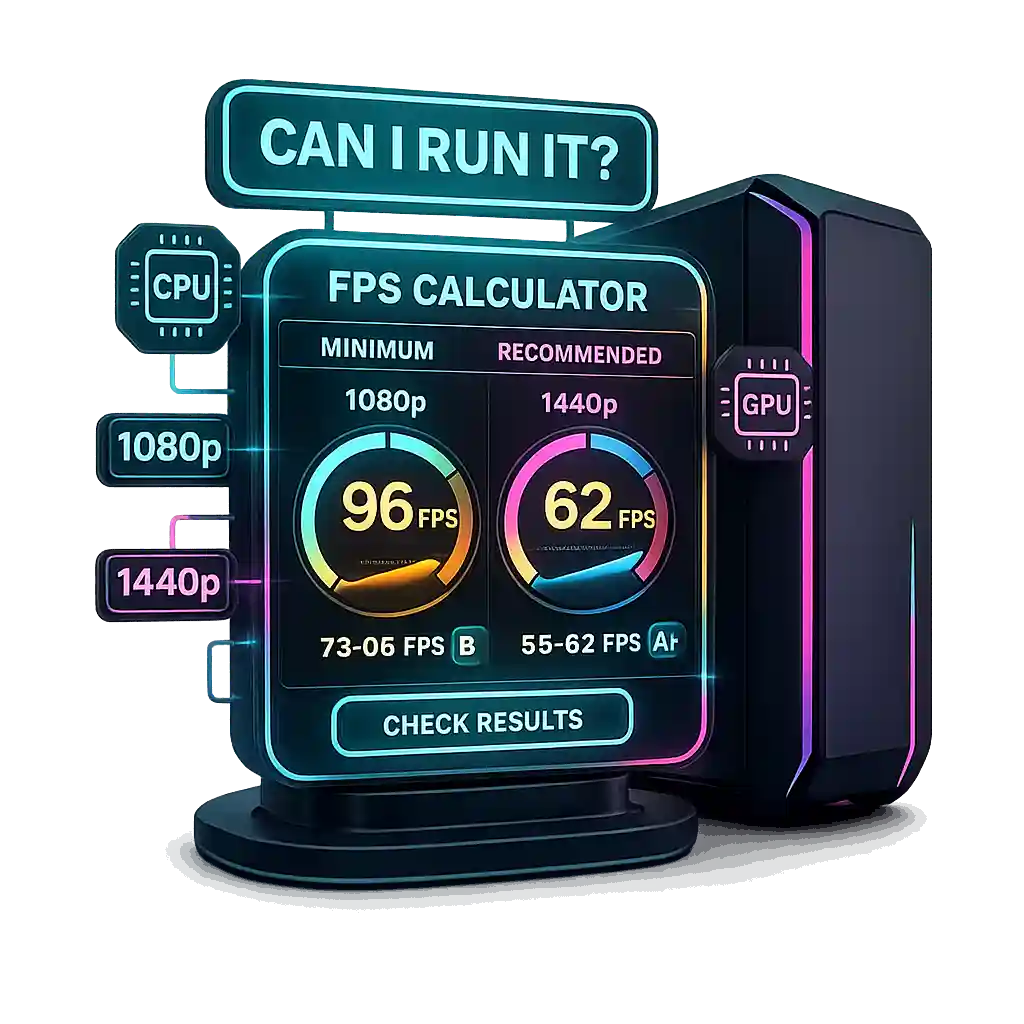
I’ve been there. I want to play a new game, but I keep asking, can I run it? That’s where an FPS calculator helps me. I just enter my PC system specs into the FPS calculator PC estimator, and it checks CPU performance and GPU performance to see if my setup matches the system requirements.
It gives quick framerate estimates so I know what gaming performance to expect and if my hardware comparison shows good compatibility.
When I put in my specs, the tool looks at my parts and compares them to minimum and recommended system requirements. It checks how my CPU and GPU handle different resolutions like 1080p or 1440p, since higher resolution can lower FPS. Then it gives me clear results based on my setup, so I get a simple compatibility check made just for my PC.
How To Use FPS Calculator Video
How Much FPS will I get with my PC?
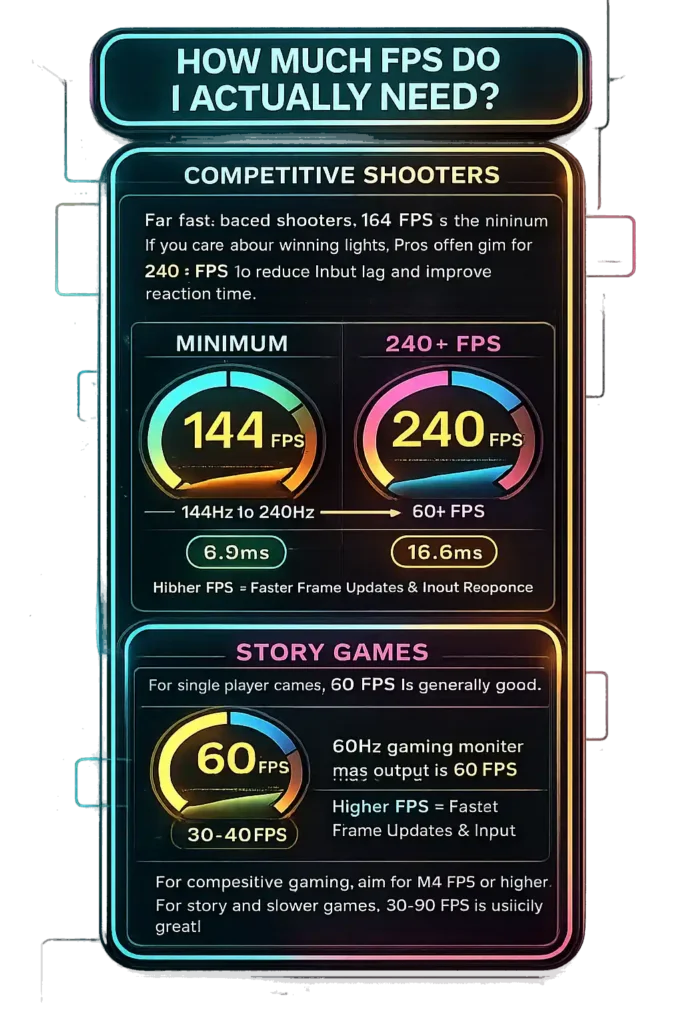
It depends on game type. For competitive shooters, I’d say 144 FPS is the real minimum if you care about winning fights. A 240Hz monitor is common in esports now. Some players even push 300 FPS to lower input lag. Higher frame rate lowers frame time. At 60 FPS, each frame takes 16.6ms. At 144 FPS, it drops to about 6.9ms.
That means faster updates on screen and better reaction time. Research from Worcester Polytechnic Institute by M. Claypool and K. Claypool shows higher frame rates improve reaction time and competitive gaming performance more than resolution alone. So frame rate vs resolution is not equal in shooters. FPS matters more.
For single player games FPS needs are lower. I’m fine with 60 FPS in story games. Graphics quality often matters more than pushing 144 FPS. If your system hits stable 60 on high settings, that’s solid. Just remember, a 60Hz monitor cannot show more than 60 frames per second anyway. If you’re unsure whether your display is actually running at its full refresh rate, you can verify it using our Refresh Rate Test.
For strategy games FPS or city builders, even 30 to 40 FPS feels playable. These games are not heavy on reaction time. You are thinking, planning, zooming around. Not flicking shots.
So when people ask how much FPS do I need, I say this. For competitive gaming performance, aim for 144 FPS or higher. For story games, 60 FPS works great. And for slower games, 30 to 40 FPS is usually fine.
What 1% Low FPS Really Means
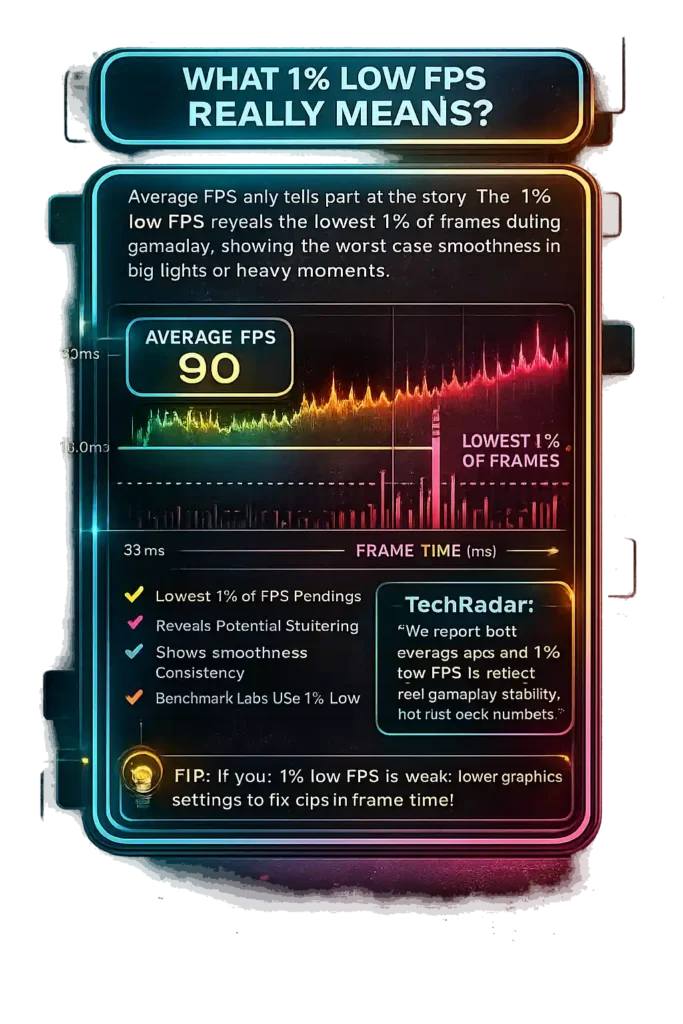
I see this all the time. Someone says their game runs at 90 average FPS. Sounds great. But then in a big fight, it drops to 25 FPS. That’s when stuttering in games shows up. And yeah, that feels bad. So average FPS does not tell the full story.
1% low FPS shows the worst case smoothness. It takes the lowest 1% of frames and averages them. It is not just one bad frame. It shows how your game behaves during heavy moments. If your 1% low FPS falls under 60, you will likely notice FPS drops and frame time spikes.
Smooth gameplay depends more on consistency than one high number. Frame time, measured in milliseconds, often shows real world performance better than just average FPS.
Even benchmark labs agree. According to TechRadar’s GPU benchmarking process, reviewers report both average FPS and 1% low FPS to reflect real gameplay stability, not just peak numbers. That is how they judge minimum FPS and real smoothness.
If your 1% lows look weak, I would lower some graphics settings. Shadows, effects, crowd density. Small tweaks can fix those dips fast. And honestly, steady FPS feels way better than flashy averages.
CPU or GPU – Which Affects FPS More?
I’ve seen people argue about CPU vs GPU gaming all the time. Truth is, it depends on resolution. That’s where gaming bottleneck usually shows up.
If you want to check your full system balance beyond FPS estimates, use our PC Bottleneck Calculator to see whether your CPU or GPU is limiting performance.
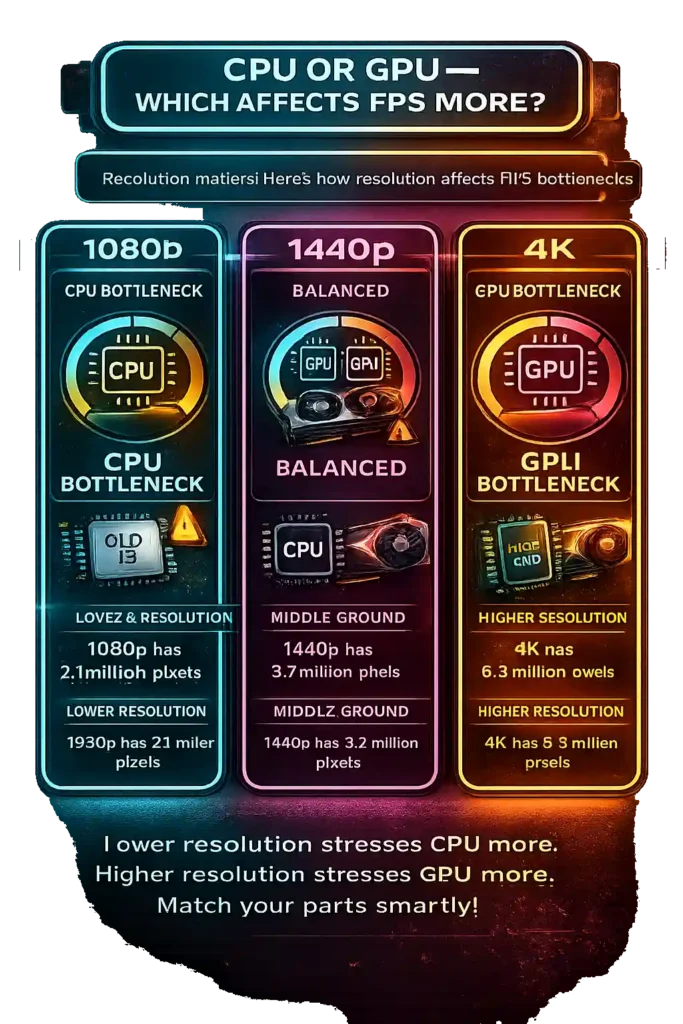
At 1080p, CPU bottleneck gaming is more common. The GPU is not fully stressed because 1080p pushes about 2.1 million pixels. So the CPU works harder to feed frames fast. This is why esports games like CS2 or Valorant feel 1080p CPU bound. If you pair an RTX 4090 pairing with an old i5, the GPU waits on the CPU. That mismatch kills high FPS.
At 1440p performance, things balance out. Around 3.7 million pixels now load the GPU more. Both CPU and GPU matter here. I’d say this is the middle ground where parts should be matched well.
At 4K GPU bound is almost always the case. 4K pushes about 8.3 million pixels. That is heavy. GPU scaling becomes the main factor.
Performance research comparing CPU and GPU architectures, summarized on Semantic Scholar, shows GPUs dominate parallel processing GPU workloads like graphics, while CPUs handle sequential logic. That explains why higher gaming resolution performance depends more on GPU power.
So yeah. Lower resolution stresses CPU more. Higher resolution stresses GPU more. Match your parts smartly.
How Resolution Changes FPS Performance
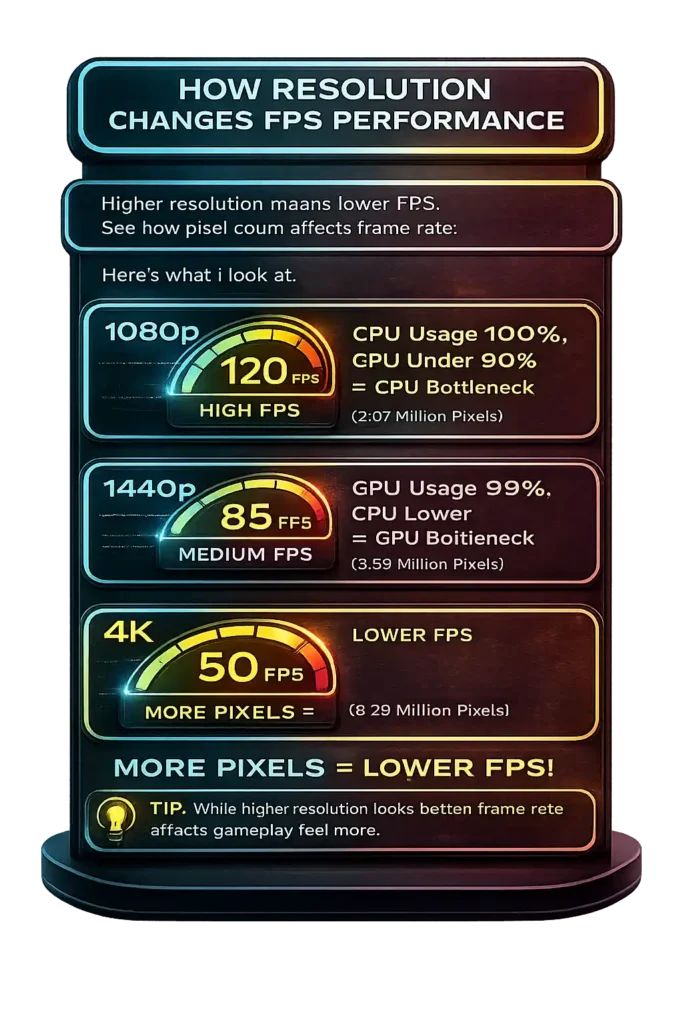
Higher resolution means lower FPS. Simple. That’s how resolution vs FPS works.
1080p pushes about 2.07 million pixels. 1440p pushes around 3.69 million pixels. 4K gaming jumps to about 8.29 million pixels. Higher pixel density also changes visual sharpness and GPU workload balance, which you can evaluate more precisely using our Pixel Density Calculator.
That is almost 4 times the pixel count gaming load compared to 1080p. More pixels mean more GPU workload. And more workload means lower FPS performance difference at the same graphics settings scaling.
To see exactly how pixel count increases GPU workload, try our Resolution Scaling Calculator when switching between 1080p, 1440p, and 4K.
So if you get 120 FPS at 1080p vs 4K performance on the same GPU, you might see around 50 to 60 FPS at 4K in a GPU bound case. It is not always perfect math because CPU limits, VRAM speed, and game optimization can change results. But the 4K gaming FPS drop is real.
Research from Worcester Polytechnic Institute shows frame rate impact affects measurable player performance more strongly than resolution alone. So while higher resolution looks sharper, frame rate vs resolution matters more for how the game actually feels.
DLSS vs FSR – How Upscaling Increases FPS
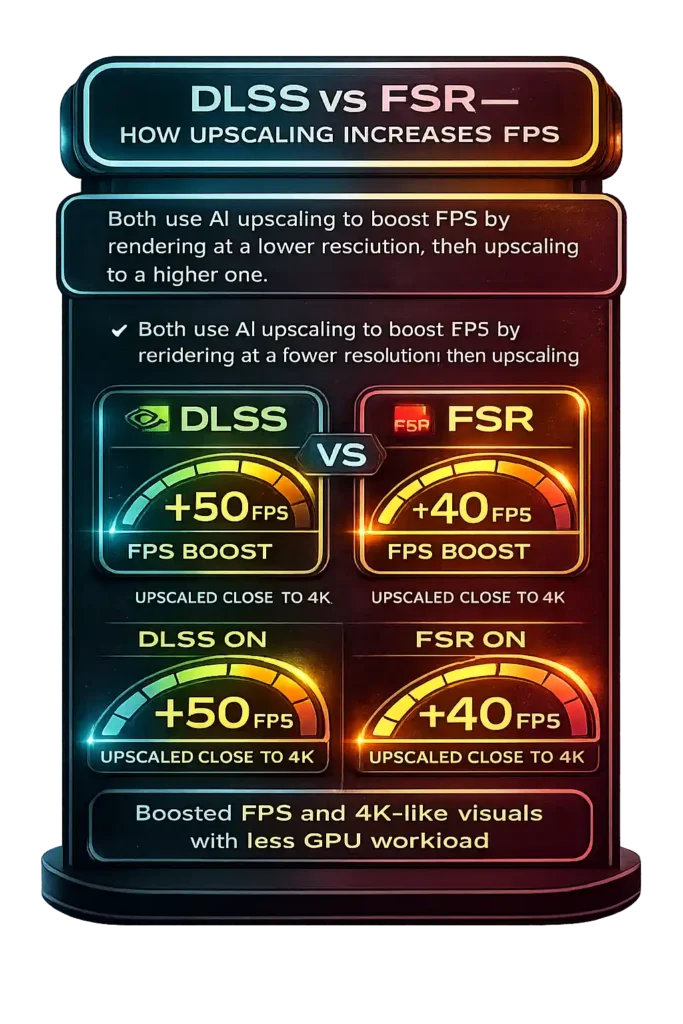
DLSS vs FSR both use AI upscaling to raise FPS. The game renders at a lower resolution, then rebuilds the image to look like a higher one. That means less GPU workload but similar visual output. It is not magic. But it works well for 4K gaming performance.
For example, DLSS Quality mode at 4K usually renders close to 1440p internal resolution, then upscales to 4K. Because the GPU processes fewer pixels, you can see a 30 to 70 percent FPS boost with DLSS depending on the game and GPU. Lower modes like Balanced or Performance give more FPS, but image sharpness can drop a bit.
Most FPS calculators show native resolution FPS only. So if you enable DLSS or FSR, I usually expect around 40 to 50 percent more FPS as a rough guess, though it varies by title.
DLSS needs NVIDIA RTX cards because it uses RTX Tensor cores for AI processing. FSR compatibility is wider since it runs through standard shaders, so AMD, NVIDIA, and even some consoles support it.
Does RAM Speed and Size Change FPS?
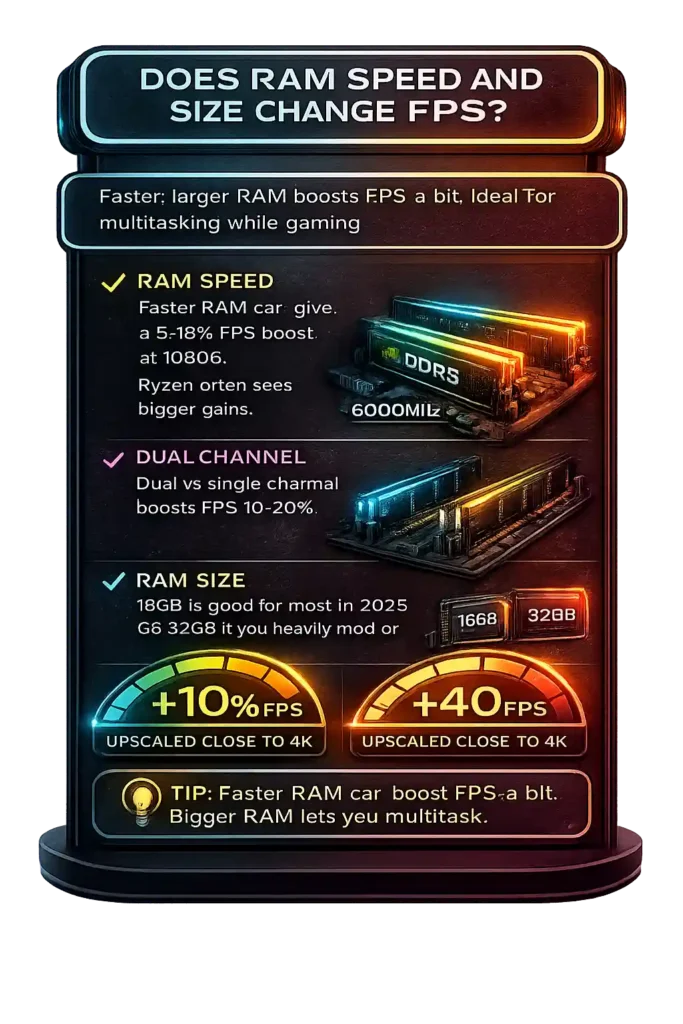
Yeah, RAM speed gaming does matter. But not in a crazy way. In most cases, does RAM affect FPS by around 5 to 10 percent. You see this more in CPU bound games at 1080p. Faster 3200MHz RAM performance or DDR5 vs DDR4 gaming can give small gains, especially if you use dual channel instead of single channel. Dual channel alone can boost FPS by 10 to 20 percent in some games.
Ryzen RAM scaling is stronger than Intel in many cases because of Infinity Fabric. Ryzen links memory speed to its internal design, so faster RAM helps more there. Intel also benefits, just usually a bit less.
For RAM capacity for gaming 2025, I’d say 16GB DDR4 3200MHz or DDR5 equivalent is enough for most games. 16GB vs 32GB gaming only matters if you mod heavily or run apps in the background. For gaming multitasking performance, 32GB feels safer. But once you hit enough capacity, speed matters less than just having enough RAM.
Laptop GPU vs Desktop GPU Performance Gap
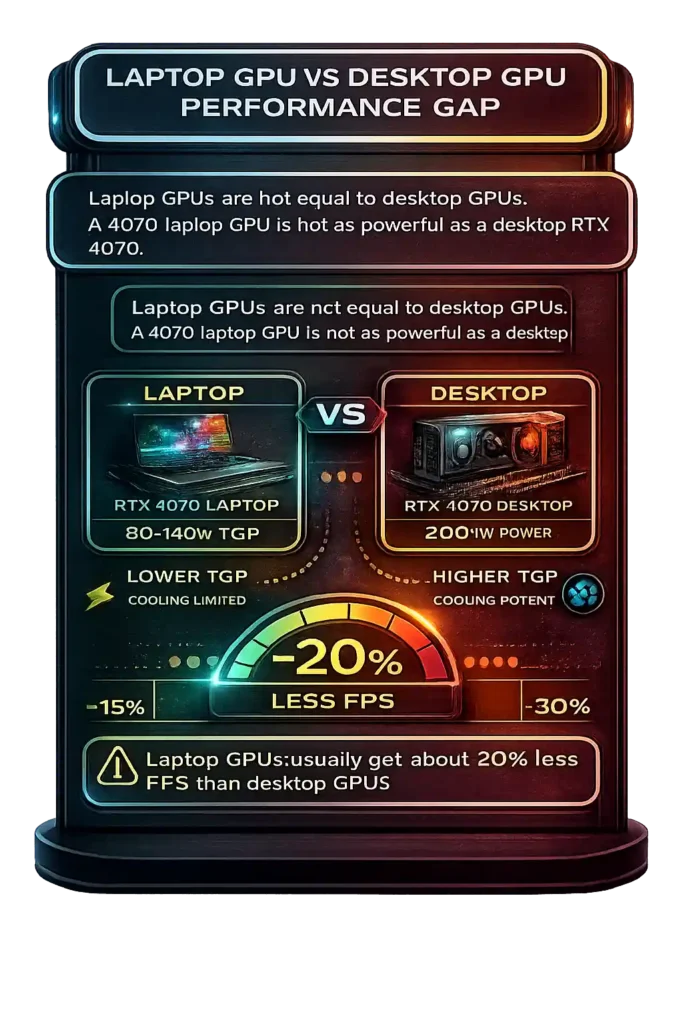
Laptop GPU vs desktop GPU is not equal, even if the name looks the same. An RTX 4070 laptop performance will not match a desktop equivalent GPU. They share branding, but the power and cooling setup are very different.
Laptops run on lower TGP power limits to control heat. An 80W version and a 140W version of the same mobile GPU performance can behave very differently. Because of thermal throttling gaming laptop limits, clocks drop to prevent overheating. CPU cooling limits inside thin laptops can also reduce boost speeds, which affects overall FPS stability.
In most cases, the gaming laptop FPS difference sits around 15 to 30 percent lower than desktop. I usually estimate about 20 percent less FPS when comparing to desktop benchmarks. High wattage gaming laptops get closer to desktop results, but thin designs show a bigger laptop gaming performance gap.
Are FPS Calculators Trustworthy for PC Upgrade Choices?
I get this question a lot. Are FPS calculators reliable when planning a PC upgrade FPS estimate? Short answer. They help, but they are not perfect. They give direction, not exact real world gaming performance numbers.
How FPS Calculators Actually Work
Most tools use benchmark based predictions. They pull data from large public benchmark databases and compare similar CPU and GPU combos. Then they apply statistical modeling gaming formulas to estimate average FPS. They also generalize settings. Ultra vs High settings alone can change FPS by 20 to 40 percent, and many tools simplify that difference.
Why FPS Calculators Don’t Always Match Real Gameplay
Here’s the issue. Real systems are messy. Hardware bottlenecks depend on cooling, RAM setup, and background load. A clean test bench behaves very different from a home PC with apps running. That affects FPS calculator accuracy.
Key Variables Online FPS Tools Often Miss
- Background apps using CPU or RAM
- Thermal throttling from weak cooling
- Single vs dual channel RAM configuration
- Exact in game graphics settings
- Power limits on laptop GPUs
These things change real world gaming performance fast.
How Game Updates and Drivers Change Results
Game patches performance can shift after updates. GPU driver updates FPS gains sometimes reach 5 to 15 percent depending on the title. So a PC upgrade planning decision based on old data might feel off later.
So yeah. Use calculators as a guide. But always double check with real benchmarks before spending money.
i7-4790K vs i5-12600KF: Real FPS Gains in Fortnite and Valorant
I’ve tested old Haswell chips, and the jump here is huge. The i7-4790K came out in 2014 with 4 cores and 8 threads on DDR3. The i5-12600KF uses Alder Lake design with 6 performance cores and 4 efficiency cores. It also brings much higher single core speed, around 40 to 50 percent better IPC than Haswell. That alone changes high refresh gaming.
Expected FPS at 1080p Low Settings
Using a GPU like RTX 3060 or 4060 class, here’s what 1080p low settings performance usually looks like.
Fortnite FPS 1080p low
• i7-4790K: around 120 to 160 FPS
• i5-12600KF: around 240 to 350 FPS
Valorant FPS 1080p competitive
• i7-4790K: around 180 to 250 FPS
• i5-12600KF: around 350 to 500 plus FPS
That CPU upgrade FPS gain is massive, especially for high refresh monitors.
Expected FPS at 1080p Competitive Settings
On competitive settings with reduced effects and tuned view distance, CPU scaling gets even stronger. The 12600KF pushes much higher 1% low improvement, so frame pacing feels smoother. DDR4 3200 or DDR5 memory on Alder Lake gaming performance also helps minimum FPS compared to old DDR3 systems.
CPU or GPU Upgrade: Which Really Increases FPS More?
I see this a lot. Someone wants more FPS but does not know which upgrade gives more FPS. The answer depends on where the limit is. In gaming, you are either CPU bound or GPU bound. If one part sits near full usage while the other is relaxed, that part is the bottleneck. Your FPS upgrade strategy should match that.
When Upgrading Your CPU Improves FPS
A CPU vs GPU upgrade choice leans toward CPU when:
- You play at 1080p CPU bound settings
- You play esports titles at 144Hz or higher
- CPU usage stays near 100%
- GPU usage stays under 90%
At 1080p, the system renders about 2.07 million pixels. That is not heavy for modern GPUs, so CPU bottleneck gaming becomes common. A faster CPU improves high refresh stability and 1% lows. Just remember, a CPU upgrade may also need a new motherboard and RAM, which raises cost.
When a GPU Upgrade Delivers Bigger Gains
GPU bottleneck gaming shows up when:
- You play at 1440p or 4K GPU bound
- You use Ultra settings
- Ray tracing is on
- GPU usage stays at 95 to 99%
1440p pushes 3.69 million pixels. 4K pushes 8.29 million. That huge jump increases gaming performance scaling on the graphics side. Comparative performance research summarized on Semantic Scholar explains that GPUs excel at parallel processing GPU workloads. That is why GPU upgrades often raise FPS more in graphically heavy games.
Upgrade Strategy by Resolution
1080p → CPU impact stronger
1440p → More balanced
4K → GPU dominant
Match the upgrade to your resolution. That usually gives the smartest result.
Better Alternatives to Online FPS Calculators
I use FPS calculator alternatives when I want real numbers. Online tools give estimates. They do not test your exact system. If I want real world gaming performance, I look at actual benchmark data instead of guessing.
Using YouTube Benchmark Videos for Real Gameplay FPS
YouTube gaming benchmarks can help a lot if you search smart. I always try to match the exact CPU and GPU combo. Then I check the same resolution and graphics settings I plan to use.
What I look for:
- Same CPU + GPU setup
- Same resolution like 1080p or 1440p
- Same graphics preset
- 1% low FPS benchmark, not just average FPS
- Upload date to check driver or patch relevance
Some channels fake numbers, so I cross check at least two videos. Real world gaming performance should look similar across sources.
Relying on Professional Hardware Reviews
Professional hardware reviews use controlled test benches and repeatable methods. Hardware review FPS tests from trusted sites show results across many games. That helps me see GPU comparison charts and CPU gaming benchmarks clearly. They also explain scaling trends.
I also check the test date because driver updates or game patches can change FPS by 5 to 10 percent.
How to Combine CPU and GPU Benchmarks for Smarter Estimates
If my exact combo is not tested, I estimate FPS manually. First, I find GPU comparison charts. If GPU A is 20 percent faster than GPU B, I apply that rough difference. Then I check CPU gaming benchmarks to see if the game is CPU limited. If GPU usage is high in reviews, it is GPU bound. If FPS barely changes between GPUs, it is CPU bound.
Combining both gives a smarter estimate than any single FPS calculator.
Are Online FPS Calculator Websites Safe to Use?
I get this question a lot. Are FPS calculator websites safe? Most of them are, as long as they only ask you to type in your PC parts manually. Legit PC performance tools safety rules are simple. They do not scan your PC. They do not need file access. They just calculate based on the hardware data you enter.
Privacy and Data Security Risks
FPS calculator privacy risk is low when the site only uses manual input like CPU and GPU names. Real online hardware tools security standards mean no downloads, no system permissions, no background scans. If a site tries to auto scan your PC or asks for personal info, that is a red flag. Legit tools do not need that.
How to Spot Suspicious FPS Calculator Sites
Here are warning signs I avoid:
- Asking to download unknown software
- Forcing browser extension scams
- Fake system scan popups
- Too many aggressive ads from malicious gaming websites
- No HTTPS security check in the address bar
- No About page or contact info
I also check domain age using WHOIS tools and look for browser security warnings. Fake FPS calculator sites usually look rushed or spammy.
So yeah, most calculators are safe. Just stay alert and use common sense.
How RAM Speed Impacts Gaming FPS
RAM speed gaming performance matters more than people think. RAM feeds data to the CPU, and the CPU sends draw calls to the GPU. If memory bandwidth gaming is slow, frame pacing suffers. According to Box UK’s RAM performance guide, faster RAM can improve FPS when data throughput affects CPU and GPU communication. So yes, does RAM increase FPS? In CPU bound gaming performance, it often does.
DDR3 vs DDR4 vs DDR5: Performance Differences
DDR3 vs DDR4 vs DDR5 gaming shows clear jumps in bandwidth. DDR3 runs at lower speeds and bandwidth. DDR4 mainstream kits range from 2133 to 3600MHz. For example, DDR4 3200 provides about 25.6 GB per second per channel. DDR5 5600 pushes much higher bandwidth, helping data heavy games.
In CPU bound games at 1080p low settings, faster memory can improve FPS by 5 to 15 percent. Ryzen CPUs benefit more because Infinity Fabric links memory speed to internal communication. Intel also gains, just usually a bit less.
Single Channel vs Dual Channel Memory
Single vs dual channel RAM changes bandwidth directly. Dual channel doubles the data path.
- Higher memory bandwidth gaming
- 10 to 20 percent more FPS in CPU bound scenarios
- Better frame pacing
How Memory Latency Affects 1% Low FPS
RAM latency gaming, especially CAS latency FPS, affects frame stability. Lower latency means faster response to memory requests. That improves 1% low FPS stability and reduces small stutters. Fast bandwidth helps averages. Low latency helps smoothness. You can compare true memory response time in nanoseconds using our RAM Latency Calculator before choosing new RAM.
YouTube Benchmarks vs FPS Calculators: Which One Is More Accurate?
I’ve compared YouTube benchmarks vs FPS calculator results many times. Both help, but they work differently. One shows estimated numbers. The other shows real gameplay FPS test footage. So accuracy depends on how you use them.
Real Gameplay Testing vs Statistical Estimates
FPS calculator accuracy depends on data models. According to PC Builds, these tools use hardware specs and benchmark databases to create statistical FPS estimates. They do not run your game live. They predict averages based on similar systems.
YouTube videos, on the other hand, show real gameplay FPS test captures, which work like a live FPS test PC comparison against calculator estimates. You can see frame pacing, stutters, and 1% low FPS comparison directly.
But not all hardware benchmark videos follow strict testing methods. Professional labs repeat the same test scene for consistency. Many YouTube creators do not. Also, driver updates and game patches can shift FPS by 5 to 10 percent, so older videos may not reflect current gaming performance testing results.
How to Compare Multiple Benchmark Videos Properly
When I estimate FPS, I check:
- Same CPU, GPU, and RAM
- Same resolution and graphics settings
- Same game version and driver version
- Both average FPS and 1% lows
How to Avoid Fake or Misleading Benchmark Channels
Watch for these signs:
- No visible performance overlay
- Unrealistic FPS numbers
- No explanation of test setup
- Reused or recycled gameplay clips
Why Two Identical PCs Can Deliver Different FPS
I’ve seen identical PC different FPS results many times. Same CPU. Same GPU. Same RAM. But performance still varies. Small hardware differences, software load, and even display setup can change 1% low FPS stability. Research by D. Toth and others shows refresh rate and perceived smoothness depend on latency too, so two systems can feel different even with similar hardware.
Silicon Lottery and Hardware Variance
Silicon lottery gaming is real. Tiny manufacturing differences affect CPU boost clock variance and voltage efficiency. One chip may hold higher clocks longer. Another may throttle sooner. Factory OC GPUs can run 3 to 8 percent faster than reference cards because of higher default boost speeds. Also, if XMP or EXPO memory profiles are not enabled, RAM runs slower and hurts CPU bound FPS. That alone can create noticeable gaps.
Background Processes and Windows Optimization
Background processes gaming performance matters more than people think.
• Windows updates running
• Antivirus scanning
• Game overlays
• Too many Chrome tabs
Windows optimization FPS also depends on power plan. Balanced mode can reduce boost clocks compared to High Performance mode.
Cooling, Thermal Throttling, and Power Limits
Thermal throttling gaming happens when temperatures rise too high. Clocks drop to stay safe. GPU power limits also cap performance if the card hits its wattage ceiling. Sustained cooling and stable power delivery help maintain higher clocks and smoother FPS consistency.
How Low vs High Game Settings Affect FPS
I’ve tested this many times. Switching from Ultra to Low can raise FPS by 30 to 60 percent, depending on your GPU and resolution. Low vs high settings FPS difference can be huge because every setting changes workload. Some hit the GPU hard. Others stress the CPU.
Graphics Settings That Heavily Impact GPU Performance
These are the main GPU intensive settings that lower FPS fast:
- Resolution. 1080p pushes about 2.07 million pixels. 4K pushes 8.29 million. That alone multiplies GPU workload.
- Ray tracing. Ray tracing FPS drop can reach 20 to 50 percent depending on the game.
- Shadows, especially volumetric shadows.
- Ambient occlusion.
- Anti aliasing levels.
- Texture resolution, which also depends on VRAM.
These graphics settings impact on FPS directly. If GPU usage sits at 99 percent, lowering these helps maximize FPS gaming.
Game Settings That Increase CPU Usage
These are CPU intensive game settings:
- View distance CPU usage
- NPC density
- Physics simulations
- Crowd quality
- Object detail
Lowering GPU settings will not help if CPU is already at 100 percent. That is a CPU bottleneck case.
Best Competitive Settings for Maximum FPS
For competitive graphics settings, I usually lower shadows and effects first. I keep textures at medium if VRAM allows. I reduce post processing and set anti aliasing to a lighter option or off. This setup boosts FPS and keeps clarity.
Understanding 1% and 0.1% Lows in FPS Benchmarks
Most people look at average FPS and stop there. But average numbers do not show the full story. Gaming smoothness metrics depend on stability, not just high peaks. If frame pacing gaming is uneven, you feel stutter even when the average looks strong. That is why 1% low FPS meaning and 0.1% low FPS explained are important in real performance testing.
Average FPS vs 1% Lows: What’s the Difference?
Average FPS is simple math. Total frames rendered divided by time. If a game renders 12,000 frames in 100 seconds, that equals 120 FPS average. But average vs 1% low FPS shows deeper detail.
1% low FPS is the average of the slowest 1 percent of frames. It ignores single extreme spikes and instead measures consistent dips. 0.1% low FPS goes further. It averages the worst 0.1 percent of frames. These numbers reflect frame time consistency.
Frame time helps explain this better. At 60 FPS, each frame takes about 16.6 milliseconds. At 144 FPS, each frame takes about 6.9 milliseconds. If some frames suddenly take 25 or 30 milliseconds, that creates micro stutter gaming effects even if average FPS stays high. Frametime graphs in milliseconds often reveal this more clearly than simple FPS graphs.
Why 1% Lows Matter More Than Peak FPS
Imagine 120 FPS average with a 45 FPS 1% low. During heavy fights, frames drop hard. You feel those dips. That hurts aim and reaction time. Competitive players care about strong 1% lows because unstable frames can disrupt precision. Smooth gameplay comes from steady delivery, not just peak numbers.
How to Read FPS Benchmark Charts Correctly
When reading FPS benchmark charts, look at the gap between average and 1% lows. Small gap means stable performance. Large gap means inconsistent frame pacing. If average is 140 and 1% low is 120, that is smooth. If average is 140 and 1% low is 70, that signals stutter.
Consistent bars across multiple games show reliable hardware. Large swings suggest bottlenecks or poor optimization. Understanding how to read FPS benchmarks helps you judge real stability instead of chasing flashy averages.
How to Avoid Inaccurate or Misleading FPS Predictions
I see misleading FPS predictions all the time. One website says 180 FPS. Another says 120. The truth is, a single source never gives a fully accurate FPS estimate. Gaming performance estimation needs context, testing method, and proper comparison. If you rely on one number, you can easily make the wrong upgrade decision.
Cross-Checking Multiple Benchmark Sources
When I want a reliable estimate, I cross check gaming benchmarks from different places:
- YouTube gameplay tests with the same CPU, GPU, resolution, and settings
- Professional hardware reviews with lab tested results
- Aggregated benchmark databases for trend comparison
- Test dates to confirm drivers and patches are current
Driver updates and game patches can shift FPS by 5 to 10 percent. So always compare similar versions. That alone improves prediction accuracy.
Building a Smarter PC Upgrade Strategy
Start with your actual FPS target. Is it 60, 144, or 240Hz? Then check not just averages, but 1% lows. If 1% lows stay within about 10 to 15 percent of average FPS, performance is stable.
Next, match upgrade planning gaming PC decisions to resolution. 1080p often benefits from CPU upgrades. 1440p is balanced at 3.69 million pixels. 4K almost always scales with GPU power.
Also consider budget. A CPU upgrade may require a new motherboard and RAM. That changes total cost. Smart planning balances parts instead of chasing big numbers.
FPS Performance Tiers: What Kind of Gaming Experience Are You Really Getting?
FPS performance tiers matter because gaming responsiveness changes with frame time. Higher FPS lowers frame time milliseconds, which makes movement feel faster and smoother. But not every jump feels the same. The 30 vs 60 FPS difference is huge. The jump from 240 to 300 FPS feels much smaller.
30–45 FPS – Entry Level Playable
At 30 FPS, each frame takes about 33.3 milliseconds. That delay is noticeable. Movement feels heavier. Input lag is easier to feel. Around 40 to 45 FPS gets more playable, but fast shooters still feel sluggish. It works for slower games, not ideal for competitive play.
60–90 FPS – Smooth Standard Gaming
At 60 FPS, frame time drops to 16.6 milliseconds. This is the modern baseline. Most players call this smooth. The jump from 30 to 60 FPS cuts frame delay in half. That is why the improvement feels dramatic.
120–165 FPS – High Refresh Experience
At 144 FPS, frame time falls to about 6.9 milliseconds. Motion clarity improves. Input feels tighter. In high refresh rate gaming, aiming becomes more precise. This tier fits 144Hz monitors well and gives strong competitive gaming frame rate benefits.
240+ FPS – Competitive Esports Tier
At 240 FPS, each frame is about 4.16 milliseconds. That is very fast. 240 FPS esports setups reduce motion blur and input delay further. Just keep in mind that pushing extremely high frame rates can increase sustained GPU power draw, which affects long-term electricity usage — something you can estimate with our Electricity Cost Calculator. Competitive players also focus on keeping 1% lows close to average, usually within 10 percent, for stable aim.
Do FPS Gains Diminish Beyond 240 FPS?
Research from Worcester Polytechnic Institute by Claypool and colleagues shows large responsiveness gains when moving from 30 to 60 FPS. But diminishing returns FPS effects appear at extreme refresh rates. Improvements above 240 FPS still exist, but they are less dramatic than early jumps.
Monitor refresh rate must match FPS to see the benefit. A 60Hz screen cannot display 144 FPS fully. So your gaming responsiveness depends on both your GPU and your display working together.
Real-World FPS Examples in Popular Games
Real world gaming FPS examples help more than theory. FPS changes by engine, settings, and resolution. These numbers assume 1080p unless stated, using a mid range GPU like RTX 3060 or 4060. Results can shift 10 to 20 percent depending on drivers and game patches.
Call of Duty Warzone – Realistic FPS Expectations
Warzone FPS 1080p on High settings with a mid range GPU looks like this:
• Average: around 90 to 130 FPS
• 1% lows: around 70 to 90 FPS
Warzone is heavy on CPU in big multiplayer maps. Large player counts and map streaming raise CPU usage. That can lower 1% low FPS gaming stability during intense fights.
Fortnite Competitive Settings – High FPS Scenario
Fortnite competitive FPS at 1080p Low or Performance Mode scales strongly with single core speed. In competitive shooters where high FPS matters most, stable low latency is just as important, you can test your network delay before ranked matches using our Valorant Ping Test.
• Average: around 200 to 350 FPS
• 1% lows: often CPU limited, varies by processor
This is classic esports FPS scaling. GPU load stays lower, and CPU becomes the limiter. Strong single core performance pushes higher averages and smoother lows.
Cyberpunk 2077 High Settings – AAA Performance Example
Cyberpunk 2077 FPS high settings at 1080p without ray tracing shows a GPU bound case.
• Average: around 70 to 100 FPS
• 1% lows: typically 55 to 75 FPS
Ray tracing FPS drop can reduce performance by 30 to 50 percent depending on GPU. Enabling DLSS or FSR can raise FPS by 30 to 60 percent depending on mode and settings. That helps maintain AAA game performance smoothly.
Why Open-World Games Can Be More CPU Intensive
Open world CPU usage rises because the engine manages NPC AI, physics systems, asset streaming, world simulation, and background scripts, For creators who record gameplay and edit frame-accurate timelines, precise frame calculations can also matter, which is where our Timecode to Frame Converter becomes useful. High object density increases draw calls. More draw calls mean more CPU work before the GPU even renders a frame.
FPS Experience Tier Table – What Each Level Really Feels Like
Here’s a clear breakdown of FPS performance tiers and what they actually mean in real gameplay. This helps turn raw numbers into real experience.
| Average FPS | 1% Low FPS | Frame Time (ms) | Smoothness Level | Competitive Viability | Recommended Refresh Rate | Best For |
|---|---|---|---|---|---|---|
| 30 FPS | 20–25 | 33.3ms | Noticeably Choppy | Not competitive | 60Hz | Story-driven / older titles |
| 45 FPS | 30–40 | 22.2ms | Playable | Casual only | 60Hz | Console-style experience |
| 60 FPS | 50–55 | 16.6ms | Smooth Standard | Entry competitive | 60–75Hz | Most modern games |
| 90 FPS | 75–85 | 11.1ms | Very Smooth | Solid competitive | 100–144Hz | Fast-paced multiplayer |
| 120 FPS | 100–110 | 8.3ms | High Refresh | Strong competitive | 120–144Hz | FPS & esports |
| 144 FPS | 120–135 | 6.9ms | Very Fluid | Competitive standard | 144Hz | Competitive shooters |
| 165 FPS | 135–150 | 6.0ms | Ultra Smooth | High-level competitive | 165Hz | Ranked play |
| 240 FPS | 200–220 | 4.16ms | Esports Grade | Professional tier | 240Hz | Tournament play |
| 300+ FPS | 240+ | 3.3ms or lower | Extreme Tier | Elite esports | 240–360Hz | High-end competitive |
The key thing to notice is frame time. Lower milliseconds mean faster updates on screen. Also, strong 1% lows close to average FPS usually mean stable and consistent gameplay. If you plan to use multiple SSDs for speed or redundancy, our RAID Calculator helps estimate usable capacity and performance before setting up RAID configurations.
Resolution vs Bottleneck Guide – Where Your FPS Gets Limited
Here’s how resolution changes your gaming bottleneck and upgrade focus. Pixel count directly affects GPU workload, which shifts where the limit happens.
| Resolution | Pixel Count | Typical Bottleneck | Why It Happens | Best Upgrade Focus |
|---|---|---|---|---|
| 1080p | ~2.07M | CPU (often) | GPU renders frames quickly while CPU handles game logic and draw calls | Upgrade CPU if targeting 144–240+ FPS |
| 1440p | ~3.69M | Balanced (CPU + GPU) | Higher GPU load while CPU still matters at high refresh targets | Depends on target FPS and game type |
| 4K | ~8.29M | GPU (almost always) | Quadruple pixel load vs 1080p stresses shaders, VRAM, and memory bandwidth | Upgrade GPU first |
| 4K + Ray Tracing | ~8.29M+ | GPU (heavily) | Ray tracing adds 20–50% extra GPU workload through lighting calculations | High-end GPU strongly recommended |
At 1080p, the GPU finishes frames fast, so CPU becomes the limiter in esports games. At 4K, pixel count multiplies, and GPU carries most of the load. Always match your upgrade to your resolution and refresh rate target.
VRAM Needs by Resolution and Graphics Settings
Here’s a practical look at VRAM requirements based on resolution and preset level. Running out of VRAM can cause stutter, texture pop in, and unstable 1% lows. Smooth play depends on having enough memory headroom.
| Resolution | Low Settings | High Settings | Ultra Settings | Recommended VRAM for Smooth Play |
|---|---|---|---|---|
| 1080p | 4–6 GB | 6–8 GB | 8–10 GB | 8 GB minimum, 10–12 GB safer long term |
| 1440p | 6–8 GB | 8–10 GB | 10–12 GB | 12 GB recommended |
| 4K | 8–10 GB | 10–14 GB | 14–16+ GB | 16 GB ideal for Ultra and ray tracing |
| 4K + Ray Tracing | 10–12 GB | 14–16 GB | 16–20+ GB | 16–20 GB high end GPUs |
Higher resolution increases texture size and memory bandwidth usage. Ultra presets and ray tracing add even more pressure on VRAM. If VRAM fills up, the system may start using system memory, which lowers FPS stability.
For modern AAA games, 8 GB works at 1080p, but 12 GB or more gives better long term stability, especially at 1440p and above.
RAM Speed and Configuration FPS Impact
Here’s how RAM speed and channel setup change gaming performance, especially in CPU bound situations. Faster memory and dual channel improve bandwidth, which helps frame pacing and 1% lows.
| Configuration | Memory Type & Speed | Average FPS Gain | 1% Low Improvement | Where It Matters Most |
|---|---|---|---|---|
| Single Channel | DDR4 2666 MHz | Baseline | Baseline | Entry level systems |
| Dual Channel | DDR4 2666 MHz | +5–10% | +10–15% | CPU bound games |
| Dual Channel | DDR4 3200–3600 MHz | +8–15% | +12–20% | 1080p competitive gaming |
| Dual Channel | DDR5 5200–6000 MHz | +10–18% | +15–25% | High refresh esports |
| DDR3 Older Platform | 1600–1866 MHz | -10–25% vs modern DDR4/5 | Larger 1% low drops | Legacy systems |
Single channel limits memory bandwidth, which can reduce CPU performance in games. Dual channel increases data flow, improving average FPS and especially 1% lows. Faster DDR4 or DDR5 helps more at 1080p where CPU bottlenecks are common. Older DDR3 systems show noticeably lower minimum FPS compared to modern platforms.
FPS Calculator Accuracy Comparison
Here’s a side by side look at calculator estimates vs real benchmark results. This shows how close predictions usually are, and where they can miss. Differences often come from drivers, background apps, cooling, and exact in game settings.
| System Configuration | Game & Settings | Calculator Estimate | Real Benchmark Avg FPS | Difference | 1% Low Difference |
|---|---|---|---|---|---|
| i5-12400F + RTX 3060 | Fortnite 1080p Competitive | 240 FPS | 225 FPS | -6% | Slightly lower (≈ -8%) |
| Ryzen 5 5600 + RX 6700 XT | Warzone 1080p High | 130 FPS | 118 FPS | -9% | -10–12% |
| i7-12700K + RTX 4070 | Cyberpunk 2077 1440p High | 105 FPS | 112 FPS | +6% | Similar |
| i5-10400F + RTX 2060 | Apex Legends 1080p Low | 160 FPS | 145 FPS | -9% | -12% |
| Ryzen 7 5800X + RTX 4080 | 4K Ultra AAA Title | 95 FPS | 88 FPS | -7% | -8% |
Most FPS calculator estimates fall within 5 to 10 percent of real averages. But 1% lows often show bigger gaps because calculators cannot predict exact frame pacing behavior. That is why real benchmarks still matter when planning upgrades.
Before Upgrading Your PC Hardware, Try These Performance Fixes
I’ve seen people spend money too fast. Sometimes the problem is not the hardware. Software and setup issues can cut FPS by 5 to 20 percent. Before buying new parts, I always try PC performance optimization first.
• Update Your GPU Drivers
A GPU driver update FPS boost can reach 5 to 10 percent in some games. New drivers fix bugs and improve game specific optimizations.
• Check Power Supply Headroom
Before upgrading to a stronger GPU or CPU, calculate safe wattage using our PSU Wattage Calculator to prevent instability or shutdowns.
• Enable XMP or EXPO for RAM
Enable XMP gaming in BIOS. Without it, RAM may run at 2133MHz instead of 3200MHz. That can lower CPU bound FPS by 5 to 15 percent.
• Check for Thermal Throttling
Thermal throttling gaming happens when CPU or GPU gets too hot. Temps above 85 to 95°C can reduce boost clocks. Monitor temps and improve airflow if needed.
• Close Background Apps
Close background apps FPS drain like browsers, overlays, and update services. They use CPU cycles and reduce stability.
• Adjust Power Plan Settings
Optimize Windows for gaming by using High Performance or a balanced gaming plan. This prevents aggressive downclocking.
• Tune CPU Heavy In Game Settings
Lower view distance, NPC density, and physics options. These affect CPU load directly.
• Undervolt Your GPU
Undervolting GPU gaming can reduce heat and stabilize boost clocks without losing FPS.
Also check BIOS updates and enable Resizable BAR if supported. Small tweaks can improve FPS without upgrading.
