
Gaming Monitor Troubleshooting: Fix Flickering & No Signal
I see these monitor problems all the time. A screen starts flickering in games, suddenly shows “no signal”, or you notice a tiny dead pixel that never disappears. Most of the time the monitor is not actually broken. The issue often comes from a cable, driver, refresh setting, dock, or system performance. I usually start with quick checks like power cycling, checking the input source, and swapping cables to isolate the real cause before assuming hardware failure.
Key Takeaways
- Start with a quick 3-minute troubleshooting checklist. I usually power cycle the monitor, confirm the correct input source, and try a cable or port swap first. These steps often fix simple issues fast.
- Use a simple test flow to isolate the cause. Check whether the problem comes from the monitor, cable, dock, GPU, drivers, operating system, or a power and heat issue.
- Flickering or black screens often appear when the refresh rate, VRR settings, or GPU drivers conflict. A clean driver install or driver rollback sometimes fixes this quickly.
- A “no signal” message often points to the wrong input, the wrong port (integrated graphics vs GPU), faulty adapters, or a monitor handshake issue like EDID detection.
- Ghosting usually comes from monitor tuning. Adjusting overdrive or response settings often improves trailing without replacing the monitor.
- A dead pixel rarely repairs permanently. Testing briefly with a pixel tool is fine, but warranty or RMA is usually the real solution.
- If the monitor shows overheating or repeated shutdowns, and ventilation and power checks do not help, stop testing and contact support for service.
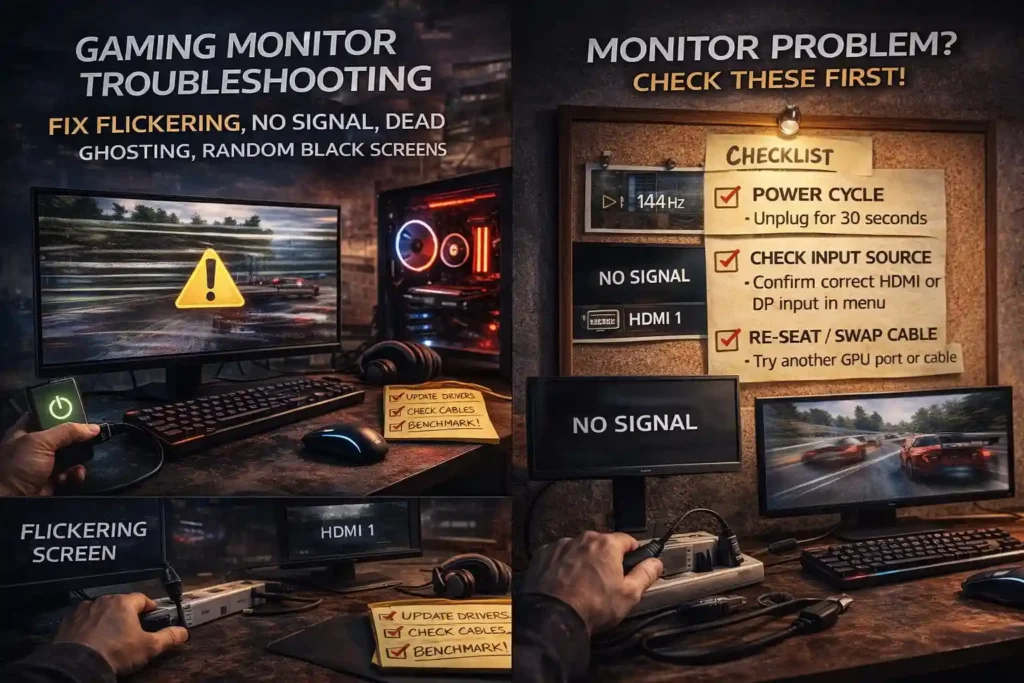
3-Minute Quick Fix Checklist (Try These First)
I’ve seen this happen a lot. A monitor suddenly shows “no signal” or the screen goes black. Most of the time, the fix is something small. A loose cable. Wrong input source. Or a quick power cycle.
So before digging into drivers or hardware, I usually run a fast checklist. It takes about three minutes and helps isolate the problem quickly.
Quick Checklist
- Power cycle the monitor
Turn the monitor off. Unplug the power cable for about 30 seconds. Plug it back in and power it on. - Check the input source
Open the OSD menu on the monitor. Make sure the correct HDMI or DisplayPort input is selected. - Reseat the cable
Pull out the video cable and plug it back in firmly on both ends. - Do a cable swap
Try another HDMI or DisplayPort cable. A bad cable often causes flicker or “no signal”. - Try another port or device
Plug the cable into a different GPU port. Or test the monitor on another PC or console. - Use the “2-swap” isolation trick
First swap the cable. Then swap the port or device.
Note what changed. That usually reveals the faulty part. - Check multi-display setups
If you use several screens, temporarily disconnect the extras. Multi-display configs sometimes cause detection issues. See this quick Multi-monitor setup guide if screens behave strangely. - Try a factory reset
Use the monitor OSD menu and run a factory reset. Some display bugs come from stored settings.
If the monitor still shows “no signal” after this, then the issue is likely deeper. Maybe the GPU, driver, or handshake problem. That’s where proper troubleshooting starts.
Diagnose the Problem Quickly (Monitor vs PC vs Cable vs Dock)
I usually try to isolate the issue before touching settings or drivers. The goal is simple. Figure out if the problem comes from the monitor, the PC, the cable, or a dock.
A quick decision flow helps a lot.
Decision Flow
1. Does the monitor OSD show?
(Open the monitor OSD menu using the monitor buttons.)
- Yes → The panel and power work. The problem is likely signal related.
- No → The monitor may have a power or hardware issue.
2. Try a direct connection
Connect the monitor straight to the PC using HDMI or DisplayPort. Avoid docks or adapters.
- Image appears → The dock or adapter likely causes the problem.
- Still no image → Move to the next check.
3. Use a known-good cable
Swap the cable with one that works on another display.
- Works now → The original cable was faulty.
- Still no signal → Keep isolating.
4. Test another device
Connect the monitor to a test device like a laptop or console.
- Monitor works → The PC or GPU likely causes the issue.
- Monitor still fails → The monitor hardware may be faulty.
5. Try onboard graphics vs discrete GPU
Plug the cable into the motherboard onboard graphics port instead of the discrete GPU.
- Works on onboard graphics → The GPU or driver may be the problem.
- Fails on both → The cable, port, or monitor could be defective.
This step-by-step check helps narrow the fault quickly without guessing.
Issue 1 – Screen Flickering (Mostly Happens in Games)
I see this one a lot. The screen starts flickering when a game loads. Sometimes the image blinks for a second. Sometimes the screen goes black and comes back.
Most of the time the panel is not broken. A wrong refresh rate, unstable VRR (G-SYNC or FreeSync), bad cable, or driver problem usually causes it.
Common symptoms
- Screen flickers when a game launches
- Random black flashes during gameplay
- DisplayPort flicker at high refresh rate
- Flicker after enabling G-SYNC or FreeSync
- Flicker when using an overclocked refresh rate
I usually test things in a simple order. Change one setting at a time so you know what fixed it.
Basic diagnostic order
- Check the refresh rate first.
- Temporarily disable VRR (G-SYNC / FreeSync).
- Try a cable swap or different port.
- Perform a clean driver install or driver rollback.
If the flicker happens randomly, record a short video. Support teams often ask for proof before approving warranty claims.
When to Consider RMA
A hardware issue becomes more likely if:
- Flickering happens on multiple devices
- The issue appears in the monitor OSD test or menu
- Different cables and GPUs show the same behavior
If that happens, gather evidence and contact support.
Quick Fix Box (Flicker)
Try these fast fixes first.
- Power cycle the monitor and PC.
- Reseat the cable on both ends.
- Set the monitor to its native refresh rate.
- Temporarily disable VRR (G-SYNC / FreeSync) and test again.
- Try another HDMI or DisplayPort cable.
If the flicker stops after disabling VRR, the issue usually relates to a refresh mismatch or driver behavior.
Windows Refresh Rate + VRR Checks
I usually start inside Windows display settings.
- Right-click the desktop and open Display Settings.
- Scroll down and select Advanced display.
- Choose your monitor from the list.
- Check the refresh rate menu and select the monitor’s native value.
- Open your GPU control panel.
For NVIDIA
- Open NVIDIA Control Panel
- Go to Display → Set up G-SYNC
- Toggle G-SYNC off and test
For AMD
- Open AMD Adrenalin Software
- Find FreeSync / Variable Refresh Rate
- Disable it temporarily and test
A screenshot guide usually helps here. Many users click the wrong monitor in the list.
GPU Driver Cleanup, DDU, Driver Rollback and TDR Tweaks
Sometimes flickering comes from a GPU driver issue. A clean driver install fixes many cases.
DDU clean install process
- Download DDU (Display Driver Uninstaller).
- Boot Windows into Safe Mode.
- Run DDU and remove the current GPU driver.
- Restart the system.
- Install the latest stable driver from the GPU vendor.
If the newest driver causes problems, try a driver rollback to the previous version.
Microsoft explains that Windows uses Timeout Detection and Recovery (TDR) to reset a frozen GPU driver. The default TDR timeout is 2 seconds.
Some users test a longer timeout.
Temporary test steps:
- Open Registry Editor
- Go to
HKEY_LOCAL_MACHINE\SYSTEM\CurrentControlSet\Control\GraphicsDrivers - Create or edit TdrDelay
- Set the value to 8–10 seconds
- Restart the PC
This is only a temporary diagnostic test, not a permanent fix.
One more tip. Write down the driver version and exact time the flicker happens. Support teams often request that information during troubleshooting.
Issue 2 – Dead Pixels, Stuck Pixels, and Dust (How to Tell the Difference)
I notice people panic when they see a tiny dot on the screen. But not every dot means a dead pixel. Sometimes it is a stuck pixel, and sometimes it is just dust on the panel.
So I usually check a few simple things first.
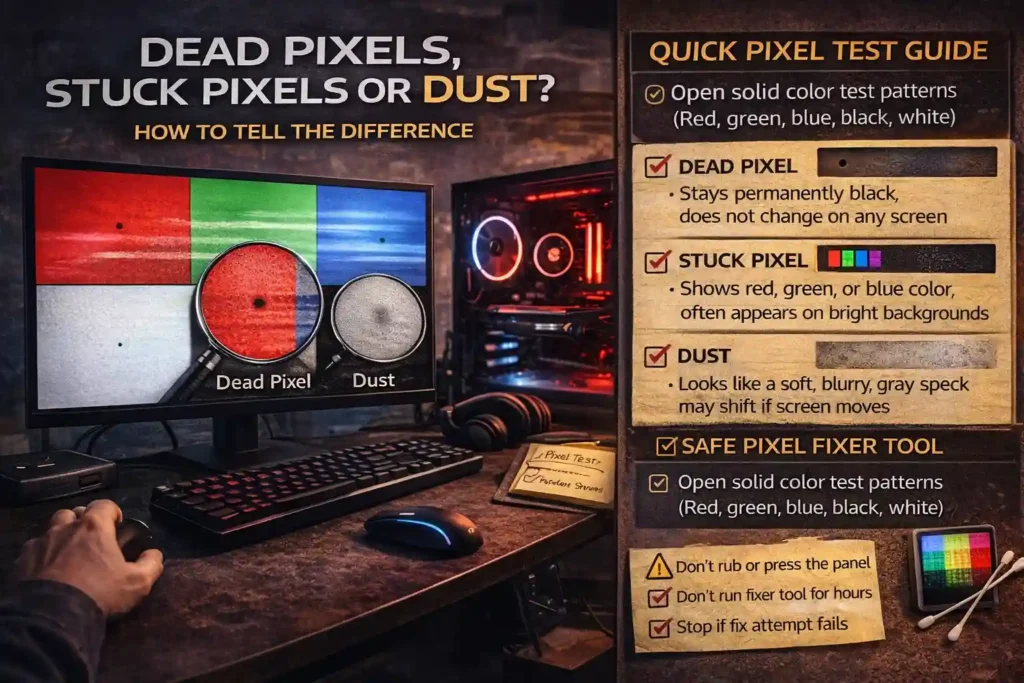
Dead Pixel vs Stuck Pixel vs Dust
- Dead pixel
A dead pixel stays black all the time. It does not change color on any screen. - Stuck pixel
A stuck pixel shows one color like red, green, or blue. It often appears on bright backgrounds. - Dust or debris
Dust looks like a soft gray spot. It may move slightly if the screen angle changes.
Safe way to confirm the problem
I usually follow a quick test flow.
- Open screen test patterns with solid colors (red, green, blue, black, white).
- Look closely at the spot.
- If the dot changes color, it is likely a stuck pixel.
- If the dot stays black, it may be a dead pixel.
- If it fades or looks blurry, it might just be dust.
What to try first
If the pixel looks stuck, you can try a pixel fixer tool.
- Run it for a few minutes only.
- Check the screen again with test patterns.
- If nothing changes, stop testing.
Sometimes pixels recover. But honestly, many do not.
When to stop and contact support
You should consider RMA or support if:
- The pixel stays the same after testing
- The monitor is still under warranty policy
- The issue appears clearly in photos or videos
Take a close photo of the screen with a solid background. Support teams usually ask for proof before approving an RMA.
Safe Pixel-Fixer Tools + What Not to Do
Some tools can help with a stuck pixel, but they must be used carefully.
Safer options
- Use a simple pixel repair tool that flashes colors on the screen.
- Run it for a short time only.
- Test again using solid color screen patterns.
Things I would avoid
- Do not press hard on the screen.
- Do not rub the panel with force.
- Do not leave pixel fixer tools running for hours.
Too much pressure can cause pressure damage on LCD or OLED panels.
Honestly, if the monitor is still under warranty, the safer move is often contacting support instead of trying risky fixes.
Issue 3 – No Signal, Monitor Not Detected, or Connection Problems
I see this problem a lot. You turn on the PC and the monitor shows “no signal”. Or Windows says monitor not detected even though the cable looks fine.
Most of the time the issue comes from the connection chain. Cable. Adapter. Dock. Or the wrong input source.
So I usually isolate things step by step.
Quick Isolation Checklist
- Start with a direct-to-GPU test
Connect the monitor straight to the GPU port using HDMI or DisplayPort.
Avoid docks, hubs, or adapters first.
If the monitor works now, the problem likely comes from the dock or adapter.
- Check the monitor input source
Open the monitor OSD menu and confirm the correct input source.
Sometimes the monitor sits on HDMI while the PC uses DisplayPort.
- Swap the cable
Use a known-good cable.
A damaged cable can cause “no signal” or random disconnects.
- Try another GPU port
Plug the cable into a different GPU port.
If the PC has integrated graphics, test the motherboard video port too.
- Test another device
Connect the monitor to a laptop or console.
If it works there, the problem likely sits in the PC setup.
If you run multiple screens, detection issues sometimes appear during startup.
Cable, Port, and Refresh Compatibility
Some display problems happen when the cable or adapter cannot handle the signal.
| Symptom | Possible Cause | What to Try |
| Black screen at high refresh rate | Cable cannot handle high Hz | Lower refresh rate and test again |
| Monitor detected but no image | Wrong adapter type | Try direct HDMI or DisplayPort |
| Flicker with DisplayPort | Loose cable or port | Reseat cable or change port |
| Signal drops randomly | Adapter compatibility | Try direct connection |
A few practical things help here.
- Try a different HDMI or DisplayPort cable
- Avoid cheap adapters when possible
- Test both passive vs active adapters if you must convert ports
- Always check the monitor input source
Display standards and compatibility guidance are maintained by VESA.
EDID, HPD, and Monitor Handshake Problems
This part sounds technical, but the idea is simple.
Your monitor sends identity data to the PC. That data is called EDID. It tells the computer the screen resolution, refresh rate, and supported modes.
The EDID base block contains 128 bytes, and additional blocks extend it if needed.
Another signal called HPD (Hot Plug Detect) tells the GPU that a display was connected.
Both signals form the display handshake used by HDMI and DisplayPort devices.
Sometimes that handshake fails.
Signs of a handshake issue
- Monitor randomly disappears from Windows
- Windows detects the display sometimes but not always
- Resolution options appear wrong or missing
Simple diagnostic workflow
- Connect the monitor using a known-good cable.
- Reboot the PC and check if the monitor appears.
- Use an EDID tool to dump the monitor EDID.
- Reproduce the problem.
- Dump the EDID again and compare results.
If the EDID changes or fails to read, the connection chain may be unstable. Tools like Monitor Asset Manager can read EDID data.
Another diagnostic step is installing a monitor INF driver override in Windows. This temporarily replaces the EDID data. It helps confirm if the handshake caused the problem.
But this step should be reversed after testing. Display handshake concepts come from VESA documentation.
USB-C Docks, MST Hubs, and DisplayPort Passthrough
Honestly, docks cause a lot of monitor issues.
A USB-C dock or MST hub splits the DisplayPort signal so multiple displays can run from one cable. This process is called DP MST.
Because the signal gets divided, negotiation problems can appear.
Common signs include:
- Dock shows black screen on one monitor
- Monitor detected but image does not appear
- Display works only after reconnecting the cable
Dock isolation tests
- Connect the monitor directly to the PC.
- If it works, reconnect the USB-C dock.
- Test with another laptop if possible.
Simple result matrix
- Direct connection works / Dock fails → Dock firmware or compatibility issue
- Dock works with another laptop → PC configuration issue
- Dock fails everywhere → Dock hardware problem
Possible fixes:
- Update dock firmware from the manufacturer
- Try another USB-C cable
- Use direct DisplayPort passthrough
VESA explains how DisplayPort MST distributes video signals across displays.
Issue 4 – Image Ghosting vs Motion Blur (And How to Tune Overdrive Safely)
I see people mix these two up all the time. Ghosting and motion blur look similar in games, but they come from different causes.
So before changing monitor settings, it helps to know which one you are actually seeing.
Ghosting vs Motion Blur
Ghosting
- A faint copy of an object appears behind moving objects
- Looks like a shadow or trailing effect
- Usually linked to slow response time
Motion blur
- The whole moving object looks soft or smeared
- Happens when motion is fast or FPS drops
- Often related to frame pacing or display behavior
Display testing resources explain that ghosting appears when pixels cannot change color fast enough during motion.
Sometimes what looks like blur is actually inconsistent frame pacing. If gameplay feels uneven, checking Gaming performance metrics can help confirm whether the issue comes from FPS rather than the display.
Signs of a Ghosting Problem
- Visible trailing behind moving objects
- Dark smears when objects move across bright backgrounds
- Artifacts appearing during fast camera movement
Another issue called inverse ghosting can appear too. That happens when overdrive is set too high. The monitor pushes pixels too aggressively and creates bright halos around objects.
Safe Overdrive Tuning Checklist
I usually follow a simple method.
- Open the monitor OSD menu.
- Reset the monitor to default settings.
- Set overdrive to a medium level.
- Test motion using a simple test pattern or fast-moving scene in a game.
- Increase or decrease overdrive one step at a time.
If ghosting improves at medium levels but gets worse at high levels, the monitor is likely behaving normally.
Quick Test Tip
Use a simple motion test pattern or fast panning scene in a game. Watch edges of objects closely.
If the problem appears on only one PC, the issue might come from GPU settings or frame timing. If it appears on multiple devices, the monitor tuning or panel behavior is more likely involved.
Issue 5 – Overheating, Random Shutoffs, and Power-Related Problems
I have seen this happen after long gaming sessions. The screen starts flickering, then suddenly turns off. A few minutes later it works again. That pattern usually points to an overheating monitor or a power problem.
Most monitors include protection that triggers a thermal shutdown when internal heat gets too high.
Common symptoms
- Screen flicker then shutdown during gaming
- Monitor turns off but the PC keeps running
- Display comes back after cooling down
- Power light turns off suddenly
Ventilation Checklist
Heat builds up fast when airflow is blocked. I usually check these first.
- Make sure the monitor vents are not blocked
- Leave space behind the monitor for ventilation
- Remove dust near rear vents
- Avoid placing the monitor close to heaters or sunlight
If the monitor sits inside a tight desk shelf, heat can build up quickly.
Power Brick and Outlet Tests
Sometimes the problem comes from the power setup instead of heat.
- Check the power brick and cables for damage.
- Plug the monitor into a known-good outlet directly.
- If you use a surge protector, test without it once.
- Make sure the power cable fits firmly.
A quick safety tip. Power bricks can get very hot. If the adapter feels extremely hot, avoid holding it for long.
When to Stop Using the Monitor
You should stop troubleshooting if:
- The monitor shuts down repeatedly within minutes
- The power brick becomes extremely hot
- A burning smell appears
At that point the safest step is contacting support or requesting service instead of continuing to run the monitor.
OS and Platform Display Checks (Windows, macOS, Consoles)
Sometimes the monitor works fine, but the operating system sends the wrong signal. I have seen cases where a simple resolution or refresh rate setting causes the screen to go black.
So before changing many things, I like to record a quick baseline. Write down the resolution, refresh rate, and whether VRR or HDR is enabled. That way you can return to the original settings if something breaks.
Windows (Refresh Rate, Scaling, Safe Mode, Driver Version)
Here is the process I usually follow.
- Right-click the desktop and open Windows display settings.
- Scroll down and click Advanced display.
- Confirm the monitor refresh rate matches the monitor specification.
- Check the resolution and scaling settings.
If the screen flickers or disappears:
- Open Device Manager.
- Expand Display adapters.
- Right-click the GPU and check the driver version.
Possible outcomes:
- If the issue started after a driver update → try driver rollback.
- If the system crashes or flickers → start Windows in Safe Mode and reinstall the driver.
One useful screenshot usually helps here. I normally capture the Advanced display panel so users know exactly which menu to open.
macOS (Display Detection and Resolution Checks)
macOS sometimes fails to detect a display after sleep or docking.
Try these quick checks:
- Open System Settings → Displays
- Press Option and click Detect Displays
- Confirm the resolution and refresh options
Also test another cable or adapter. Mac setups often rely on USB-C dongles, and those fail more often than people expect.
Consoles (PlayStation and Xbox)
A few console settings can also cause display problems.
Try these quick tests:
- Check the monitor HDMI input
- Confirm the console resolution setting
- Toggle 120Hz mode off and on
- Temporarily disable HDR
- Temporarily disable VRR
If the image appears after disabling HDR or VRR, the issue may come from a signal negotiation problem between the console and the monitor.
Performance and Setup Considerations (Sometimes Nothing Is Broken)
I see this mistake a lot. Someone thinks the monitor is faulty because the image feels weird during games. But many times the real cause is performance, not the display.
Things like FPS drops, unstable frametime, or a system bottleneck can make motion look like flicker or blur.
When the GPU cannot keep a steady frame pace, the screen may show uneven motion. That effect often feels like a display issue even though the monitor works fine.
Symptoms That Look Like Monitor Problems
- Stutter during fast camera movement
Often caused by unstable frametime, not the monitor. - Screen feels choppy during heavy scenes
This usually happens when FPS drops suddenly. - Blur or uneven motion when raising resolution
Higher resolution increases GPU load and may create a bottleneck.
See this guide on Can screen resolution cause a PC bottleneck?. - Random lag when using multiple screens
Extra displays increase system workload. The multi-monitor impact can affect performance in some setups.
Quick Way to Tell the Difference
I usually run a simple test.
- If the monitor goes black or loses signal, that points to a display or connection issue.
- If the screen stays on but motion feels uneven, the cause is likely performance or frame pacing.
You can track these patterns using tools that measure FPS and frametime. If you want to understand how game performance affects motion smoothness, this FPS in games guide explains it in more detail.
Tools and Downloads (Test Patterns, EDID Tools, Driver Utilities)
When a monitor problem gets tricky, I usually rely on a few simple tools. These help confirm what is actually happening instead of guessing.
Here are the ones I use most often.
- Screen Test Patterns
Used for checking color issues, dead pixels, ghosting, and uniformity. A simple full-screen color pattern quickly shows panel problems. - Monitor Asset Manager (EDID tool)
Helps read monitor identity data and perform an EDID dump. Useful when Windows detects the monitor incorrectly. - DDU (Display Driver Uninstaller)
Removes GPU drivers completely before installing a fresh one. This helps when driver bugs cause flicker or detection problems. - CRU (Custom Resolution Utility)
Allows custom resolution or refresh adjustments and helps diagnose EDID problems. - GPU Driver Release Notes
Checking driver release notes sometimes reveals known bugs affecting displays.
Small troubleshooting tip
I usually keep a quick log during testing.
Write down:
- Monitor model and firmware (if known)
- GPU model and driver version
- What tool you used and what changed
That small record saves time when repeating tests or sending details to support.
When to Contact Support or Request an RMA (Evidence Checklist + Message Template)
Sometimes troubleshooting reaches a point where nothing fixes the issue. I usually stop testing once the same problem appears across cables, ports, and devices. At that stage, the next step is opening a support ticket or requesting an RMA.
Support teams usually approve replacements faster when clear evidence is included.
Evidence Checklist Before Opening an RMA
Try to gather these details first.
- Monitor model name and serial number
- Current firmware version if the monitor shows it in the OSD
- Exact description of the problem
- Clear reproduction steps showing how the issue appears
- Test results from another PC or console
- Photo or short video showing the OSD and the problem
Testing the monitor on another device is often the strongest proof. If the issue happens there too, support can quickly confirm a hardware problem.
What to Include in the Support Ticket
Most manufacturers ask for basic information. I usually include:
- Product model
- Serial number
- Purchase date
- Description of the problem
- Steps already tested
Simple Copy-Paste Message Template
You can send something like this.
Subject: Monitor Issue – Possible Hardware Fault
Monitor Model:
Serial Number:
Problem Description:
The monitor shows [describe issue: flickering / no signal / dead pixel].
Reproduction Steps:
1. Turn on the system
2. Connect via HDMI or DisplayPort
3. Issue appears after [describe scenario]
Troubleshooting Performed:
– Tested different cables and ports
– Tested another device
– Reset monitor settings
Evidence:
Attached photos/video showing the OSD and the problem.
Please advise if this qualifies for RMA or further testing.
Sending a clear report like this usually speeds up the RMA process.
Conclusion
I usually treat monitor problems like a process of elimination. Start with the simple troubleshooting checklist, then test one thing at a time to isolate the cause. In many cases the issue comes from cables, drivers, refresh settings, or system performance rather than the monitor itself.
Once you find a stable setup, save your baseline settings like resolution, refresh rate, and VRR state. That makes future troubleshooting much easier.
FAQs
Why does my gaming monitor flicker only when I launch a game?
I see this happen when the game changes the refresh rate or enables VRR automatically. That shift can trigger flickering if the driver or cable is unstable. Try setting the monitor’s native refresh rate, disable G-SYNC or FreeSync for testing, and check the cable connection.
What’s the fastest way to fix a “No Signal” message?
Start simple. Check the monitor input source first. Then reseat the HDMI or DisplayPort cable. After that, try a direct connection to the GPU port without adapters or docks. A quick cable swap usually isolates the cause of a “no signal” problem.
Can dead pixels be fixed, or should I RMA the monitor?
A true dead pixel usually stays black and rarely recovers. A stuck pixel might improve using a short pixel fixer test. But I would avoid pressing the screen. That can damage the panel. If the monitor is under warranty, collecting proof and requesting RMA is usually safer.
Is ghosting the same as motion blur-and which setting should I change first?
No. Ghosting shows visible trailing behind moving objects. Motion blur makes the whole image look soft during motion. I usually check the monitor overdrive setting first. Start at medium and test. Too much overdrive can cause inverse ghosting, which creates bright halos.
How do I know if my USB-C dock or MST hub is causing the black screen?
The easiest test is a direct connection. Connect the monitor straight to the PC GPU port. If the screen works, reconnect the dock or MST hub. If the black screen returns, the dock likely causes the issue, often due to signal negotiation or firmware behavior.
What is EDID/HPD, and when should I suspect a handshake problem?
The monitor sends identity data called EDID to the computer. A signal line called HPD tells the system a display is connected. If Windows shows wrong resolutions, detects the monitor randomly, or loses signal, a broken handshake between the GPU and monitor may be involved.
When should I use DDU or roll back my GPU driver?
I usually try DDU when display issues appear right after a driver update. A clean driver install removes leftover files that can cause flicker or detection issues. If the newest driver causes problems, performing a driver rollback to the previous stable version often fixes it.
Is changing TdrDelay safe, and should I keep it enabled?
Windows uses a TDR timeout to reset the GPU if it stops responding. The default value is 2 seconds. Some tests increase TdrDelay to 8–10 seconds to check stability. That change should stay temporary. I would not keep it permanently enabled unless support recommends it.
