
How Hot is Too Hot for GPU? Optimal GPU Temperatures
Last updated:
I’ve seen my GPU Temperatures get super warm when I play games or render videos. A GPU works hard, so heat builds up fast. Research from NVIDIA engineers says a GPU slows down when it gets too hot. That slowdown is called thermal throttling. It hurts gpu performance and feels like lag. Most cards stay in a safe gpu temperature around 65 to 85°C when gaming. When temps go higher, gpu overheating starts. And that could hurt parts inside the pc over time.
I like to monitor GPU temperature often. It helps me catch problems early and avoid issues like thermal throttling, which slows performance when temps get too high. Keeping an optimal GPU temp means the card lasts longer and games run smooth. I’ll talk more about dangerous heat, the best cooling, and how to check your gaming temperature later.
Key Takeways
- Most GPUs stay safe around 65–85°C while gaming.
- 90°C+ often means overheating and needs a quick fix.
- Dust, bad airflow, and hot rooms raise temps fast.
- Checking temps with tools like MSI Afterburner helps catch problems early.
- Better cooling, fan curves, and good cable cleanup keep heat under control.
- Cooler temps = longer GPU life + smoother games.
Why Keeping a Safe GPU Temperature Matters
I notice my GPU gets hot fast when I play games. Heat does real damage. A study from a big electronics lab says high heat causes about 55 percent of hardware failures. That sounds wild, but it makes sense. When a card runs hot all the time, the tiny parts inside wear out quicker. Fans spin harder and get loud. Thermal paste dries out. The gpu lifespan gets shorter.
And when heat gets too high, the GPU slows down to protect itself. That slowdown is thermal throttling. I feel it as performance drops and gpu frame rate issues. Most cards start throttling around 85 to 90°C. If I ignore that, the heat could cause gpu hardware damage later.
I keep an eye out for gpu overheating symptoms like:
- Sudden FPS drops
- Loud fan noise
- Hot air blasting from case
- Screen flickers or stutters
- Games freezing sometimes
I’d rather catch problems early than buy a new GPU.
How Hot Is Unsafe for a GPU?
I keep an eye on heat because too hot gpu temp can hurt a card fast. Safe gpu temps for gaming usually stay under 85°C. When I see my GPU hit 85°C, I feel like the gpu cooling issues need a fix. At 90°C or higher, that is a gpu overheating warning. I’ve had games lag and slow down because of thermal throttling. According to an official NVIDIA support article, a gpu maximum temperature often sits around 95 to 105°C. When that limit hits, the driver cuts speed to stop damage. Running near those numbers a lot can dry the thermal paste and age parts faster.
I watch for these signs:
- Loud fans all the time
- Frame drops and stutters
- Crash or black screen
- Heat rises even when not gaming
If I see temps around gpu temp 90 degrees more than once, I fix the heat right away.
Ideal GPU Temperature Range (Idle & Under Load)
I always check temps because every card runs a little different. There is no single ideal gpu temp for all cards. High-end RTX gpu temperature limits sit higher. Small budget cards get hot easier. So I look at idle and load numbers to see what feels normal.
Here is the simple way I think about it:
| GPU State | Temperature Range | Condition |
|---|---|---|
| Idle | 30°C to 40°C | Good Temperature |
| Gaming / Under Load | 65°C to 85°C | Good Temperature |
Most modern GPUs handle heat well. AMD and Nvidia build them to stay safe up to around 90 to 95°C. But I don’t like seeing my card at the top numbers all the time. I know heat hurts parts inside. Fans spin harder. The gpu cooling system works more. Over many months, that could shorten the card’s life.
When my temps stay close to the upper limit while I play games, I think about better airflow or a new fan curve. Even the room can change heat by 5 to 10°C. Summer makes everything hotter. Keeping the best gpu temperature for gaming helps my computer stay fast and last longer.
How to Monitor Your GPU Temperature
I check gpu temp whenever I play games or do heavy stuff. A gpu temperature monitor helps me keep safe speeds. Windows has simple ways to check gpu temp, and I can also use gpu temp tools or gpu monitoring software. If the number jumps too fast, I know the cooling needs help. I’ll show the tools next.
Monitor GPU Temperature Using Built-In Tools
Most PCs already have simple ways to check gpu temp windows. These gpu monitoring tools built-in help you see heat fast without downloading anything.
- Windows Task Manager
• Press CTRL + SHIFT + ESC
• Click the Performance tab
• Select GPU on the left
• Look for Temperature
The windows task manager gpu temperature only shows on supported GPUs and Windows 10 version 2004 or newer. - Nvidia GeForce Experience Overlay
• Open GeForce Experience
• Turn In-Game Overlay ON
• Go to HUD Layout ➝ Performance ➝ Advanced
• Press Alt + R to show the heat on screen
The geforce experience overlay helps spot heat spikes while gaming. - AMD Radeon Metrics Overlay
• Open AMD Radeon Software
• Click Performance to view temps
• Go Settings ➝ Preferences ➝ In-Game Overlay ON
• Then Performance ➝ Overlay ➝ Show Metrics Overlay
The amd radeon metrics overlay shows temps and fps at the same time.
Overlays make it easy to watch temperature changes while playing, so you can fix problems before the GPU gets too hot.
Best Third-Party Tools to Check GPU Temperature
A third-party gpu temp monitor shows more than heat. It also shows fan speed, load percent, clock speed, and even VRAM hotspot heat. That hotspot can run 10 to 15°C hotter than the core.
- MSI Afterburner – msi afterburner temperature overlay while you play
- HWMonitor – simple hardware monitoring software
- Open Hardware Monitor – free and easy
- GPU-Z – tiny tool with detailed gpu-z info
- HWiNFO – deep stats for power users
Steps to check gpu temp while gaming:
- Install the tool
- Open real-time heat info
- Keep it on during games to watch spikes
Display GPU Temperature While Gaming (In-Game Overlays)
Real time gpu temperature on screen makes it easy to see when heat hurts FPS. A sudden drop in frames can mean thermal throttling. VRAM hotspot heat can also climb higher than the core, so watching both helps prevent damage.
Tools that let you monitor gpu temp in game:
• MSI Afterburner overlay with onscreen display gpu temp
• Geforce Experience HUD (Alt + R)
• AMD Metrics Overlay for heat and FPS together
Seeing heat while you play helps you react fast before things get too hot.
Why Your GPU Is Overheating (Main Causes)
A gpu temperature increase workload can happen fast, and there are a few common gpu overheating causes to look at.
Heavy workloads
Big games, 3D work, and machine learning make the GPU run at full power. More power means more heat. If the cooling can’t keep up, temps climb into unsafe zones.
Poor ventilation and airflow
Small cases or blocked vents trap hot air. That trapped heat causes gpu airflow issues, and the fan has no cool air to pull in. Better case fans can help the heat move out.
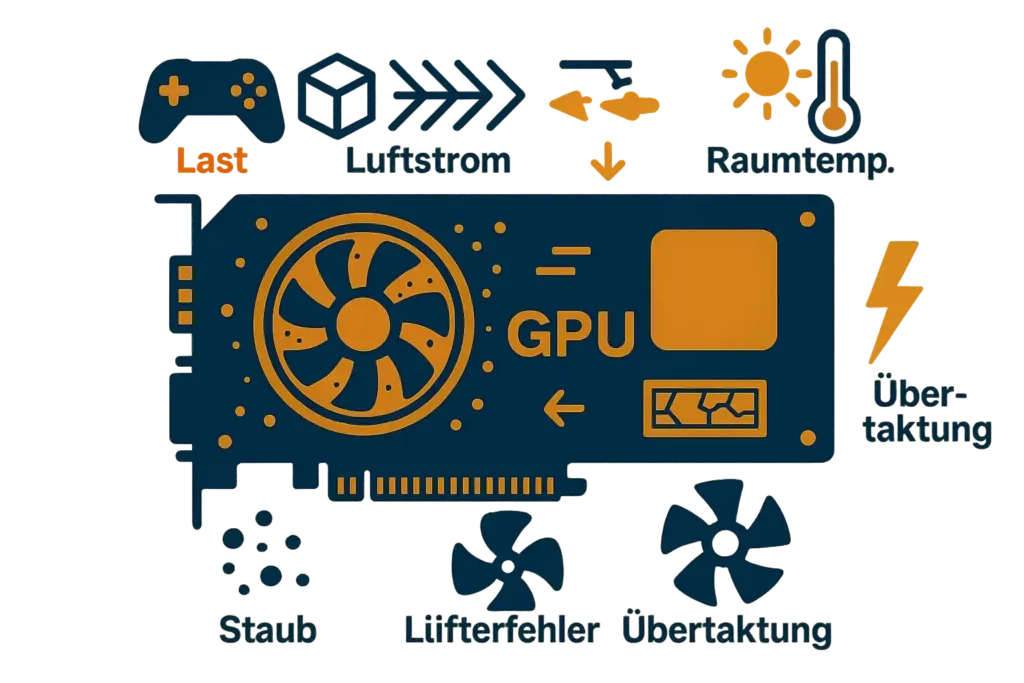
Dust and dirt buildup
Dust on GPU fans and the heatsink can raise temps by 10–20°C. Dust blocks airflow and slows cooling. Doing a regular PC clean helps air move freely and prevents heat from building up.
Overclocking
Pushing the GPU higher gives more speed but also more heat. A gpu overclock heat jump can be 5 to 15°C right away. Extra cooling is needed to stay safe.
Fan failure or bad fan curve
If a fan stops or spins too slow, temps can spike to 90°C+ in seconds under load. Setting a stronger fan curve can prevent that.
High room temperature
Hot rooms make GPUs run hotter. Summer heat or a PC near a wall can add 5 to 10°C.
Old thermal paste
Thermal paste dries out with age, and heat doesn’t move well anymore. When I see heat rising even after cleaning and a good fan curve, I check the paste. If it’s old or cracked, replacing it can drop temps a lot, here’s the full guide I use for it: Replacing GPU Thermal Paste.
Fixing these makes overheating easier to control in the next steps.
Normal GPU Temps vs. Dangerous GPU Temps
Normal gpu temps help the card stay fast and safe. A gpu temp comparison makes it easier to see when things start going wrong. According to a 2025 GPU temperature guide from ServerMania, gaming temps around 75 to 90°C are common, and many modern GPUs hit thermal limits around 95 to 105°C where throttling begins.
| GPU State | Temperature Range | Condition |
|---|---|---|
| Idle | 30°C to 45°C | Safe GPU Temperature Range |
| Gaming / Load | 65°C to 85°C | Safe GPU Temperature Range |
| Thermal Throttling | 85°C to 90°C | Performance Throttling |
| Danger Zone | 95°C+ | Shutdown Risk |
If FPS drops, fans blast at max, or heat climbs over 90°C often, that signals gpu overheating danger and a need to fix the cooling fast.
Idle vs Load GPU Temps — What’s Normal, What’s a Warning
A GPU runs cool when it is not working hard. That is the idle gpu temperature. When games start, the chip wakes up and heat goes up fast. Normal gpu operating temperature changes a lot based on room heat, airflow, and how strong the cooler is. But there are easy numbers to watch so you can avoid gpu cooling issues later.
| GPU State | °C | °F | What It Means |
|---|---|---|---|
| Idle | 30–45°C | 86–113°F | Cool and normal |
| Under Load (Gaming) | 65–85°C | 149–185°F | Good while gaming |
| Warning | 85–90°C | 185–194°F | Possible overheating warning |
| Danger | 95°C+ | 203°F+ | Risk of shutdown or damage |
If temps stay high when nothing is running, dust or poor airflow could be the reason. And if it keeps hitting the warning zone while gaming, it’s time to clean, fix fans, or add better cooling.
Consumer vs Server-Grade GPU Temperature Limits
Not all GPUs are built the same. Consumer (gaming / desktop) GPUs and server-grade (data center / HPC) GPUs run under different conditions.
| Type of GPU | Typical Use Case | Safe / Typical Temp Limits |
|---|---|---|
| Consumer / Gaming GPU (e.g. NVIDIA GeForce RTX 4090) | Gaming, creative work, home PC | ~85–91°C under load |
| Server-grade / Data-center GPU (e.g. NVIDIA A100) | AI training, 24/7 compute, data-center workloads | ~95–100°C in controlled cooling setups |
Why server GPUs tolerate more heat
- Server-grade GPUs run in racks with strong cooling systems, not small PC cases. (NVIDIA)
- Data-center airflow, chilled-air systems, or liquid cooling keep ambient temperature steady. (DataCenterKnowledge)
- Their hardware and build quality often expect heavy loads all day long. (GPU4Host)
Both kinds of GPUs still throttle or shut down if they approach their thermal limit. Even server GPUs need solid cooling and monitoring for safety.
NVIDIA vs AMD: GPU Thermal Limits & What They Mean
Different GPU makers build cards with different thermal tolerances. That means “safe heat” can vary based on the GPU architecture and cooling design.
Here’s a quick comparison of typical temps and design philosophy:
| Vendor / GPU Type | Typical Safe Load Temps / Thermal Limits |
|---|---|
| NVIDIA consumer GPUs (e.g. GeForce RTX series) | ~ 85–90 °C under load; many list ~95 °C (Tjmax) as upper safe limit |
| AMD consumer GPUs (e.g. Radeon RX 5000/6000 series) | Core temps ~ 90 °C are common; “junction”/“hotspot” temps may reach ~ 100–110 °C under heavy load (Tom’s Hardware) |
How the two differ
- Both NVIDIA and AMD GPUs use built-in thermal sensors. If temps get too high, they throttle performance to protect hardware.
- AMD sometimes lets its cards run hotter (especially hotspot/junction temps) because its silicon design and power delivery expect heavier loads. That doesn’t automatically mean it’s unsafe — as long as airflow and cooling are good. (Tom’s Hardware)
- “Runs warmer” ≠ “unsafe.” For many AMD GPUs, high hotspot temps were part of design specs. ([H]ard|Forum)
Both vendor GPUs still need solid cooling and monitoring. Keep airflow strong, check temps regularly, and avoid assuming every “hot” reading means damage.
Key Factors That Affect GPU Temperature
When you try to keep a GPU cool, a few main gpu temperature factors matter a lot.
GPU Load & Utilization
When the GPU works hard, like during gaming, rendering, or AI tasks, it runs at full power. That makes it pull more energy and produce more heat. Under heavy load, temperature goes up fast. GPUs are built for this kind of load. But if cooling is weak, heat builds up more than ideal.
Ambient Temperature
The temperature of your room or room air affects baseline heat. Hot rooms or summer weather can raise a card’s operating temperature by about 5–15°C. In a cool room or data-center style setup, baseline heat stays lower.
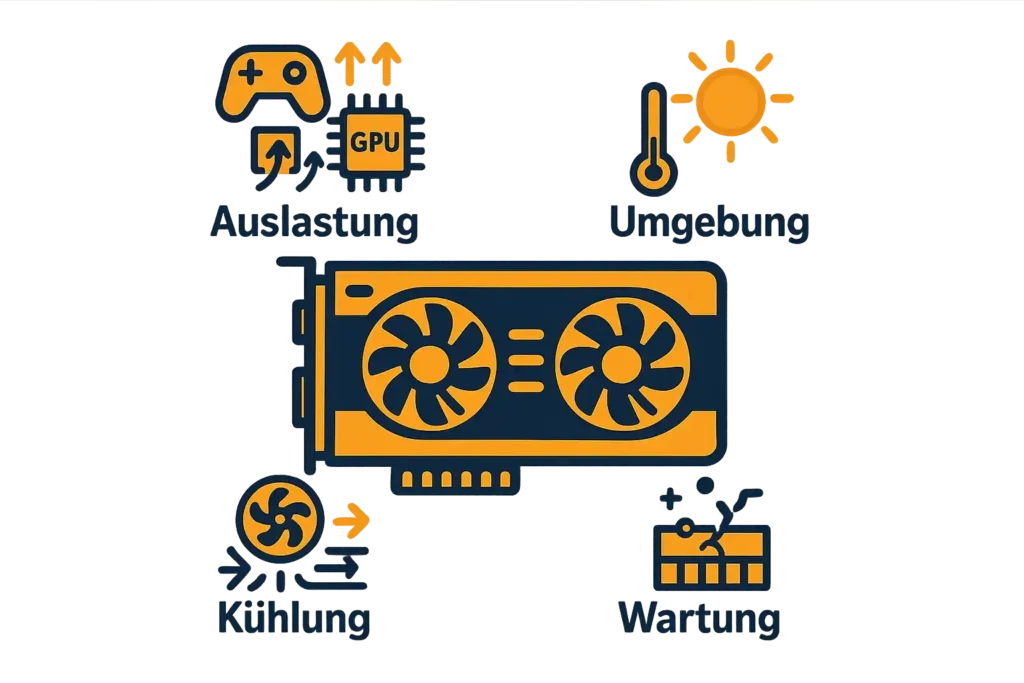
Cooling System
How good the cooler is matters big time. Things like fan RPM, decent heatsinks, proper case airflow, and good heatsink contact keep temps down. Strong cooling solutions make sure heat escapes fast. Weak coolers struggle, and temps can climb dangerously under load.
Maintenance (Dust / Thermal Paste)
Dust on fans or heatsinks blocks airflow and slows cooling. Dust buildup can raise temps by several degrees. Also, thermal paste dries over time (often 1–2 years). When that happens, heat transfer from GPU core to cooler worsens. Cleaning dust and re-applying paste helps a lot.
Also, remember: on some cards VRAM or VRM parts run hotter — 10–20°C higher than the core. Watching overall gpu cooling solutions helps catch those too.
Proper cooling, good airflow, and regular upkeep help keep temps inside a safe range.
How to Monitor & Stress-Test GPU Temperature
Checking heat keeps your card healthy. I like to monitor gpu temps so I can catch problems early. Built-in tools and apps help a lot.
• Task Manager – fast way to see task manager gpu temp
• MSI Afterburner – best software gpu temperature overlay while gaming
• HWMonitor – simple system temps and fan speeds
• HWiNFO – deep hwinfo gpu monitor data like hotspot heat
• GPU-Z – tiny tool for quick checks
According to a monitoring tools roundup by Compsionline, apps like MSI Afterburner, HWiNFO, and GPU-Z track GPU temperature, clock speeds, memory use, and fan RPM in real time.
Here’s a quick table I use:
| Tool | Key Features | Best Use Case |
|---|---|---|
| Task Manager | Built-in, fast temp check | Quick peek anytime |
| MSI Afterburner | Overlay + fan control | Monitor GPU temps while gaming |
| HWMonitor | Temps + voltages | Simple checks |
| HWiNFO | Hotspot + VRAM temps | Detailed testing |
| GPU-Z | Loads + clocks | Fast info |
How to do a gpu stress test
- Run a Unigine stress test (Heaven/Valley) or 3DMark
- Let it run 10–20 minutes
- Watch temps and any thermal throttling
FurMark can push heat too high, so only use it if you know what you’re doing.
When to check
• Normal use → once a month
• Gamers or overclockers → weekly
• Stress test → every 2–3 months
I always watch hotspot temps too, since they can run 10–20°C higher than the core. That helps me know if cooling is working right.
How to Improve GPU Cooling & Reduce Temperatures
If you want to reduce gpu temperature in a safe way, some tweaks and upgrades go a long way.
Adjust Fan Curves
- Use tools like MSI Afterburner or Radeon Adrenalin to change fan speed vs temperature.
- For example, set fans to stay quiet under 50 °C, then spin up faster as temps rise, helps move more hot air when GPU works hard.
- This kind of fan curve optimization can cut temps by 5–10°C, though fans get louder.
Undervolting GPU
- Lowering power draw reduces heat output.
- If you undervolt carefully and test stability, you may see 3–8°C lower temps.
- Always monitor temps and performance while testing.
Improve Case Airflow
- Manage cables so air flows cleanly, clutter blocks airflow.
- Use balanced intake and exhaust fans or slightly positive pressure. That helps move hot air out.
- Good airflow alone can drop temps by 3–7°C.
Cooling Upgrades & Maintenance
- Thermal paste dries out over time, and poor heat transfer leads to overheating. Replacing paste every 2–3 years keeps temps steady and protects components.
- Upgrade to better case fans or consider aftermarket GPU coolers.
- If your GPU shows VRAM or VRM temps, better cooling helps those too.
Taking these steps regularly helps avoid gpu overheating. Acc to Asus fan curve tuning, good airflow, and maintenance, you can keep temperatures safe and prolong your GPU’s life.
Managing CPU & GPU Temperatures Together
Heat in a PC moves around. So when the GPU gets hot, the warm air inside the case can make the CPU hotter too. And a hot CPU can also raise case heat, which hurts the GPU. Both parts share the same air. That’s why a good integrated cooling system matters a lot.
Normal idle temps:
• CPU: 30–50°C
• GPU: 35–50°C
Normal load temps:
• CPU: up to ~85°C
• GPU: up to ~90–95°C
A few rules that help shared airflow pc cooling:
• Front fans pull cool air in, top and back fans push hot air out
• Match fan curves so case, CPU, and GPU fans speed up together
• Clean cables so air can move without walls in the way
• A liquid-cooled CPU sends less heat into the case, which helps the GPU too
If I lower heat for one part, the other part often runs cooler as well. Good cpu and gpu cooling goes hand in hand.
How to Lower GPU Temperature (Effective Fixes)
If your GPU runs too hot, there are solid ways to bring temps down. These steps help reduce heat and keep performance stable.
1️⃣ Improve Cooling Solutions
- Add or upgrade case fans, more airflow helps move hot air out faster.
- Consider liquid cooling if you run heavy loads often.
Good cooling reduces heat buildup around the card and other parts.
2️⃣ Adjust Fan Curves
- If fans don’t spin fast enough under load, temperatures spike fast. You can easily tune your fan curve using tools like MSI Afterburner.
- Faster fan ramp at higher temps helps prevent overheating spikes.
3️⃣ Ensure Good Case Airflow
- Set front fans to pull cool air in, and back/top fans to exhaust hot air.
- Manage cables so they don’t block airflow inside the case.
- Maintain slightly positive air pressure, helps keep dust out and airflow consistent.
4️⃣ Clean GPU & Case Regularly
- Dust buildup can raise temps by 5–10°C. Clean fans and heatsinks every 3–6 months.
- Replace thermal paste every 2–3 years to keep heat transfer efficient.
5️⃣ Undervolt GPU / Reduce Clock Speed
- Undervolting gpu safely can drop heat output by 3–8°C with little performance loss. (As shown in the ASUS ROG undervolting guide.)
- If undervolting doesn’t help enough, slightly lowering clock speeds can reduce heat further.
- Always test stability after changes, and avoid pushing undervolt or fan settings too far.
Also watch hotspot or VRAM temps, they can be 10–20°C hotter than the GPU core. After making changes, run a stress test to check temps under load. Good cooling + clean build + airflow + occasional checks help keep your GPU healthy and long-lasting.
Why Do Some AMD Cards Run Hotter Than Nvidia GPUs?
Some differences between AMD and Nvidia GPUs affect why an AMD GPU runs hotter — but that doesn’t always mean something is wrong.
Some AMD GPU architectures (especially RDNA1/Polaris-era chips) use higher voltage and draw more power, so they naturally produce more heat. Running warmer can be normal behavior.
AMD GPUs often show a higher gpu hotspot temperature instead of just the core temperature. Acc to PCGamer hotspot can run 10–20°C hotter than the GPU core. Sensor placement makes this design-normal.
Fan curves and cooler designs also vary widely. Some AMD cards come with quieter but less aggressive coolers. Meanwhile, some Nvidia cards (especially top-tier) ship with larger or more aggressive coolers, which tends to keep temps lower.
Reasons AMD May Run Hotter
- Higher default voltage / power targets
- Hotspot sensors report max temperature instead of average
- Cooler design varies more between manufacturers
- Aggressive performance before any thermal throttling
It’s still safe if temps stay within the card’s design limits (often under ~95°C depending on model). Adjusting fan curves or undervolting can help lower temperatures if you want cooler operation.
Is 90–95°C Too Hot for a GPU in the Long Run?
GPUs usually tolerate up to ~95°C (their “TjMax”), but 90–95°C is near the thermal limit, okay for short bursts, not ideal for long-term use. Sustained high heat adds stress to VRAM, fans, thermal paste, and other parts.
What Different Temperature Ranges Mean
- Below 85°C → Normal for gaming, safe and healthy.
- 85–90°C → Close to gpu thermal throttling temp; keep an eye.
- 90–95°C → Throttling likely; not good for constant use.
- Above 95°C → Risk of shutdown or gpu overheating effects, possible damage.
Whenever possible, aim to keep temps under 85°C during load. If temps stay above 90°C often, improve cooling and monitor regularly.
Got it. Here’s a stronger version with a heading + two short but meaningful paragraphs:
Final Thoughts on Safe GPU Temperatures
A cool GPU runs better, lasts longer, and stays stable under heavy games or work. When I watch my temps often, I can fix problems early. Clean fans, good airflow, and smart fan curves all keep heat under control. Small changes can make a big difference in how smooth everything feels.
If the GPU GPU Temperatures gets near 90°C often, that tells me something needs attention. I try simple fixes first, like cleaning dust or improving case airflow. And I always check hotspot temps too. Taking care of heat keeps me gaming longer without worry and helps protect my PC parts for the future.
FAQs
How hot should my graphics card get during regular use?
Most GPUs stay around 65–85°C when gaming or working hard. Under light use, 30–50°C feels normal. If temps jump toward 90°C, cooling needs attention.
Why does my GPU run hotter when gaming?
Games push the GPU to work at full power. More power makes more heat. Fans spin faster, and temps go up because the GPU is rendering frames nonstop.
Can high room temperatures damage my components?
Yes. Hot rooms raise GPU and CPU temps by 5–15°C. When heat builds up too long, fans, thermal paste, and other parts wear out faster.
What tools can I use to track GPU temps?
Built-in Task Manager works on Windows. Tools like MSI Afterburner, HWMonitor, HWiNFO, and GPU-Z show real-time temperature, fan speed, and load.
How often should I clean my PC to avoid overheating?
Cleaning every 3–6 months keeps dust from blocking airflow. If you have pets or a dusty room, do it more often.
Does overclocking always lead to higher temperatures?
Almost always. Overclocking draws more power, so heat rises. You can lower temps with better cooling or undervolting if needed.
Can poor cable management affect GPU temps?
Yes. Messy cables block airflow. Hot air gets stuck inside the case, and GPU temperatures climb faster. Clear paths help cool air reach the card.
Is it normal for temps to vary between GPU brands?
Yes. Different brands and coolers handle heat differently. Some designs run warmer but are still safe as long as temps stay in the normal range.
Are 60–70°C GPU temps under load really ideal?
Yes. 60–70°C under load is a great range. That means the card is working and cooling well.
How hot is too hot for a modern GPU?
Anything above 90°C is pushing limits. If it stays that hot for long, cooling needs a fix.
How hot can a GPU get safely?
Most modern GPUs handle up to 95°C before slowing down to protect themselves. But staying lower is better for long-term life.
Is 40°C too hot for a GPU?
No. 40°C is totally normal when idle or doing simple tasks.
Is 70°C too hot for a GPU?
Not at all. 70°C during gaming is safe and common.
Is 60°C hot for GPUs?
No. 60°C is a healthy temperature under load.
What are the signs of GPU overheating?
Loud fans
Sudden FPS drops
Game freezes or stutter
Hot air blasting from the case
Screen flickers or crashes
Do newer GPUs run hotter?
Yes. New GPUs are stronger and use more power, so they make more heat. Better coolers help keep them safe.
