
How to Recover Lost Photos from an SD Card on Windows
Losing photos from your SD card can feel frustrating, especially when they contain personal memories, work files, or travel moments. If you ever find your photos deleted from an SD card, it’s important to immediately proceed with adequate photo recovery workarounds. Fortunately, several methods are available online, with or without backup, which you can try to restore your deleted photos.
In this guide, we’ll explore different SD card photo recovery methods that you can try to recover your deleted photos on a Windows PC. Let’s get started!
Common Reasons for Photo Loss on SD Cards
Understanding the exact reason for photo loss from your SD card can help you determine adequate photo recovery workarounds. Some main causes include:
Accidental Deletion: Honestly the most common cause by far. You’re clearing out duplicates or blurry shots, moving fast, and one wrong tap takes a photo you actually needed with it.
SD Card Formatting: Format the card and it looks completely empty but all that really happened is the index got wiped, not the actual data. The photos can still be sitting there underneath, at least for a bit.
File System Corruption: Usually comes down to something simple going wrong. Card got pulled out mid-write, laptop froze during a transfer, power cut out at the wrong moment. The data’s often intact the card just loses track of where it is.
Virus or Malware Attack: Not as common as the other causes, but it does happen. Some malware will straight up corrupt whatever’s on the card, or delete files without you ever touching them.
Physical Damage: Cracked, bent, gotten wet the hardware itself is compromised, this is usually the hardest situation to recover anything from.
What to Do Immediately After Data Loss?
When you find photos deleted from your SD card, follow these critical steps:
- Stop using the SD card immediately
- Avoid saving new photos or files on that SD card
- Don’t format the card again, especially if you don’t have any backup.
- Use a reliable card reader instead of connecting via camera
These steps prevent overwriting, which can permanently destroy recoverable photos.
How do I Recover Photos Lost from SD Cards?
Now that you are familiar with the reasons for photo loss from your SD cards and some prerequisites for smooth recovery, it’s time to apply adequate SD card recovery methods. Here are some easy and quick workarounds that you can try to restore your deleted photos for free:
Method 01: Recover Deleted Photos Using Backups
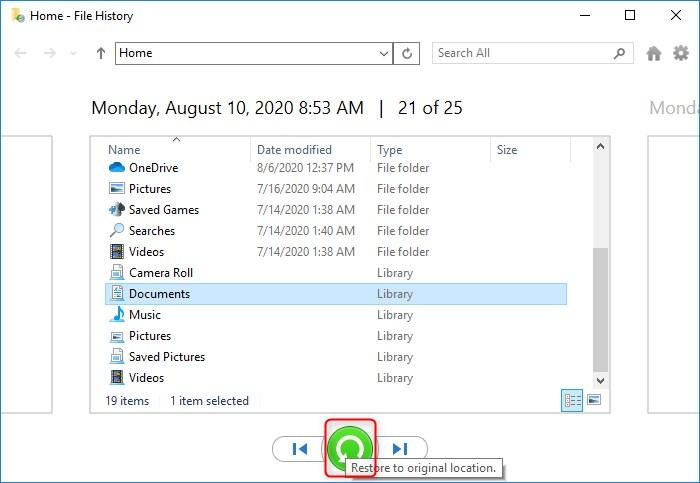
If you are good at maintaining backups of your important files and folders, then your deleted photos might be present in this backup. Windows provides an in-built File History backup utility, which, when enabled on your device, creates an automatic backup of all your files and allows you to restore older versions.
Follow the below steps to recover your deleted photos using File History backup:
- Firstly, go to the folder where your SD card photos were originally saved (e.g., Pictures folder).
- Right-click anywhere inside that folder, click Properties and then go to the Previous Versions tab.
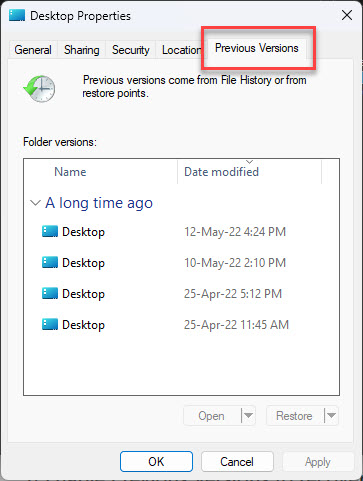
- You’ll see a list of available backup dates. Choose a version from before the photos were deleted.
- Click Open to check if your deleted photos are present in that version.
- Click Restore or Restore to recover files to their original location or to a different folder (as per your requirement).
Method 02: Recover Using Cloud Photos
Along with Windows’ built-in backup utilities, you can use cloud backups such as Google Drive, Google Photos, OneDrive, etc. to create backups of your important photos. Cloud backups are one of the fastest and safest ways to recover deleted photos from an SD card especially if auto-sync was enabled earlier. All you have to do is:
- Firstly, you need to log in to your cloud backup account.
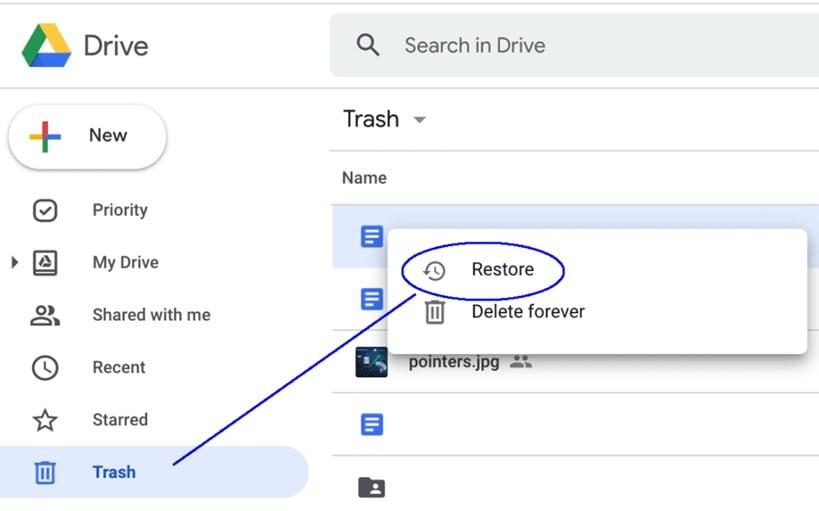
- Look for Trash, Bin, or Recycle Bin and browse through the deleted files present in these folders.
- Now, locate and open the deleted images that you need to restore.
- Click Restore to save selected photos back to your device.
Method 03: Recover Using Photo Recovery Software
Wondering what if you don’t have any of the aforementioned backup of your photos deleted from the SD card? Don’t worry – you can use a reliable third-party free photo recovery tool such as Stellar Photo Recovery to get your deleted photos back. This all-in-one photo recovery software can recover photo due to accidental deletion, formatting, system errors, and many other reasons. Along with photos, you can use this tool to recover your deleted audio and video files of several file formats.
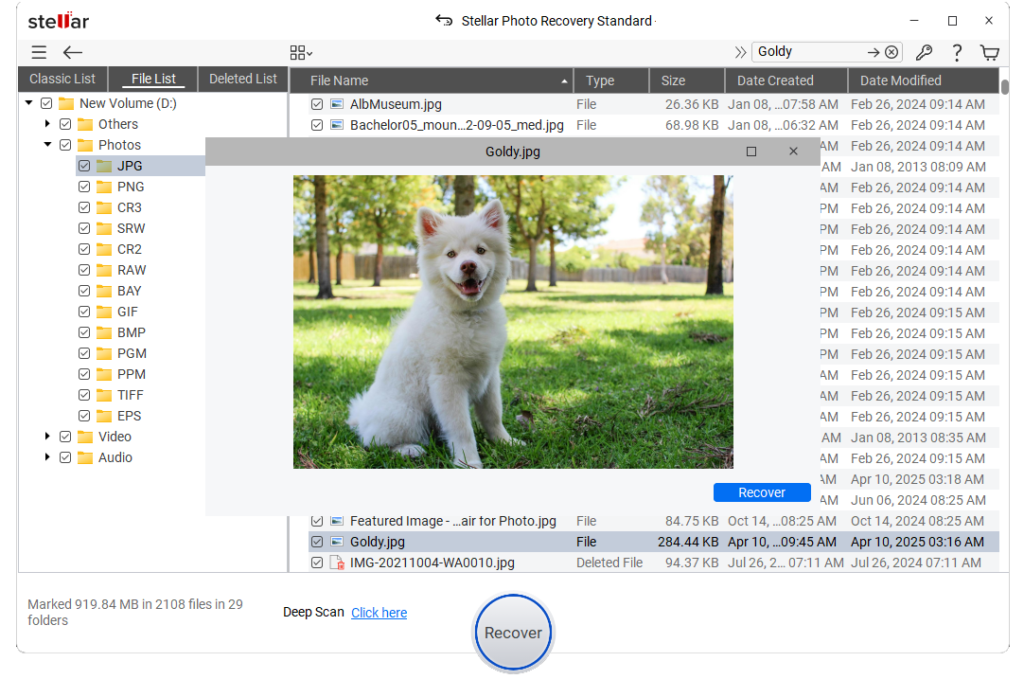
The Stellar Photo Recovery software supports multimedia files from various internal or external storage devices, including hard drives, SD cards, USB drives, etc. This free photo recovery tool supports recovery of deleted photos of various file formats, including JPEG, PNG, RAW, TIFF, BMP, and GIF. This tool also lets you preview the recoverable files before restoring them.
Here’s how to recover photos deleted from SD cards using the Stellar Photo Recovery software:
Step 1: Download and install the Stellar Photo Recovery software from its official website on your Windows computer. Also, connect your SD card to that computer using a reliable card reader.
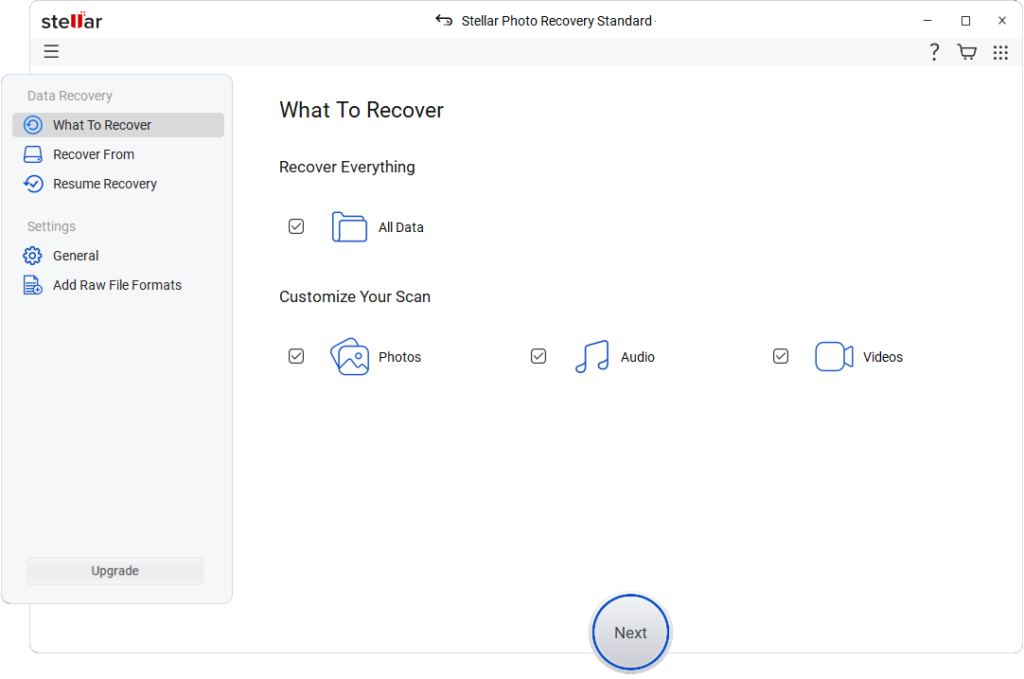
Step 2: Launch the software and from the homepage, select Photos (as you need to restore deleted pictures) and click Next.
Step 3: Now, click Scan to initiate the scanning process and wait till it is completed. If initial results are limited, enable Deep Scan for a more thorough search of the SD card.
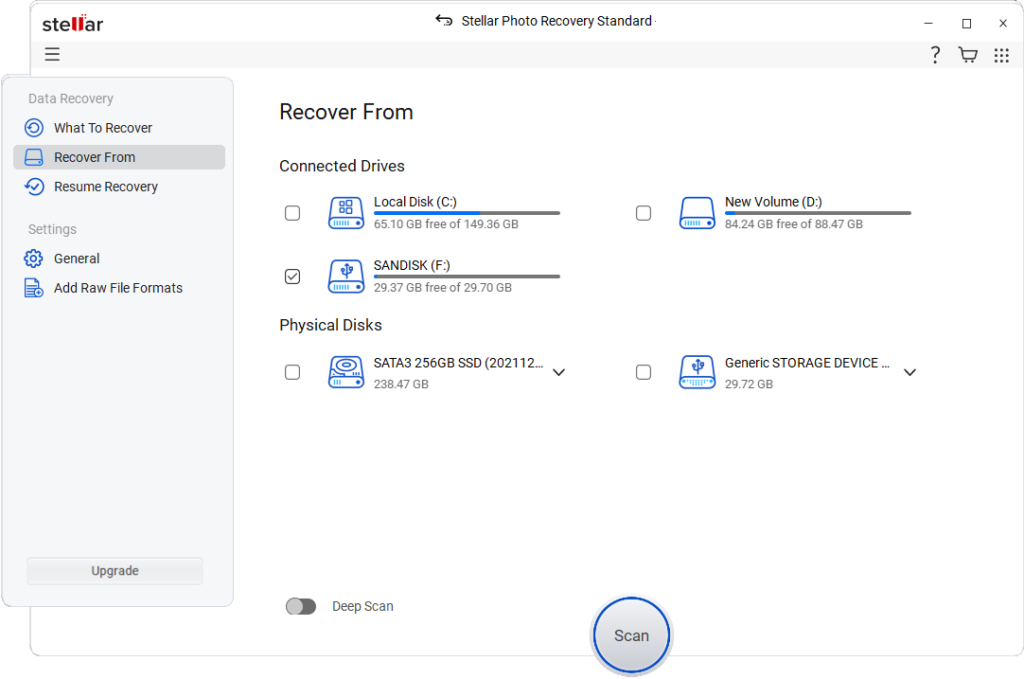
Step 4: After scanning, preview the recovered images to verify their quality and relevance. Select the photos you want and click Recover to save the selected photos back to your device.
Note: The scan time depends on your PC hardware. Systems with a faster processor and sufficient RAM usually complete photo recovery scans more quickly, especially when using Deep Scan mode.
Free vs Paid Recovery: Which is Best?
Many of you might be wondering whether to switch to paid recovery tools to restore deleted photos, but it’s important to first understand the difference between free and paid options. You can opt for the free version when:
- Photos were deleted recently, increasing the chances of successful recovery before any data gets permanently overwritten.
- No new data has overwritten the deleted files, so the original photo data still remains recoverable.
- You are comfortable using basic recovery features, even if advanced tools or full recovery are not available.
Wrapping Up
In 2026, recovering SD card photos on a Windows PC for free is easier than ever. You can start by checking previously created backups, such as File History or cloud backup options. However, if you don’t have any backup, use a free photo recovery tool like Stellar Photo Recovery. The key action is to avoid saving new files and folders on your SD card, as this may overwrite deleted files and make recovery complex.