
How to Create AI Reels Without Lag or System Issues Using Smart Video Tools
Creating reels with AI has made content creation incredibly simple, even for beginners who have never edited videos before. With just a few images or clips, you can generate engaging visuals in minutes without much effort. However, this ease of use often comes with performance issues that many users do not expect.
If your PC starts lagging, freezing, or crashing while using an AI reel generator, it can quickly turn into a frustrating experience. Many users assume the tool is the problem, but in most cases, the real issue lies with the system itself.
Understanding why this happens can help you fix the problem faster and avoid wasting time trying random solutions. Once you know what is causing the slowdown, improving performance becomes much easier.
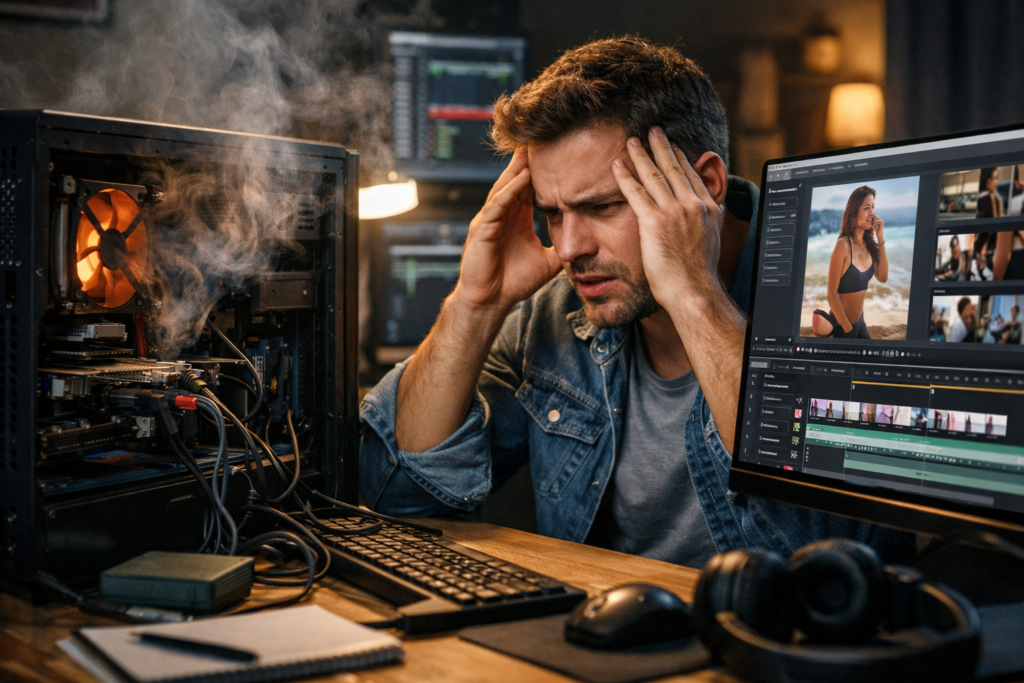
The real reason your PC slows down with AI reel generators
AI tools work by processing large amounts of visual data, which requires consistent computing power from your system. When you upload images or videos, your PC has to manage loading, previewing, and avoiding any hardware performance bottlenecks while assisting with processing tasks at the same time.
If your system does not have enough resources, it begins to struggle with these operations. You may notice delays while clicking, lag during previews, or long waiting times when generating reels. These are clear signs that your hardware is under pressure.
The issue becomes even more noticeable when multiple applications are running in the background. Even simple things like extra browser tabs or background updates can consume memory and reduce your system’s ability to perform smoothly.
Understanding the basic hardware needed for smoother performance
You do not need an expensive or high-end computer to use AI tools effectively, but having a balanced setup makes a significant difference. When your system meets basic requirements, your workflow becomes smoother and more stable.
A modern processor helps your system handle multiple tasks at once without slowing down. At least 8 GB of RAM is required for basic use, but upgrading to 16 GB can improve performance and reduce lag. Storage type also matters, as SSDs are much faster than traditional hard drives.
When these components work efficiently together, your PC can manage AI tasks more comfortably. This reduces the chances of freezing, lagging, or crashing during reel creation.
How an ai reel generator impacts your system performance
An ai reel generator processes images and videos, applies transformations, and builds scenes automatically, which can place a heavy load on your system. If your PC has limited resources, you may experience lag, slow previews, or interruptions while working on your reels.
This is where tools like invideo becomes a helpful solution for those who are dealing with performance issues. Instead of relying completely on your local device, invideo handles most of the heavy processing on its servers, which reduces the strain on your system and improves overall efficiency.
For beginners who want a smoother and less stressful experience, using a cloud-based video creator app allows you to create reels without worrying too much about hardware limitations or system performance.
Common reasons behind crashes and freezing issues
Crashes and freezing usually occur when your system cannot keep up with the workload created by AI tools. This often happens when you are working with large files or trying to perform multiple tasks at once.
High-resolution videos and long clips require more memory and processing power, which can overwhelm your system. When this happens, your PC may stop responding or shut down the process unexpectedly. Overheating can also contribute to these issues.
Outdated software or drivers can make the problem worse by reducing compatibility and performance. Keeping your system updated can help prevent many of these crashes and improve stability.
Simple ways to improve performance without upgrading your PC
You do not always need to upgrade your hardware to fix performance issues. In many cases, small changes in how you use your system can make a noticeable difference in speed and responsiveness.
Closing unnecessary applications and browser tabs can free up memory and processing power. Restarting your PC before starting a project can also help clear temporary load and improve performance. These simple steps are often overlooked but very effective.
Using smaller or compressed files instead of large media can reduce the workload on your system. Even small adjustments like trimming videos or lowering resolution can make your workflow smoother.
Optimizing settings for a smoother experience
Adjusting a few settings can help your system perform better without requiring any technical expertise. These changes are simple but can significantly improve how smoothly your AI tools run.
Lowering preview quality reduces the amount of processing needed in real time. While the visuals may look slightly less detailed during editing, it helps your system stay responsive and reduces lag.
Disabling unnecessary background features and keeping your software updated can further improve performance. These small optimizations add up and create a much smoother overall experience.
Why cloud-based tools can make things easier
AI tools work by processing large amounts of visual data, which requires consistent computing power from your system. Using cloud-based solutions reduces the load on your PC, helping you maintain efficiency and avoid the risks associated with high GPU temperatures during intensive rendering tasks.
For users with basic or mid-range systems, this approach can make a big difference. You can create reels without worrying about crashes, lag, or system limitations slowing you down.
The only requirement is a stable internet connection, which ensures smooth uploads and previews. With reliable internet, cloud-based tools provide a more consistent and user-friendly experience.
The role of file size in performance issues
File size plays a major role in how well your system performs during reel creation. Larger files require more memory and processing power, which can slow down your workflow significantly.
Uploading high-resolution images or long video clips increases the workload on your PC. This often leads to delays, lag, or even crashes during preview and rendering stages.
Reducing file size by compressing media or trimming unnecessary parts can improve performance. Even small changes can help your system handle tasks more efficiently and reduce strain.
Knowing when it is time to upgrade your system
If you have tried all possible optimizations and still face performance issues, it may be time to upgrade your system. You do not need a complete replacement, just improvements in key areas that affect computing performance and overall processing speed.
Increasing RAM can improve multitasking and reduce lag significantly. Switching to SSD storage can make your system faster and more responsive. Adding a basic graphics card can further enhance performance for visual tasks.
These upgrades can make a noticeable difference, especially if you regularly use AI tools. Investing in the right components can save time and improve your overall experience.
Conclusion
If your PC struggles while using an AI reel generator, the issue is usually related to system limitations rather than the tool itself. Once you understand how these tools use your hardware, it becomes easier to identify and fix the problem.
Simple steps like reducing file sizes, closing background apps, and adjusting settings can improve performance without requiring extra investment. These changes can make your workflow smoother and more efficient.
For users who want a hassle-free experience, using cloud-based solutions can reduce most performance challenges. With the right approach, you can turn a slow system into a much more reliable tool for creating reels.