
Digital Debugging for Everyday People: How to Solve Weird Internet Problems Yourself
I spent 40 minutes on hold with Comcast last month before realizing the problem was a $12 Ethernet cable that had gone bad. Could’ve fixed it myself in three minutes. Most internet problems are like that. They seem mysterious until you understand what’s happening, then the fix is usually simple.
The Basics of What Goes Wrong
Your connection passes through a lot of equipment: your device, router, modem, your ISP’s infrastructure, then servers you’ll never see. A problem anywhere in that chain and you’re stuck staring at a loading spinner.
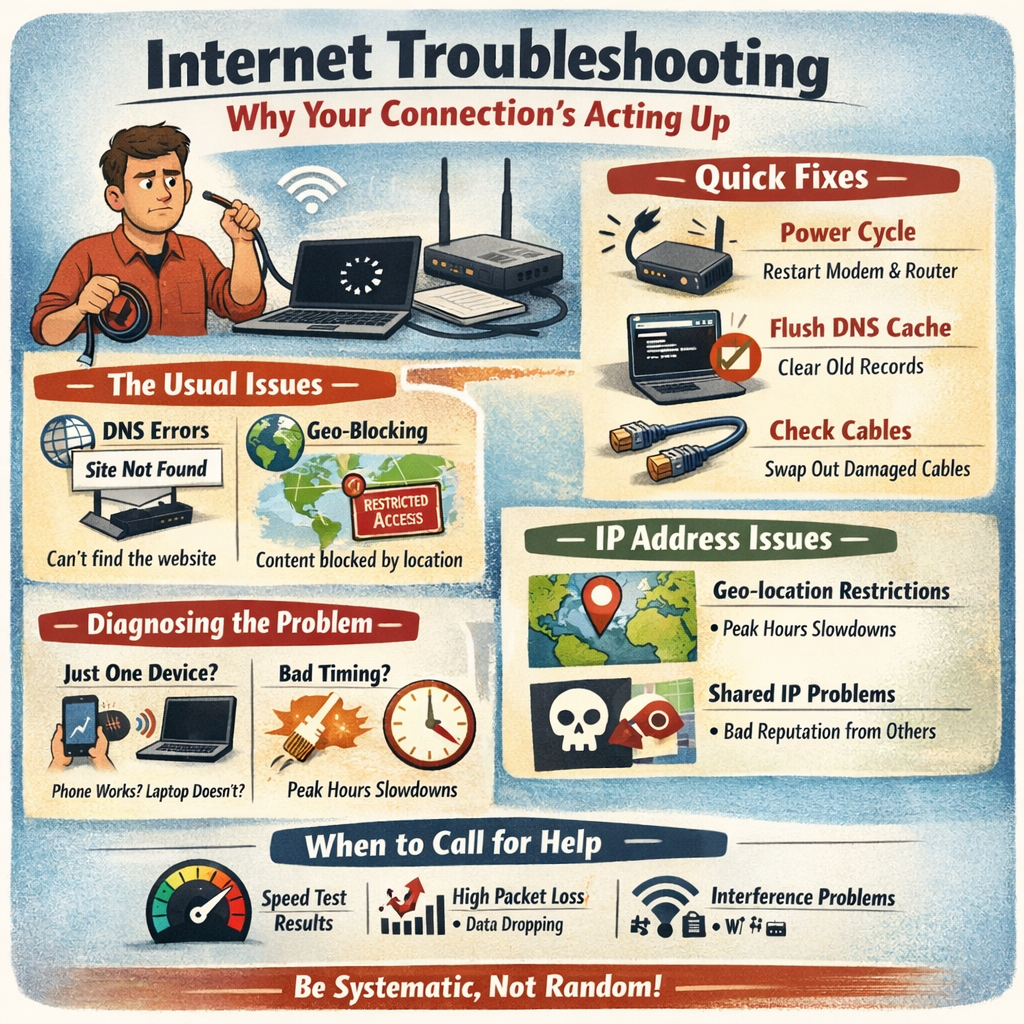
DNS issues cause a surprising number of headaches. DNS matches website names to IP addresses, which are the numerical locations computers actually use. When DNS stops working, you get “site not found” errors even though your WiFi looks perfectly fine. Your computer literally can’t translate “google.com” into an address it can visit.
The other thing that trips people up is geo-blocking. Websites look at your IP address, figure out where you’re located, and sometimes refuse to serve you content. Netflix does this across borders. News sites do it. Even some online stores show different inventory. Arotating proxy lets you test whether a site is blocking your specific IP by routing traffic through different addresses. Useful for figuring out if the problem is you or them.
Stuff You Can Fix in Five Minutes
Power cycling actually works. Unplugging your modem and router for 30 seconds clears out temporary garbage from their memory. Plug the modem back in first, wait for its lights to stabilize, then the router.
Flushing your DNS cache is next. On Windows, open Command Prompt as administrator and run ipconfig /flushdns. Mac users need Terminal and sudo dscacheutil -flushcache. This wipes outdated address records your computer saved.
Check your cables too. Ethernet cables get stepped on, crimped under furniture, chewed by pets. The connection might look fine but be dropping packets. Swap in a different cable if you have one.
Figuring Out Harder Problems
First question: is it just one device or everything? Try loading a webpage on your phone using WiFi. If your phone works but your laptop doesn’t, the laptop is the problem. If nothing works on WiFi, look at the router.
Microsoft’s network troubleshooting guide has decent advice on driver issues. Outdated network adapter drivers cause weird intermittent problems. Device Manager, right-click your network adapter, Update Driver. Takes two minutes.
Timing matters. Problems only happening between 7 and 10pm are usually congestion. Everyone’s streaming at once and your ISP’s equipment is overloaded.
Why Your IP Address Matters
According to Wikipedia’s page on internet geolocation, websites use several methods to figure out where you’re connecting from, with IP lookup being most common. This explains why the same website might work at a coffee shop but not at home. Different network, different IP, different treatment.
Shared IP addresses make this worse. Most residential ISPs assign the same IP to multiple households. If someone on your shared IP got flagged for suspicious activity, you inherit their bad reputation. Some websites throw CAPTCHAs at you constantly or refuse to load.
When You Actually Need Help
Packet loss is one problem you probably can’t fix yourself. If data is disappearing between your house and the rest of the internet, that’s usually something physically wrong with your ISP’s equipment. Run a speed test at fast.com or speedtest.net, compare it to what you’re paying for. If you’re getting 15 Mbps on a 200 Mbps plan, call and complain. Bring the test results.
Intel’s documentation on wireless issues covers interference problems pretty well. Your WiFi operates on radio frequencies that overlap with cordless phones, microwaves, baby monitors, and every other router in your apartment building. Switching channels in your router’s admin panel sometimes helps a lot. Channels 1, 6, and 11 on the 2.4GHz band tend to have the least overlap.
Write stuff down before you call support. What error messages you’re seeing, what times the problem happens, what you’ve already tried. Gets you past the script faster.
Keeping Things Running
Router firmware updates matter more than people think. Manufacturers patch security holes and fix bugs regularly. Check yours every few months. Same with device drivers on your computer.
If your router is more than five years old and you’re having constant problems, it might just be dying. They don’t last forever. A new one runs about $80-150 for something decent and might solve issues you’ve been fighting for months.
Most connectivity problems aren’t actually that complicated once you know where to look. The trick is being systematic about it instead of randomly restarting things and hoping for the best.