
Display 1
Display 2
| Name | Width | Height | Area | Resolution | PPI | Optimal distance | Minimal distance |
|---|
I built this Monitor Size Comparison Tool to make monitor size comparison simple and clear. It checks real screen dimensions, not just the diagonal but the actual width and height too. It also works as a PPI calculator, measuring pixels per inch using the diagonal resolution and screen size formula. That helps when comparing 1080p vs 1440p vs 4K.
Higher PPI usually makes text sharper, especially below 32 inches. The viewing distance calculator also shows how far you should sit. So if you’re deciding between a 24 vs 27 inch monitor or even 32, this tool makes it easier.
You can explore more performance and hardware tools on Bottleneck Calculator to compare resolutions, gaming performance, and system balance before upgrading.
What Does Monitor Size Really Mean?
When I talk about monitor size meaning, I’m talking about the diagonal measurement, not the width or height. Screen size in inches measures from one corner to the opposite corner. This standard started back in early CRT television days and still applies today. A 24 inch monitor and a 27 inch monitor can both use 16:9 aspect ratio, but their real width and height change because of that ratio. And here’s where people get confused. Resolution vs size is different. Two monitors can both be 27 inches, yet one looks sharper because it has higher PPI.
Diagonal Size vs Actual Width & Height
I see this confusion a lot. Diagonal screen size does not tell you the real monitor width and height. Monitor brands measure from one corner to the opposite corner. That gives the diagonal number. But your desk cares about physical monitor size, meaning the real screen dimensions. Most displays use a 16:9 aspect ratio, so width and height come from that ratio using the Pythagorean theorem.
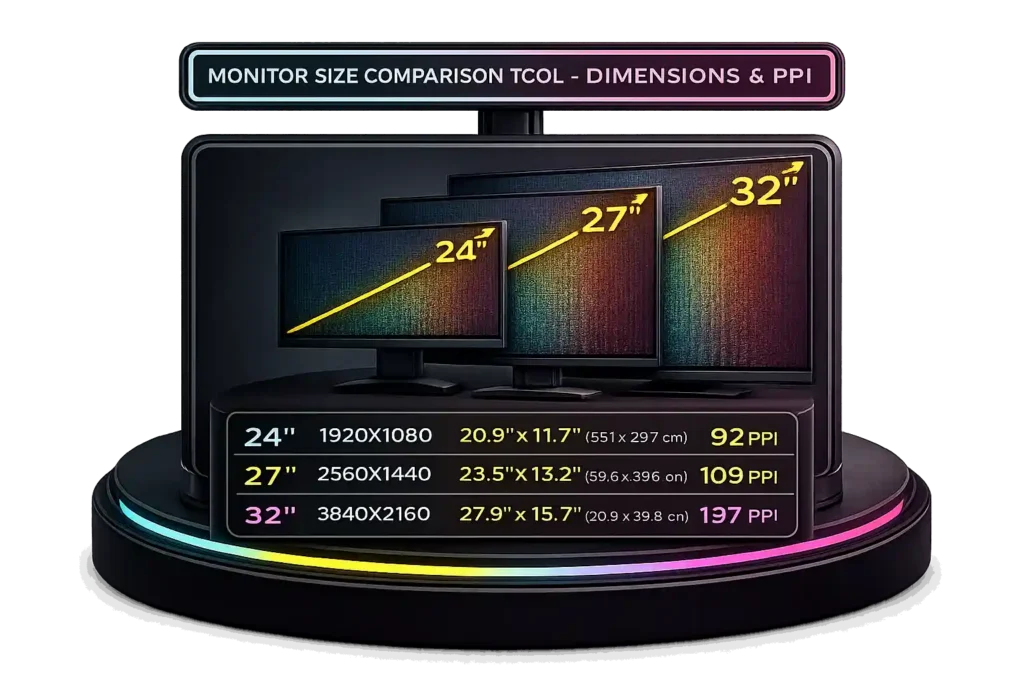
For example, a 27 inch 16:9 monitor measures about 23.5 inches wide and 13.2 inches tall, around 59.7 cm by 33.6 cm. And if you go ultrawide 21:9, the width becomes much larger even at the same diagonal.
Why a 27 Inch Monitor Is Not Much Bigger Than 24 Inch
I’ve compared 24 vs 27 inch monitor setups many times, and the jump is smaller than people think. Both usually use a 16:9 aspect ratio, so the 3 inch difference is diagonal, not straight across the width. In real monitor size comparison, a 27 inch vs 24 inch screen is only about 12 to 13 percent wider. The total screen area difference is around 26 to 27 percent because area scales by square. On a normal desk, that feels moderate, not huge. Desk depth also changes how big it looks. And honestly, resolution like 1080p vs 1440p affects sharpness more than the size jump alone.
Monitor Size Comparison by Use Case
Work
Winner: 27 inch or larger
For normal office work, I’d say 27 inches is the sweet spot. It gives more space for documents and browser tabs. If multitasking is heavy, an ultrawide monitor 34 inch or even 49 inch ultrawide works well. But here’s something people miss. A 34 inch ultrawide does not give more screen area than a 32 inch 16:9. It is just wider, not taller. A 40 inch ultrawide like the Dell U4025QW has about the same height as a 32 inch monitor, just much wider. So for best monitor size for work, width helps with side by side apps, but height controls how much you see vertically.
Content Creation
Winner: 27 inch or bigger
For monitor for content creation, I usually recommend 27 inch or 32 inch at minimum. Bigger panels help when editing photos or designing layouts. If you edit video, an ultrawide monitor 34 inch gives extra room for long timelines. That makes trimming clips easier, especially when working with precise timestamps using our Timecode to Frame Converter for frame-accurate edits. But if you mainly create 16:9 content like YouTube videos, a 27 or 32 inch 16:9 fits the frame perfectly. You see the full canvas without black bars.
Multi Monitor Setup
Winner: 24 to 25 inch for most desks
For a dual monitor setup size, 24 or 25 inches feels balanced. Two 27 inch monitors take a lot of width. In fact, two 27 inch 16:9 screens equal almost the same width as a 49 inch ultrawide, which usually uses a 32:9 ratio. That 49 inch ultrawide acts like two 27 inch monitors fused together. If desk space is tight, 24 inch panels fit better. I also like using a vertical 27 inch as a second monitor for reading long pages.
Gaming
Winner: Depends on game style
For best monitor size for gaming, I split it by type, but actual smoothness also depends on how many frames your system can push, which you can estimate using our FPS Calculator before choosing resolution or refresh rate. Esports players often choose 24 vs 27 inch gaming screens, usually 24 or 25 inches, because high refresh rate and closer viewing help focus.
For immersive games, a 34 to 49 inch ultrawide feels huge and cinematic. But consoles change things. A 4K monitor for PS5 or Xbox Series X runs at 3840 by 2160 pixels and does not support ultrawide resolutions. So for console gaming, 27 to 32 inch 4K makes more sense.
Technical Differences & Viewing Distance Explained
I see this mistake all the time. Bigger monitor does not mean better performance, and higher resolutions like 4K also increase power consumption, which you can estimate using our Electricity Cost Calculator if energy efficiency is a concern. Monitor resolution comparison matters more than size.
Panel tech also changes image quality. IPS vs VA vs OLED all behave differently. For example, a 27 inch 4K OLED with 3840×2160 resolution shows about 8.29 million pixels and delivers deeper contrast than a 32 inch 1440p VA. So even though 32 inches sounds bigger, the 4K OLED often looks sharper and cleaner.
Technical Comparison by Size
| Size | Approx Width | Approx Height | Aspect Ratio | Common Resolution | Panel Types |
|---|---|---|---|---|---|
| 22–25″ | 19–22″ | 11–13″ | 16:9 | 1920×1080 | IPS, TN, VA |
| 27″ | 23.5″ | 13.2″ | 16:9 | 2560×1440, 3840×2160 | IPS, VA, OLED |
| 32″ | 27.9″ | 15.7″ | 16:9 | 2560×1440, 3840×2160 | IPS, VA |
| 34″ | 31.4″ | 13.2″ | 21:9 | 3440×1440 ultrawide | IPS, VA, OLED |
| 40″ | 36.6″ | 15.4″ | 21:9 | 5120×2160 | IPS |
| 45″ | 41.6″ | 17.3″ | 21:9 | 3440×1440 | OLED |
| 49″ | 47.3″ | 13.3″ | 32:9 | 5120×1440 resolution | VA, OLED |
A 49 inch 32:9 monitor equals two 27 inch 1440p screens side by side. That 5120×1440 resolution basically merges them into one panel.
Now about monitor viewing distance. Screen size should fill about 30 degree field of view for comfort. Some guides mention the 1.6× rule, but that often feels too far for desks. OSHA monitor distance recommendation suggests 20 to 40 inches, or 50 to 100 cm, for computer screens. That works better in real setups. TVs use different rules. A 32 inch TV may suggest around 52 inches viewing distance, which is much farther than a desktop monitor.
Ideal Viewing Distance by Size
| Size | Recommended Distance |
|---|---|
| 24″ | 20–30 inches |
| 27″ | 22–32 inches |
| 32″ | 24–36 inches |
| 34″ Ultrawide | 24–36 inches |
| 40–49″ Ultrawide | 28–40 inches |
And resolution changes everything. If you sit closer, 4K vs 1440p monitor difference becomes clear. At farther distances, pixel density matters less. So viewing distance depends on resolution and even your eyesight.
PPI Pixels Per Inch and Screen Sharpness
I always tell people this. Size alone does not decide clarity. Pixels per inch meaning is what really controls screen sharpness. PPI measures pixel density. And perceived sharpness depends on both pixel density and viewing distance. Apple Human Interface Guidelines explain the Retina display concept this way. A display looks sharp when pixels are not visible at normal viewing distance. So pixel density and how far you sit both matter.
What Is PPI
Pixels Per Inch equals the number of pixels inside one inch of screen space. A higher PPI means smaller pixels packed closer together. That allows finer details to appear smoother. Cambridge in Colour explains that higher pixel density improves visible detail because smaller pixels reduce gaps between image data.
A simple PPI calculator uses screen resolution and diagonal size to measure density, and you can calculate it instantly with our Pixel Density Calculator.
Why Higher PPI Means Sharper Text
Smaller pixels reduce jagged edges, also called aliasing. That makes letters look cleaner and lines look smoother. This becomes important on 27 inch and smaller monitors. If PPI is low, text can look blocky. The human eye can only resolve a certain level of detail at a given distance. When pixel density exceeds what the eye can detect, pixels blend together. That is the Retina display concept Apple describes.
1080p vs 1440p vs 4K PPI Chart
4K resolution equals 3840×2160 pixels, about 8.29 million pixels total. That huge jump increases density on the same screen size.
| Size | 1080p | 1440p | 4K 3840×2160 |
|---|---|---|---|
| 24″ | ~92 PPI | ~122 PPI | ~184 PPI |
| 27″ | ~82 PPI | ~109 PPI | ~163 PPI |
| 32″ | ~69 PPI | ~93 PPI | ~138 PPI |
This monitor pixel density chart shows why 1080p vs 1440p vs 4K PPI makes a big difference, especially at normal desk viewing distances.
Optimal Viewing Distance Calculator and Screen Angle Guide
I get this question a lot. What is the optimal monitor viewing distance? The answer comes from viewing angle science, not guesswork. THX viewing distance guidelines explain that immersion feels best around a 36 degree viewing angle, with general comfort between 30 to 40 degrees. That angle decides how much of your field of view the screen fills. Monitors are different from TVs because we sit much closer at a desk. So the math matters more here. A proper viewing angle calculator helps balance clarity and comfort.
How Viewing Distance Is Calculated
SMPTE 30 degree standard recommends about a 30 degree viewing angle for an immersive but comfortable experience. The field of view calculation uses simple geometry.
Distance equals Screen Height divided by tan of Viewing Angle divided by 2.
Distance = Screen Height ÷ tan Viewing Angle ÷ 2
This formula calculates how far you should sit so the screen fills your vision correctly. A wider angle like 36 degrees feels more cinematic. A smaller angle feels more relaxed.
Ideal Viewing Distance by Monitor Size
| Monitor Size | Recommended Distance |
|---|---|
| 24″ | 20–30 in / 50–75 cm |
| 27″ | 24–36 in / 60–90 cm |
| 32″ | 28–42 in / 70–105 cm |
| 34″ Ultrawide | 28–38 in / 70–95 cm |
| 40″ | 32–48 in / 80–120 cm |
| 49″ 32:9 | 36–50 in / 90–127 cm |
This monitor distance chart follows the 30 to 40 degree viewing angle principle.
What Happens If You Sit Too Close
If you sit too close, eye strain increases. You move your neck more to scan the screen. On low PPI monitors, pixel structure becomes visible. Higher PPI displays allow slightly closer seating without visible pixelation. OSHA recommends roughly 20 to 40 inches from a monitor for ergonomic safety. So comfort, resolution, and angle all work together.
Optimal Viewing Distance Calculator & Screen Angle Guide
I always explain this using standards, not guesses. Optimal monitor viewing distance comes from field of view calculation, usually between a 30 degree viewing angle and 40 degrees. THX viewing distance guidance recommends about 36 degrees for cinematic immersion, with general viewing comfort between 30 to 40 degrees. That angle controls how much of your vision the screen fills. Monitors differ from TVs because we sit much closer at desks, so the angle matters more for comfort and clarity.
How Viewing Distance Is Calculated
The SMPTE 30 degree standard supports immersive viewing at roughly a 30 degree viewing angle. The distance comes from basic geometry.
Distance = Screen Height ÷ tan Viewing Angle ÷ 2
This formula calculates how far you sit so the screen fills your vision correctly. A 36 degree angle increases immersion compared to 30 degrees. A smaller angle feels less intense. A viewing angle calculator simply applies this field of view calculation using screen height.
Ideal Viewing Distance by Monitor Size
| Monitor Size | Recommended Distance |
|---|---|
| 24″ | 20–30 in / 50–75 cm |
| 27″ | 24–36 in / 60–90 cm |
| 32″ | 28–42 in / 70–105 cm |
| 34″ Ultrawide | 28–38 in / 70–95 cm |
| 40″ | 32–48 in / 80–120 cm |
| 49″ 32:9 | 36–50 in / 90–127 cm |
This monitor distance chart aligns with the 30 to 40 degree viewing angle principle.
What Happens If You Sit Too Close
Sitting too close increases eye strain and forces more neck movement. On low PPI panels, individual pixels may become visible. Higher PPI monitors allow slightly closer seating without visible pixelation. OSHA monitor distance recommendation suggests about 20 to 40 inches for ergonomic safety, which fits well within this range.
Monitor Size for Gaming – What Esports Pros Actually Use
I looked at aggregated VALORANT pro monitor settings and CS2 pro monitor size data from ProSettings.net, and the pattern is clear. Most pros use a 24 inch 1080p gaming monitor, usually 24.5 inches. These panels commonly run at 240Hz to 360Hz, and you can check your screen’s actual smoothness using our Refresh Rate Test tool.
That size helps with consistent field of view tracking and keeps eye movement minimal, but stable latency is equally important, which you can check using our Valorant Ping Test. For best monitor size for esports, refresh rate and motion clarity matter more than raw resolution, especially if you experiment with render resolution using our Resolution Scaling Calculator.
Why 24–25” Is Popular in Esports
A smaller screen keeps everything inside central vision. That makes flick shots and tracking easier. A 24 inch 1080p gaming monitor has around 92 PPI, which looks clear enough for competitive play. Many 360Hz esports monitor models are produced mainly in the 24.5 inch size class. Tournaments also standardize this size, so players train on the same setup they compete on.
Why Casual Gamers Prefer 27”
For single player games, 27 inch 1440p gaming feels more immersive. At about 109 PPI, it looks sharper than 1080p at the same distance. RPG and story games benefit from extra detail and screen space. Higher PPI improves image quality, but esports players care more about refresh rate than pixel density.
Field of View Considerations
Larger screens increase immersion but require more eye movement. Competitive players keep their focus tight within a 30 to 40 degree viewing angle. That balance supports speed and comfort.
Common Monitor Size & Resolution Combinations With PPI Benchmarks
I see certain size and resolution combos show up again and again. They work because pixel density hits a practical balance. RTINGS monitor testing measures sharpness and pixel density in a consistent way, which helps compare panels objectively. This monitor size resolution chart shows the most common sweet spots.
| Monitor Size | Resolution | Pixel Density Approx | Best For |
|---|---|---|---|
| 24″ | 1920×1080 1080p | ~92 PPI | Competitive gaming, budget setups |
| 27″ | 2560×1440 1440p | ~108–109 PPI | Balanced gaming and productivity |
| 32″ | 3840×2160 4K | ~138 PPI | Content creation, sharp text |
| 27″ | 3840×2160 4K | ~163 PPI | Maximum clarity, may need scaling |
| 34″ Ultrawide | 3440×1440 | ~109 PPI | Multitasking and immersive gaming |
A 24 inch 1080p PPI around 92 sets the clarity baseline. A 27 inch 1440p pixel density near 109 PPI feels like the modern sweet spot. A 32 inch 4K PPI around 138 looks much sharper, since 4K equals about 8.29 million pixels. Higher PPI improves fine detail, especially at closer viewing distances, though scaling on 27 inch 4K may be needed.
Frequently Asked Questions
Is 27 inch too big for 1080p?
A 27 inch 1080p monitor has about 82 PPI. That is lower pixel density than 24 inch 1080p at about 92 PPI. So text can look softer at close distance. If you sit around 3 feet away, it looks fine. For desk use at 2 feet, 1440p is usually sharper and more comfortable.
Is 24 inch too small for 1440p?
No. A 24 inch 1440p screen has around 122 PPI. That is very sharp. Text and icons may look small without scaling. If you like crisp detail and sit close, it works well. Some people increase UI scaling for comfort.
Does 32 inch need 4K?
A 32 inch 1440p panel has about 93 PPI. A 32 inch 4K has about 138 PPI. The difference is clear, especially for text and creative work. So yes, 4K fits 32 inches better if you want sharp detail.
Is higher PPI always better?
Higher PPI improves screen sharpness, but only up to your viewing distance limit. If you sit far away, you may not see the difference. Very high PPI can also require scaling. So balance matters.
How far should I sit from a 27 inch monitor?
For a 27 inch screen, 24 to 36 inches works well. That keeps the viewing angle near 30 to 40 degrees. Closer gives more immersion. Farther feels more relaxed.
Does size impact picture quality and performance?
Size alone does not change image quality. Resolution and panel type matter more. Performance depends on resolution. 4K requires more GPU power than 1440p or 1080p.
Are small monitors the cheapest?
Usually yes. 24 inch 1080p models cost less because panels are common and easier to produce. Higher resolution and larger panels increase price.
Will a bigger monitor make me a better gamer?
Not automatically. Competitive players often choose 24 to 25 inches for easier focus. Skill, refresh rate, and response time matter more than size.
Can I use a big TV as a monitor?
Yes, but it depends. TVs often have higher input lag and different scaling behavior. A 32 inch TV may work at a desk, but larger TVs require sitting farther back. Make sure it supports proper PC resolution and chroma 4:4:4 for clear text.
